Remote setup is a feature that allows users to set up their Google services before getting their car, typically using a device or phone, by using a companion app.
The remote setup experience consists of three significant parts:
- Remote Google built-in setup on the phone: Lets users configure Google services ahead of time. Preferences are saved in the user's Google Account and retrieved when the same account is used in the car.
- In-car setup: Provides a connection between the companion app (phone) and car, setting the stage for seamless account transfer. The association also supports more features such as calendar and messages transfer, and trusted devices used for authentication.
- Google Account and settings transfer (in-car): Uses the companion app association to help users seamlessly transfer their Google Account from the phone to the car, including signing in to Google and transferring their settings.
The user journey
To create a seamless user experience, consider how user discover, complete, and benefit from remote setup and account transfer. As you design, explore opportunities to both meet their needs and create moments of delight.
Purchasing the car
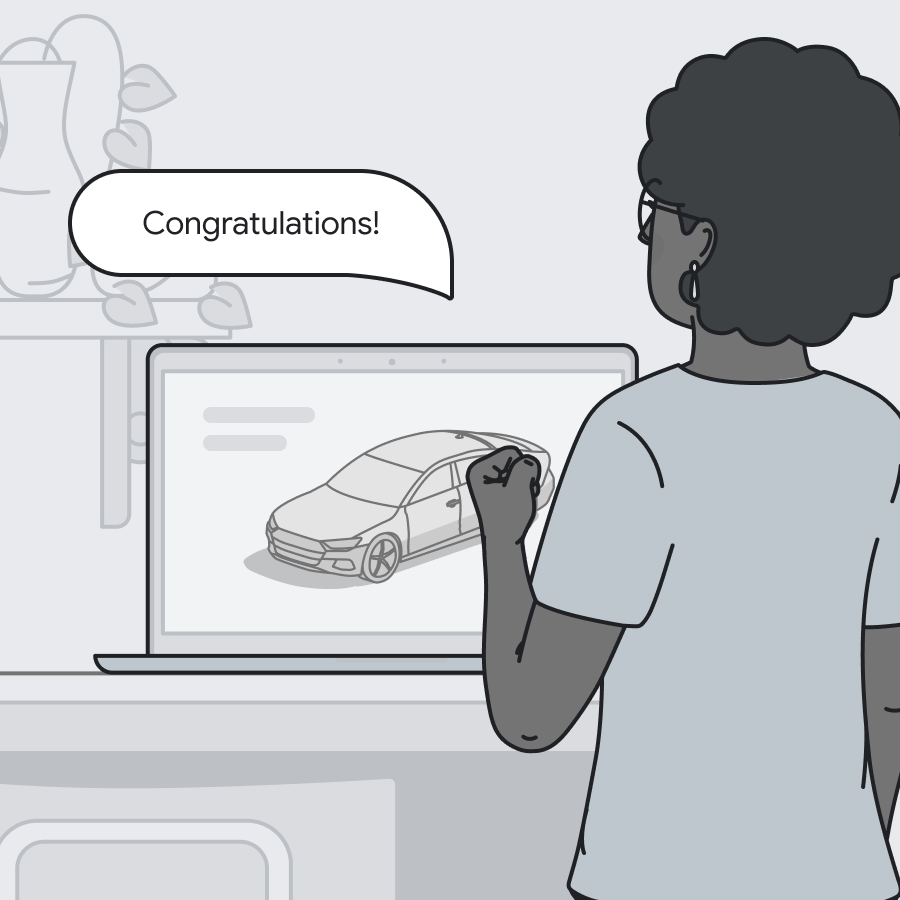 |
Katya just purchased a new car! She is so excited about it, and keen to learn about all the new features before the car arrives. |
Setting up Google Automotive Services (Google built-in) on the phone
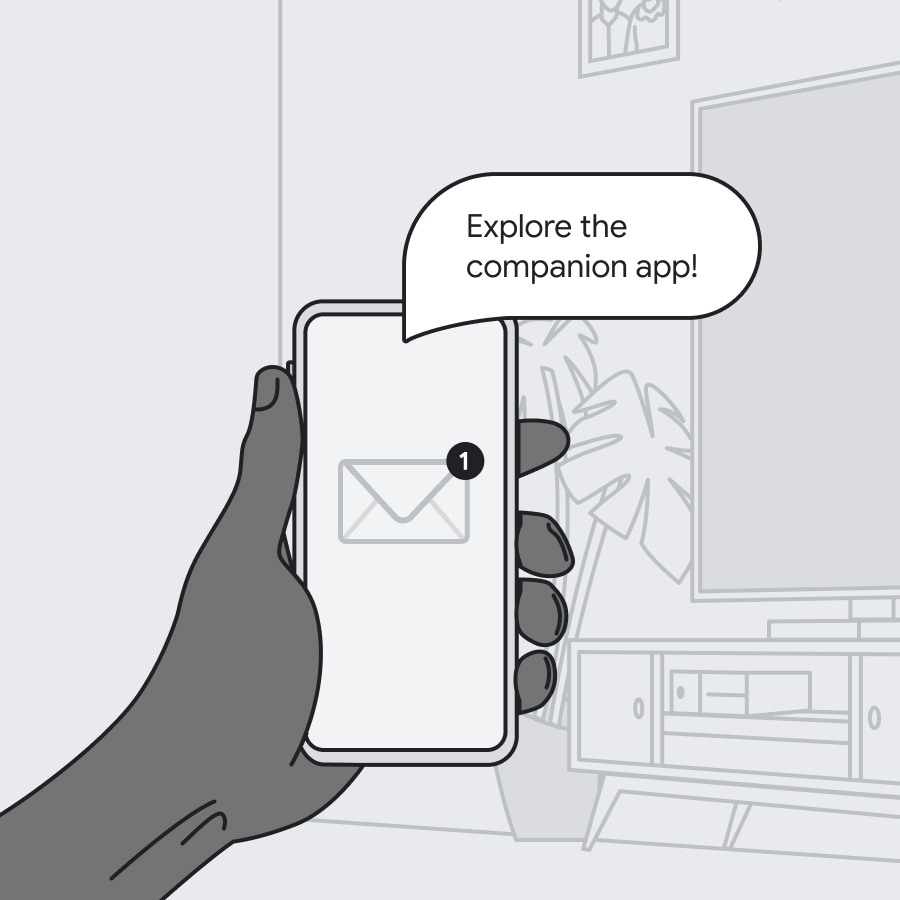 |
She gets a note from the car maker letting her know that there's an app for her car. She can start using it right away! |
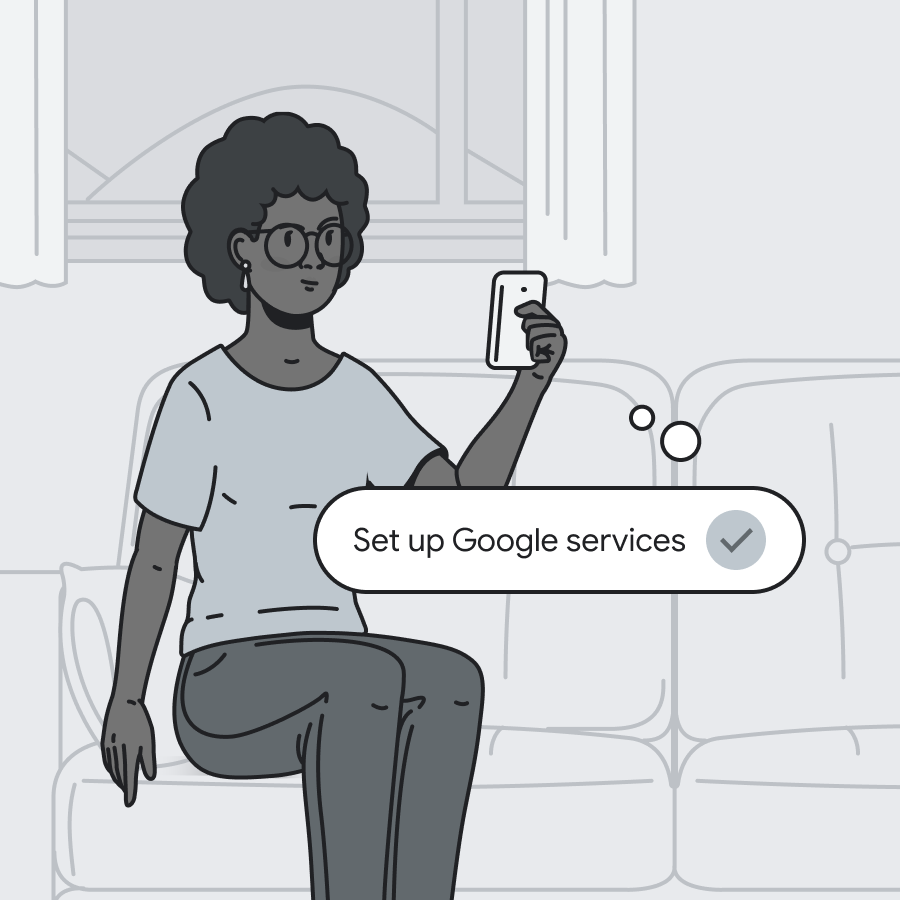 |
She starts exploring the app and sees all the ways she can start setting up her car. She sees the entry point to set up Google services, including downloading her favorite apps for the car from Google Play. It's fast and easy, and she's done in minutes. |
Phone-to-car connection
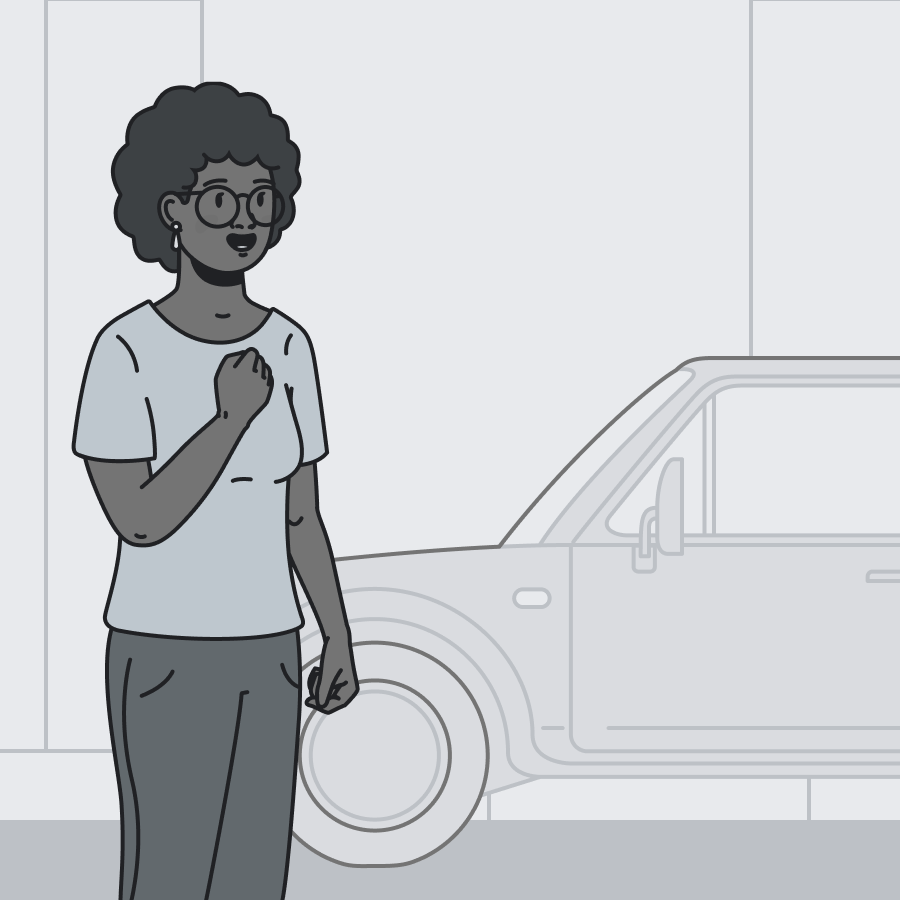 |
Finally, the big day arrives. Her car is here! She can't wait to drive it for the first time. |
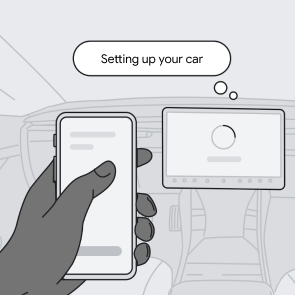 |
She's so excited about the car that she wants to set it up in as little time as possible. She goes through the steps of setting up the car. |
Google Account and settings transfer
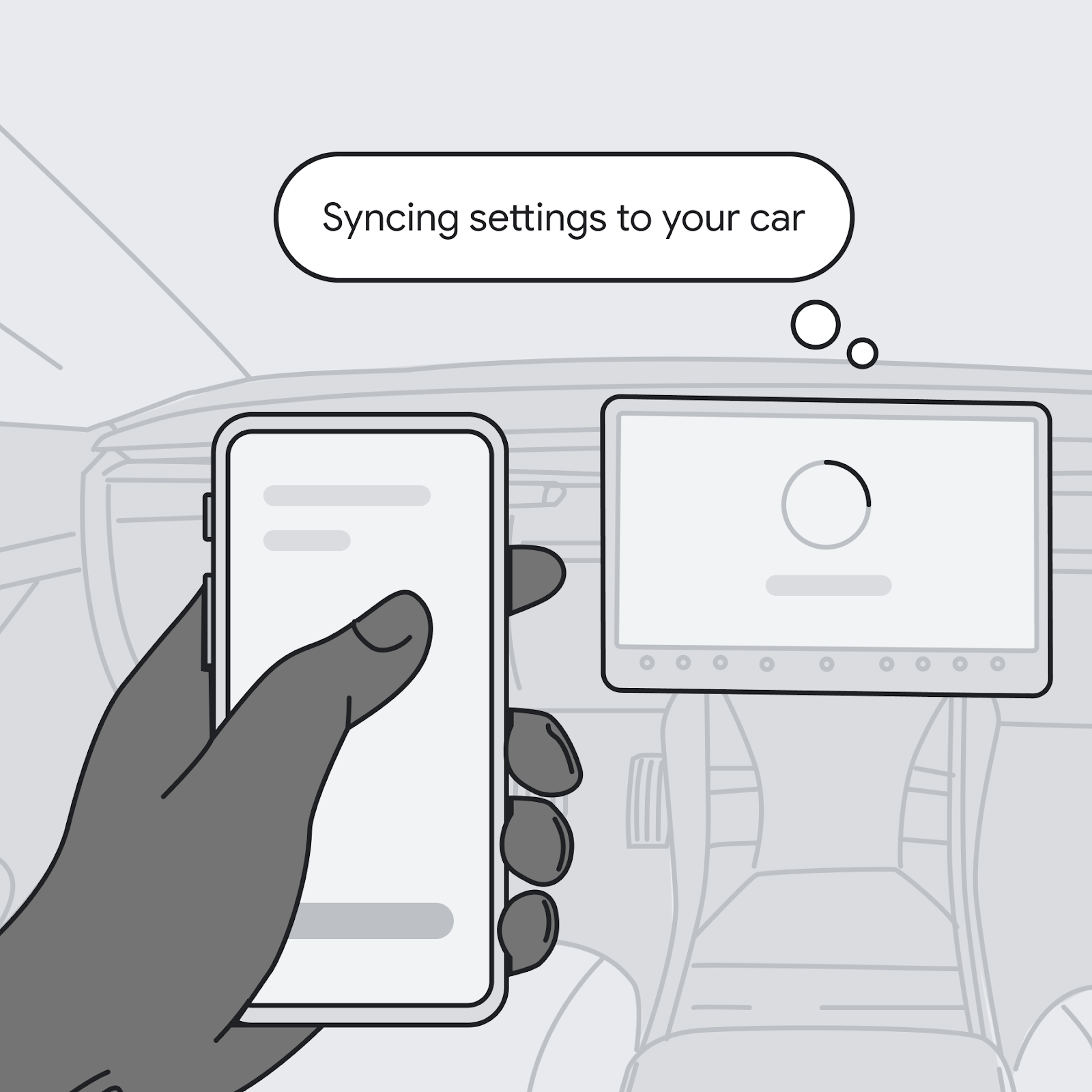 |
She goes through the steps of
syncing her settings to the car.
There are simple instructions to transfer the Google Account from her phone's app to the car itself. |
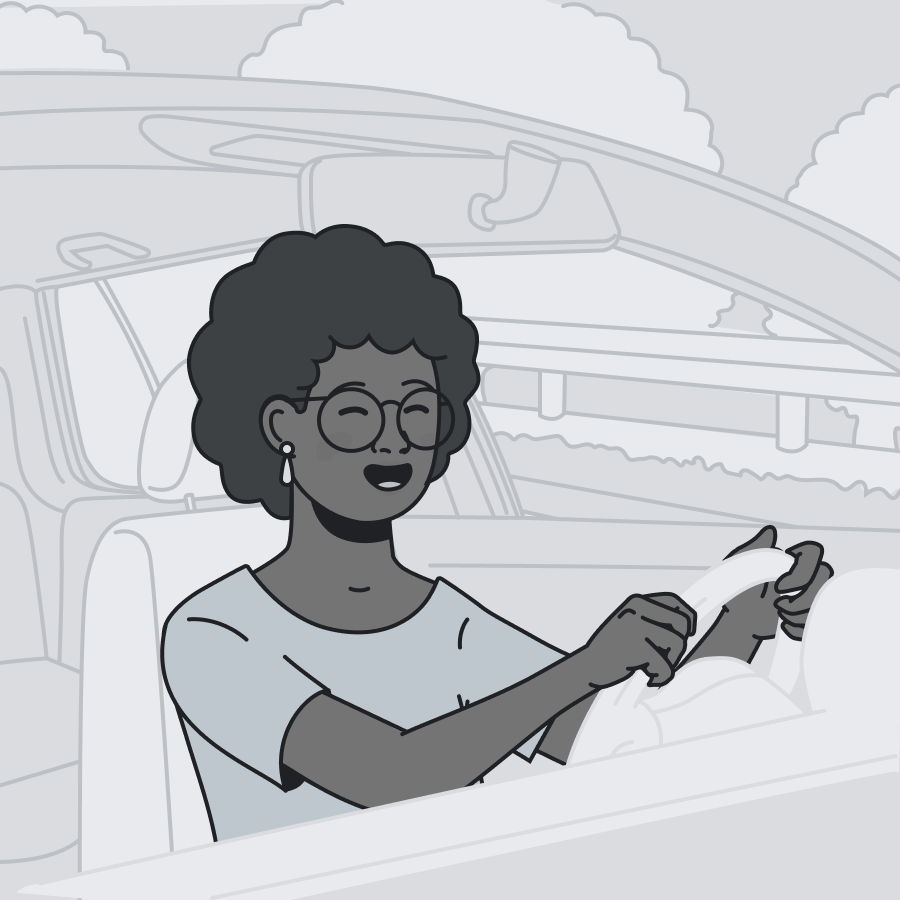 |
Katya is pleasantly surprised at how easy it was to set up all her stuff in the new car. Now she can focus on how fun it is to drive it! |
User flows
The following flows illustrate the screens users see when they set up remotely, and when they later transfer their accounts in the car.
Phone-based setup
Before users get their car, you can educate and encourage them to set up remotely.
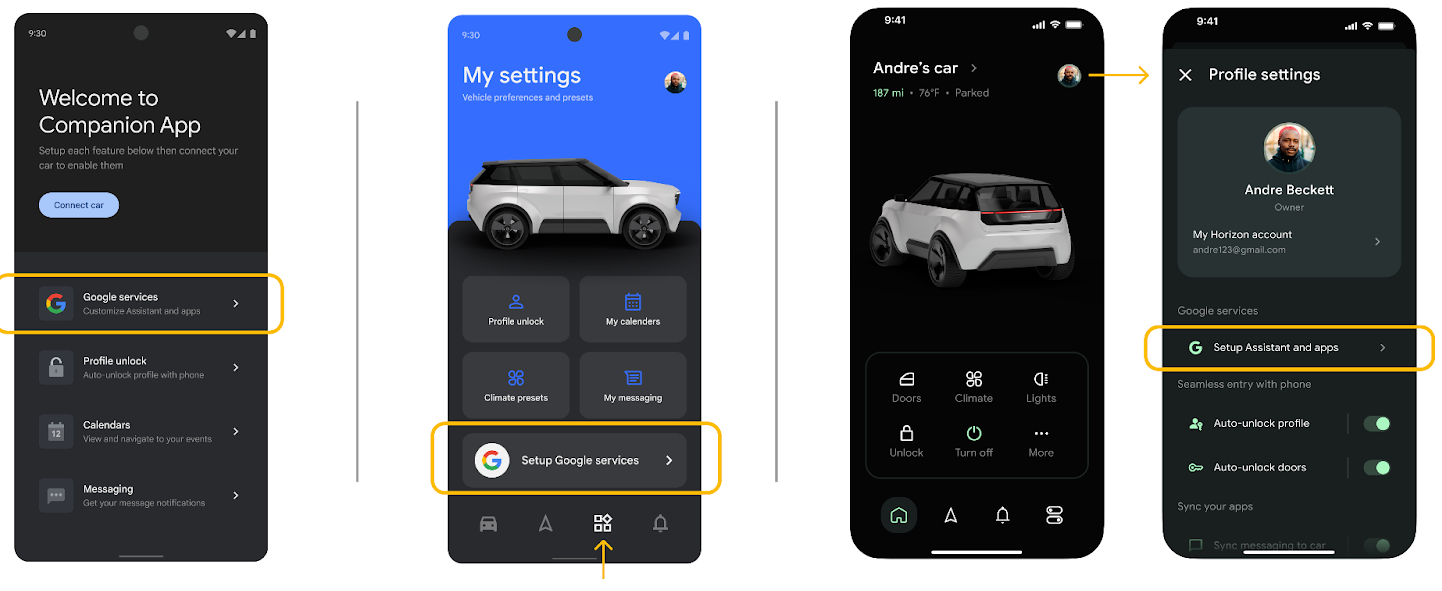
Discover the entry point
In addition to proactive messaging in marketing materials, users are likely to discover entry points at touchpoints like companion app onboarding or settings.
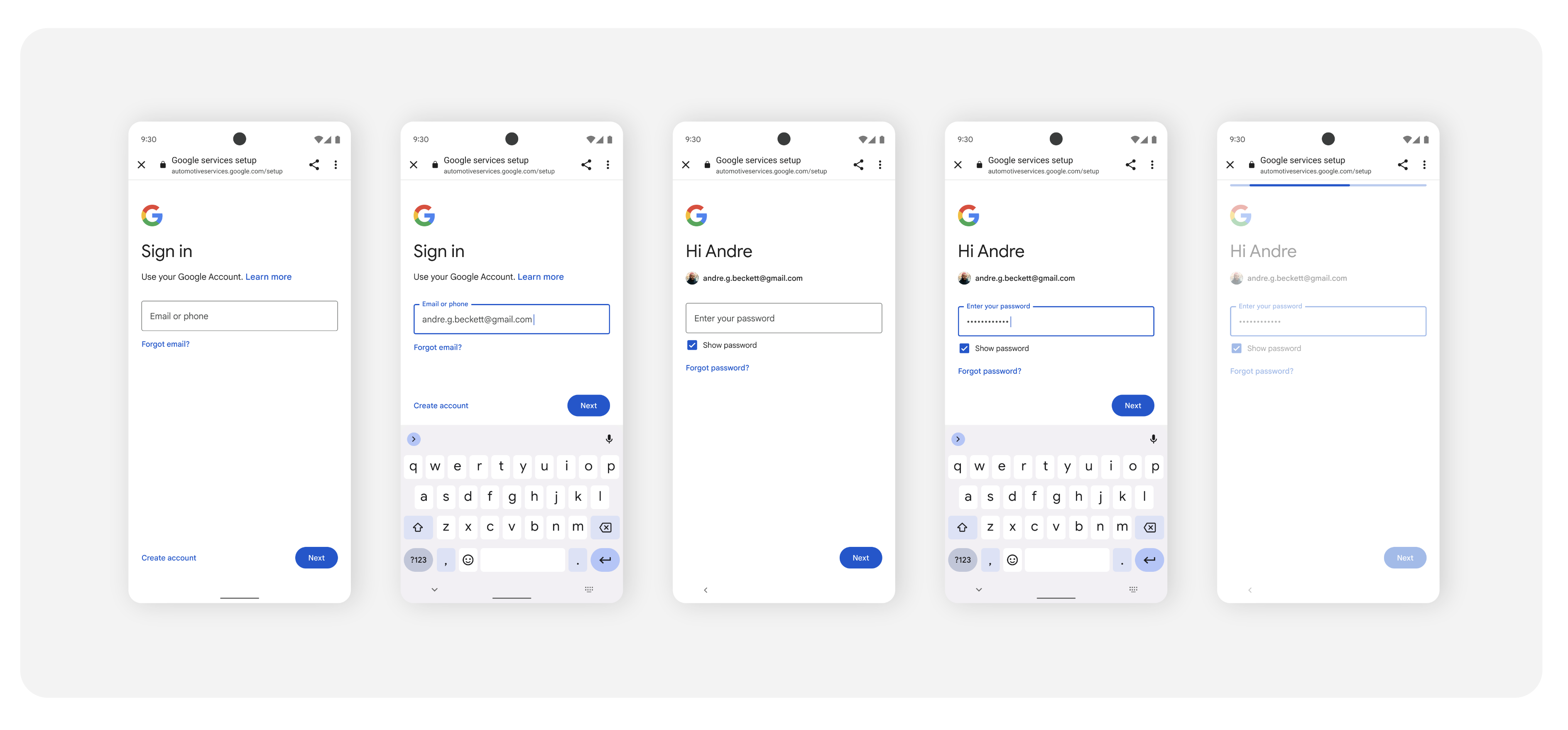
Sign in with Google
Before continuing to remote setup, users need to sign in to their Google Account. This step is needed only for users who aren't already signed in on their mobile device. Users who are already signed in need to select which Google Account they want to use.
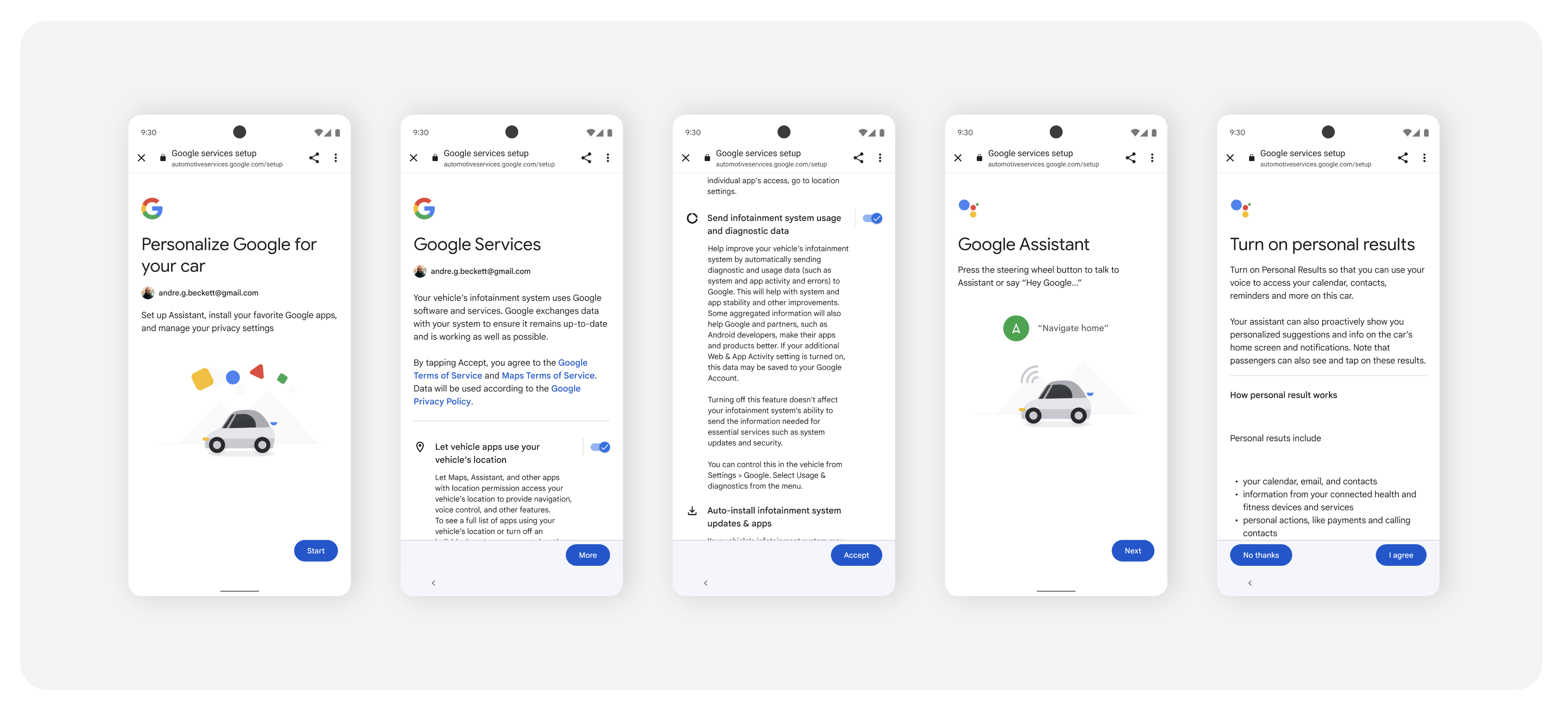
Complete remote Google built-in setup
After signing in, users must consent to Google Services in the car, and they go on to make other privacy choices. This includes agreeing to Google Services, setting up Gemini and apps, and configuring device app settings.
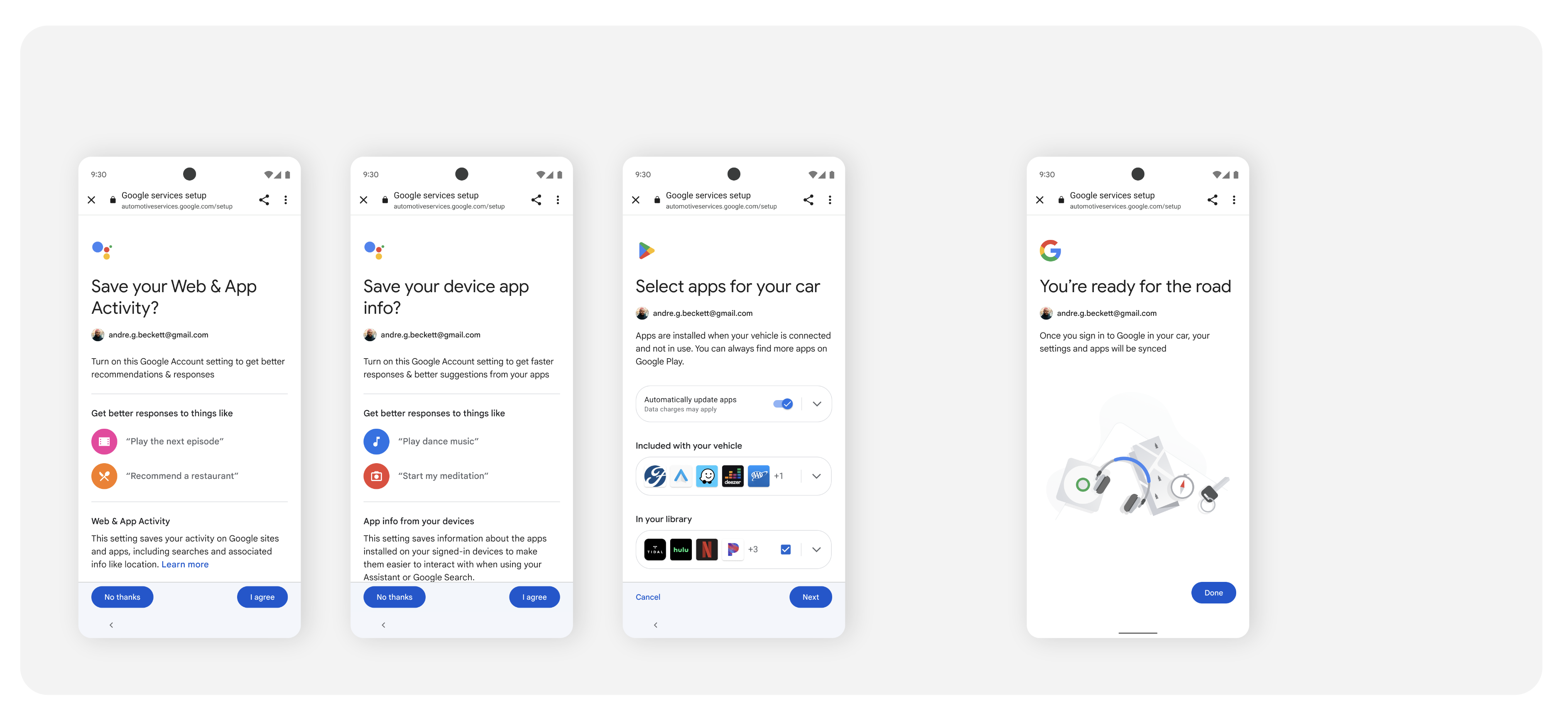
Re-enter remote setup (optional)
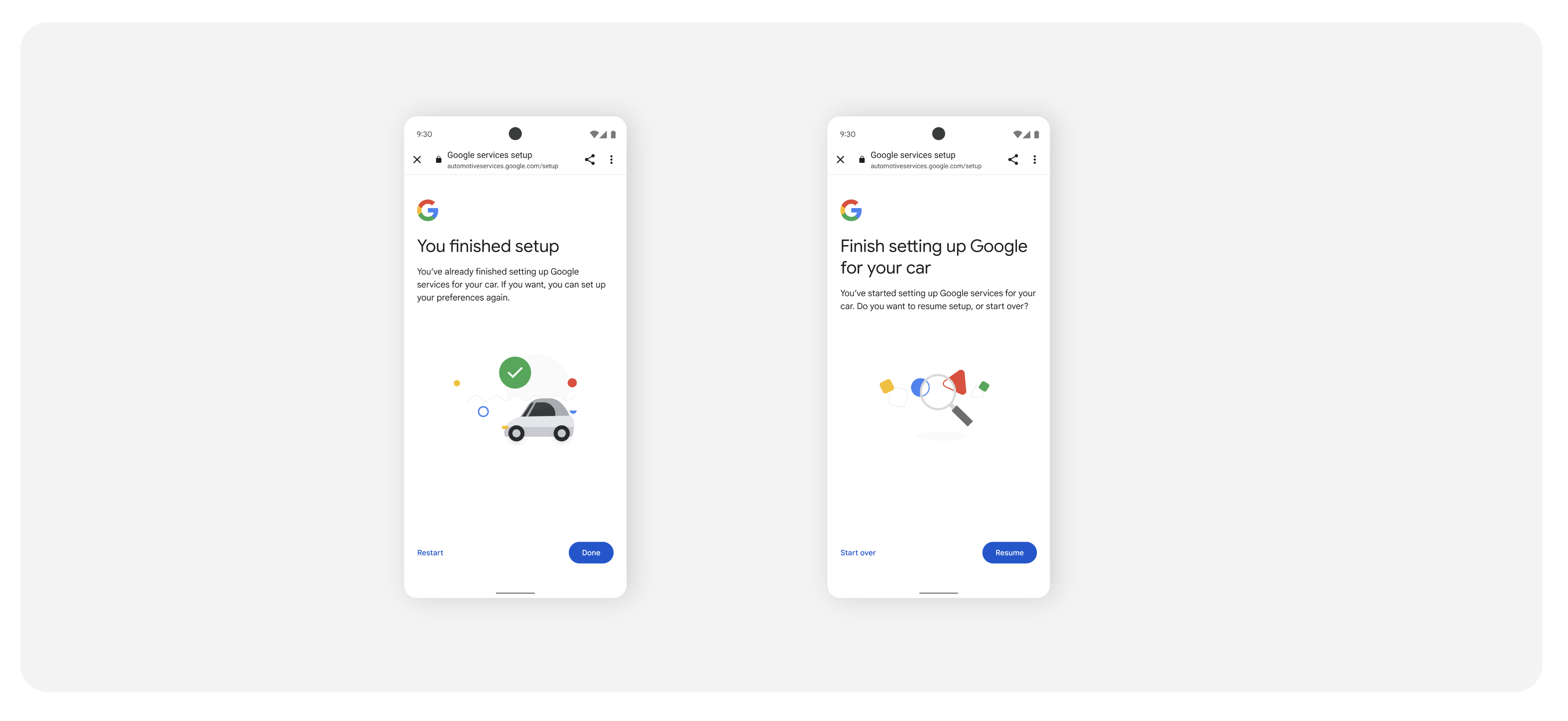
If a user returns to the companion app at a later point, Google clearly communicates their remote setup status. This could include either a reminder that setup is complete, with an option to make changes, or a screen prompting the user to complete setup.
In-car setup
Users who choose to complete remote setup on their phone-based companion app ideally associate the companion app with the car, sign in to their Google Account, and transfer settings to the car.
Associate the companion app with the car
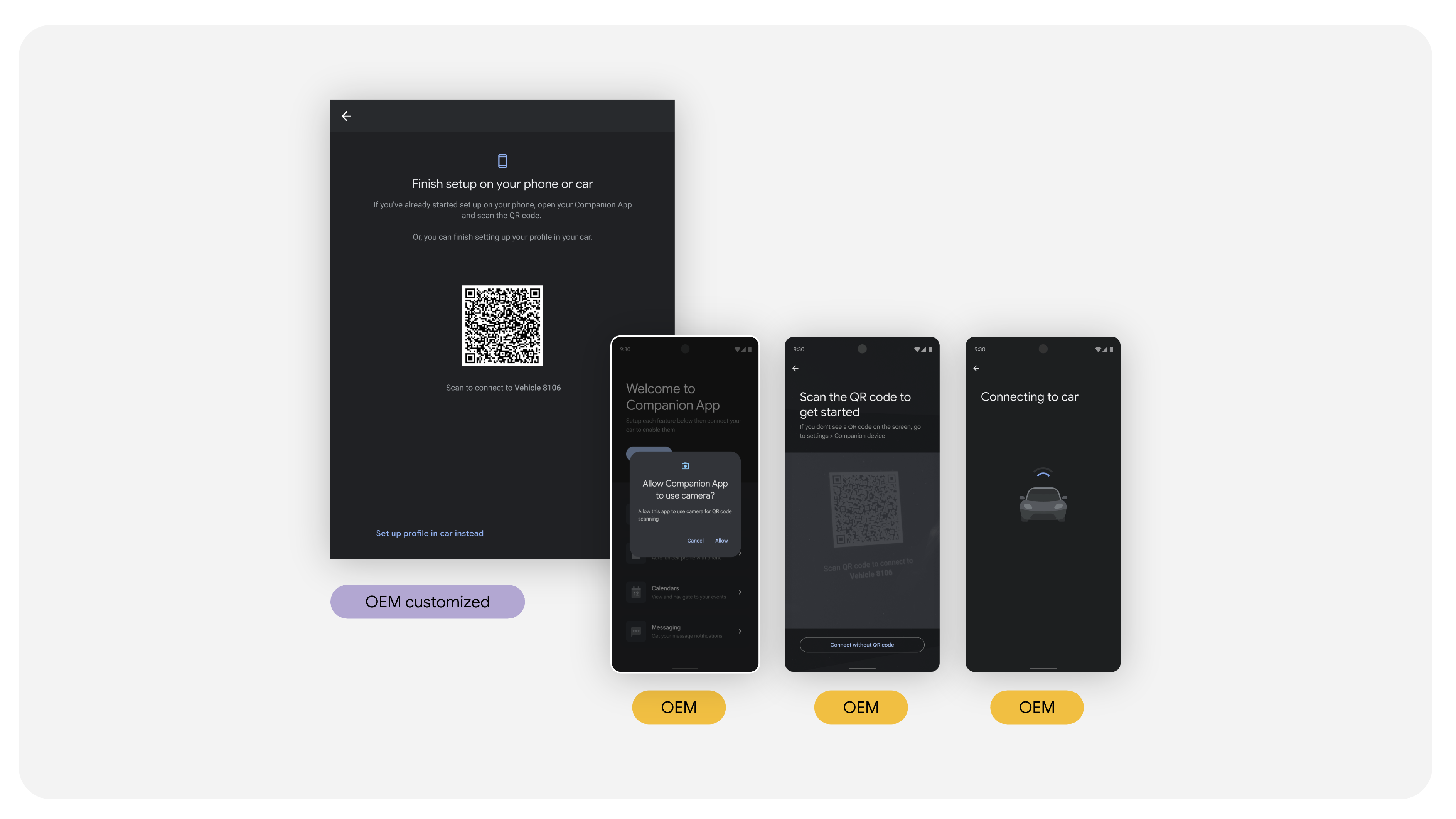
As users enter the car for the first time, they need to associate the companion app with the car. When they set up their car, one of the first screens users see is a prompt to scan a QR code and connect the companion app with their car.
Sign in to Google Accounts and transferring settings to the car
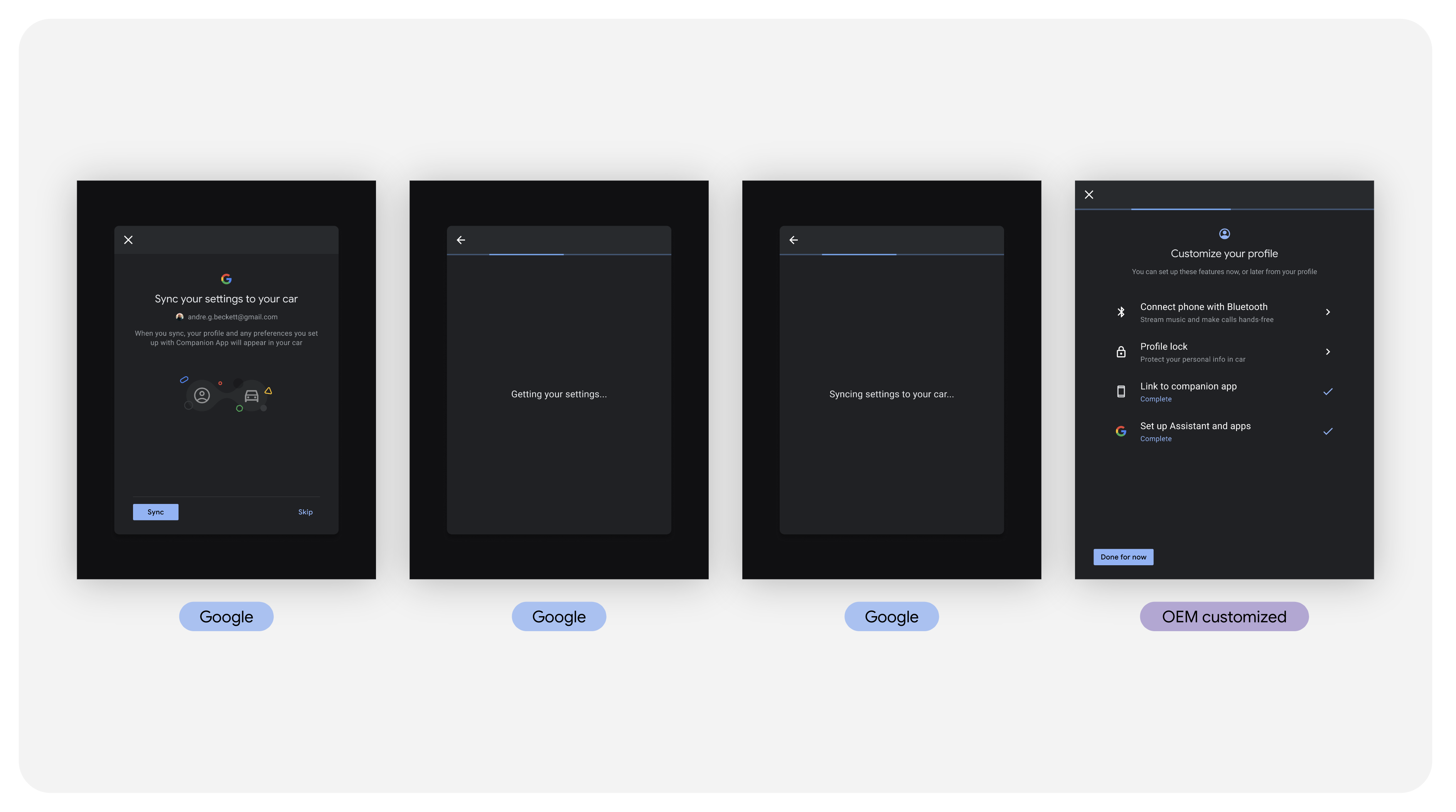
To import and transfer the choices from remote setup, users must first sign in and transfer their Google Account to the car.
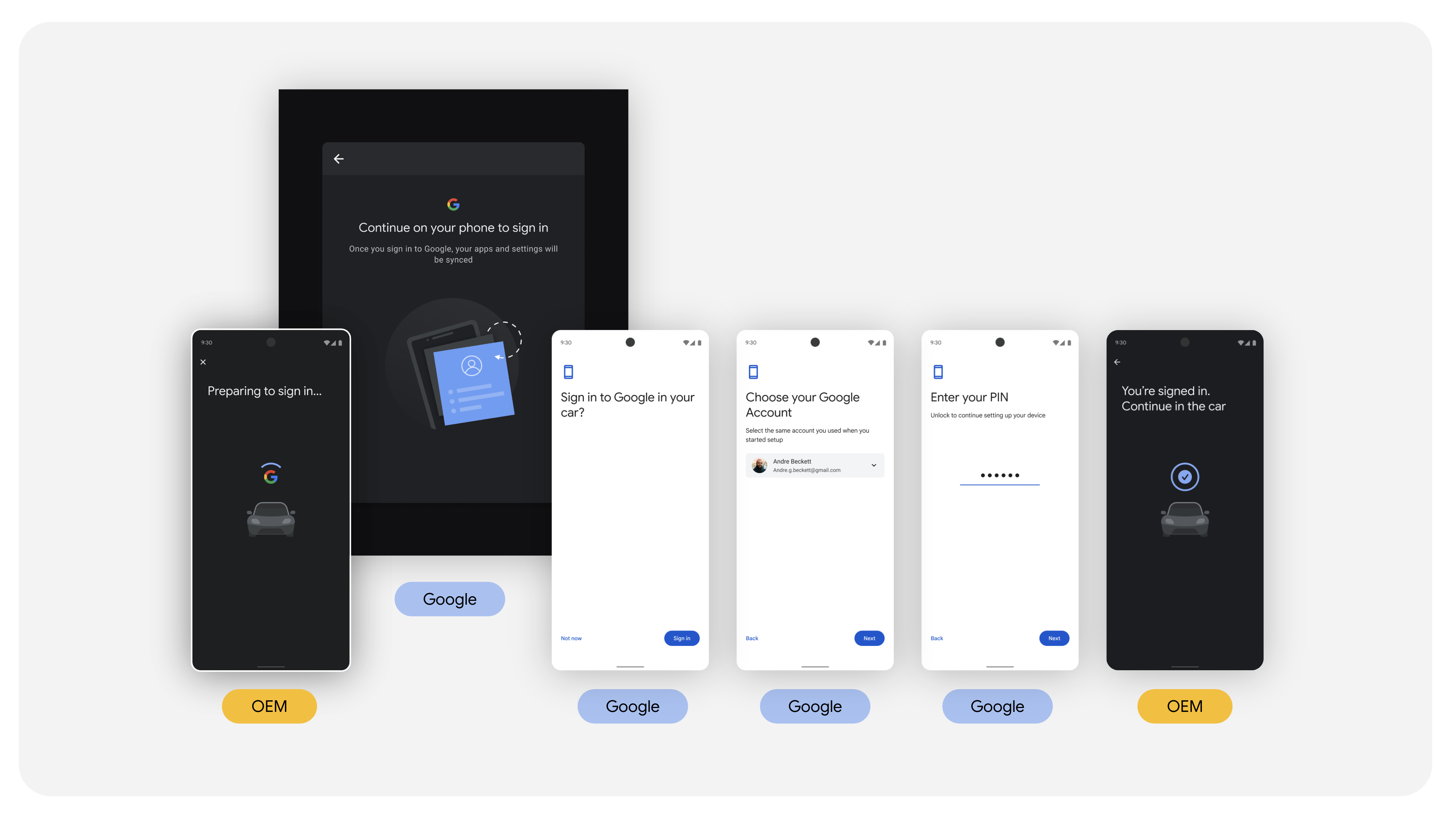
After a user has transferred their account, Google automatically transfers their settings to the car.