These steps help you understand what screens you must create and customize to support remote setup and account transfer from phone to car.
When integrating remote Google built-in setup with your flows, take the following steps:
- Create entry points in your app
- Design the in-car landing page
- Support QR code scanning
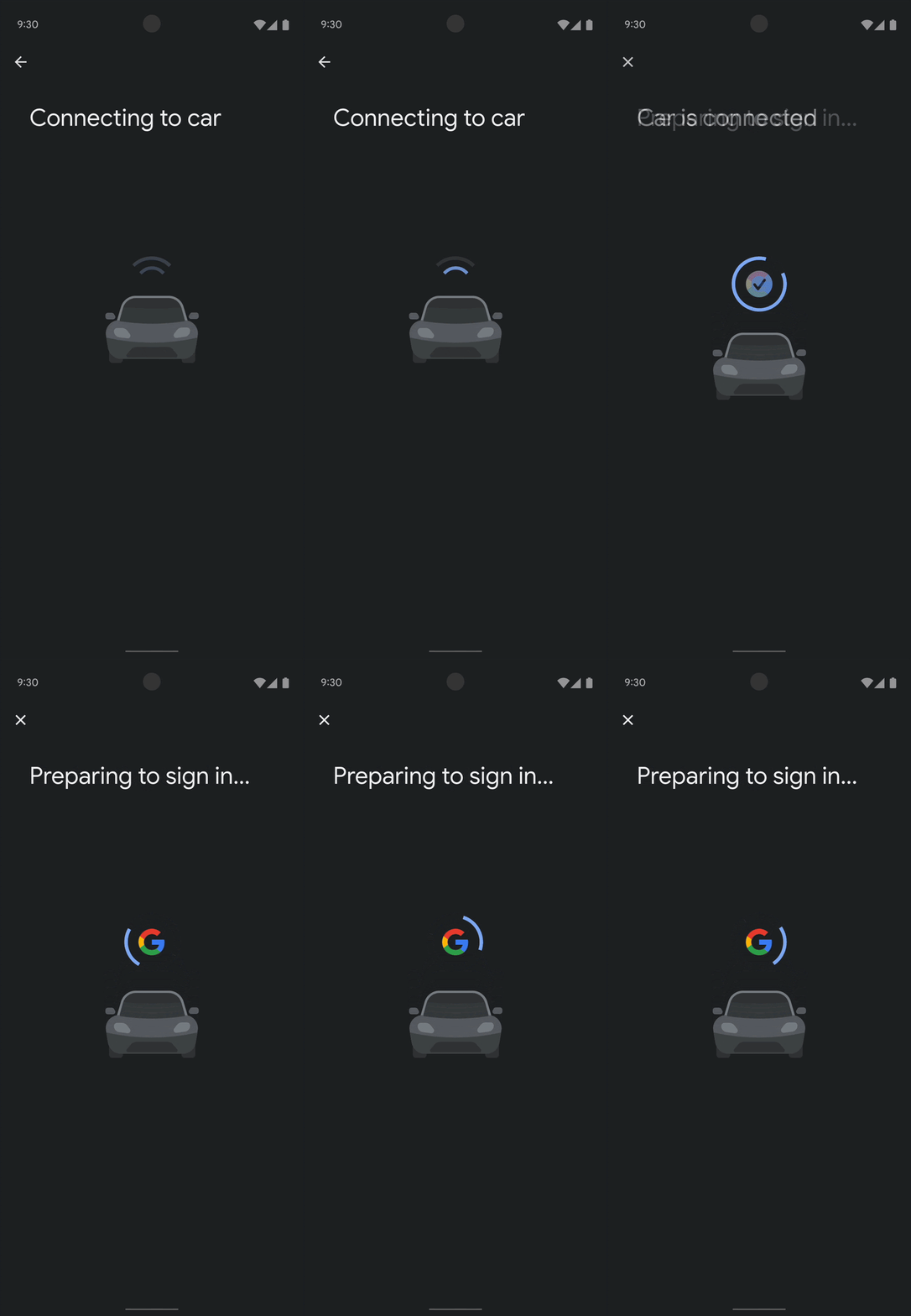
- Design loading screens
- Complete the flow and redirect user attention
- Update entry points
- Identify incompatible apps
In addition to best practices illustrated here, refer to the complete list of general UX requirements.
Roles and responsibilities
You and Google both play a role in designing remote setup flows. Here's a look at the division of tasks.
| Your role | Google's role |
|---|---|
To ensure a seamless integration, you're responsible for:
|
To support remote setup for users, Google is responsible for:
|
Create entry points in your app
You can choose to create entry points to remote Google built-in setup across multiple surfaces. When deciding how to design entry points, consider the following design principles:
- Be proactive: Proactively communicate to users about the remote setup in the app, both using marketing materials, dealer communications, and in-car setup.
- Increase discoverability: To help users learn about remote Google
built-in setup, consider integrating one or multiple natural entry points.
Some strong options could be:
- Part of your app onboarding flow
- A prompt upon first use
- An option in the app home page or settings
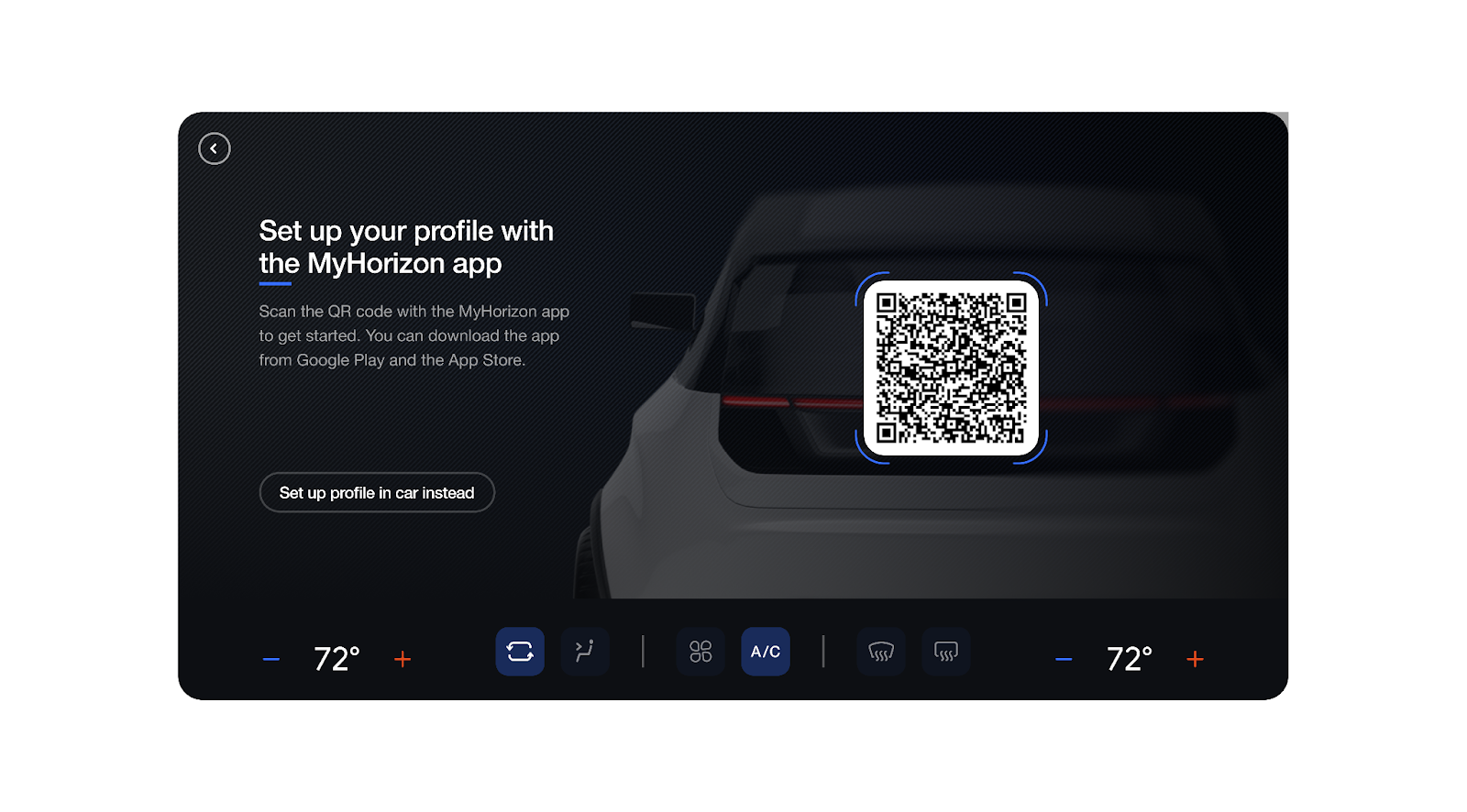
Design the in-car landing page
For users, approaching the car for the first time might come with some uncertainty, even if they've completed remote setup.
Create a smooth transition by developing a strong landing page that clearly communicates what users must do to finish account transfer.
From the landing page, you can choose to have users complete setup either by phone or car screen. You should be aware that the landing page supports both users who have and haven't done remote setup, so design it in a way that supports both use cases.
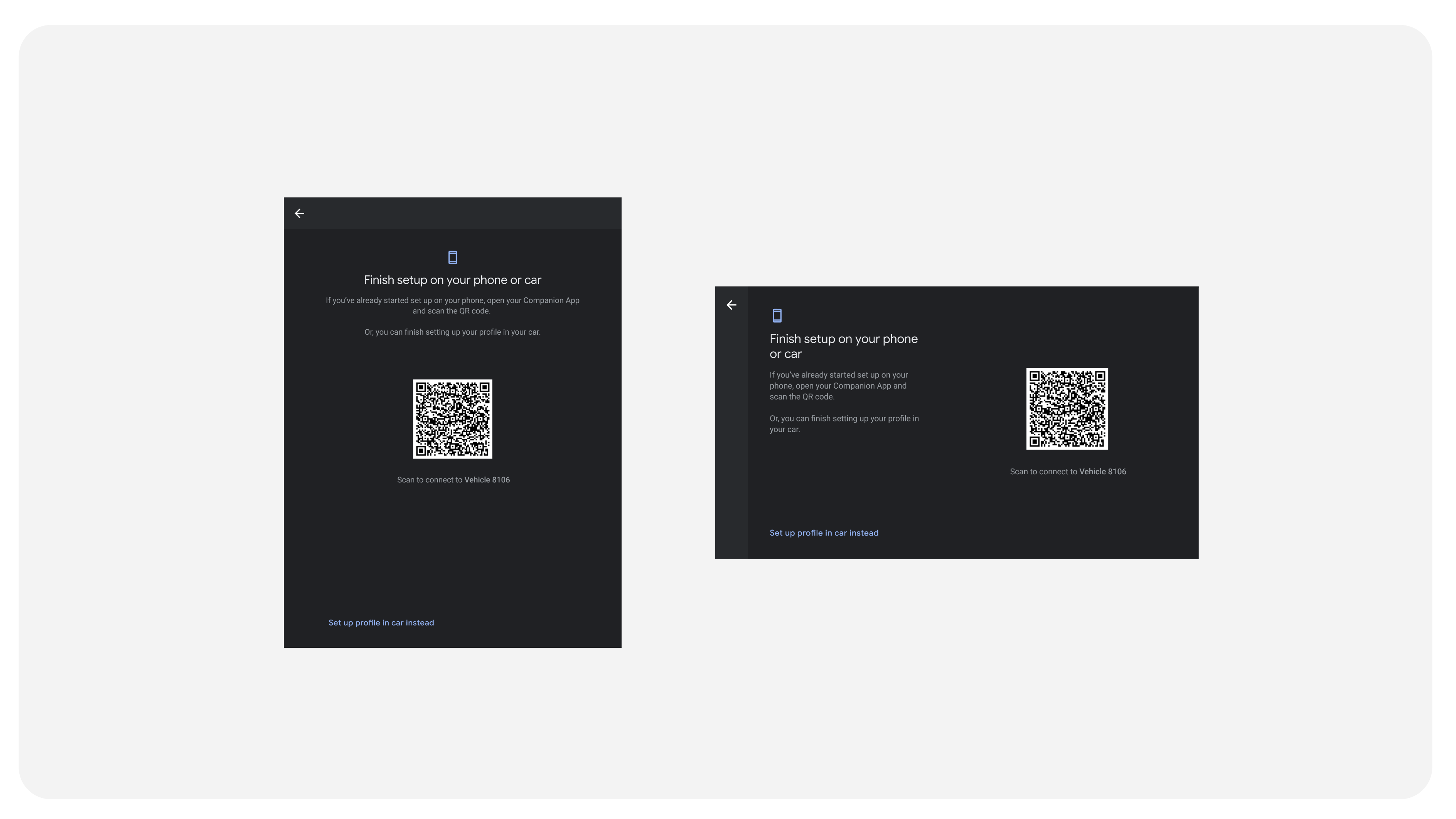
Support QR code scanning
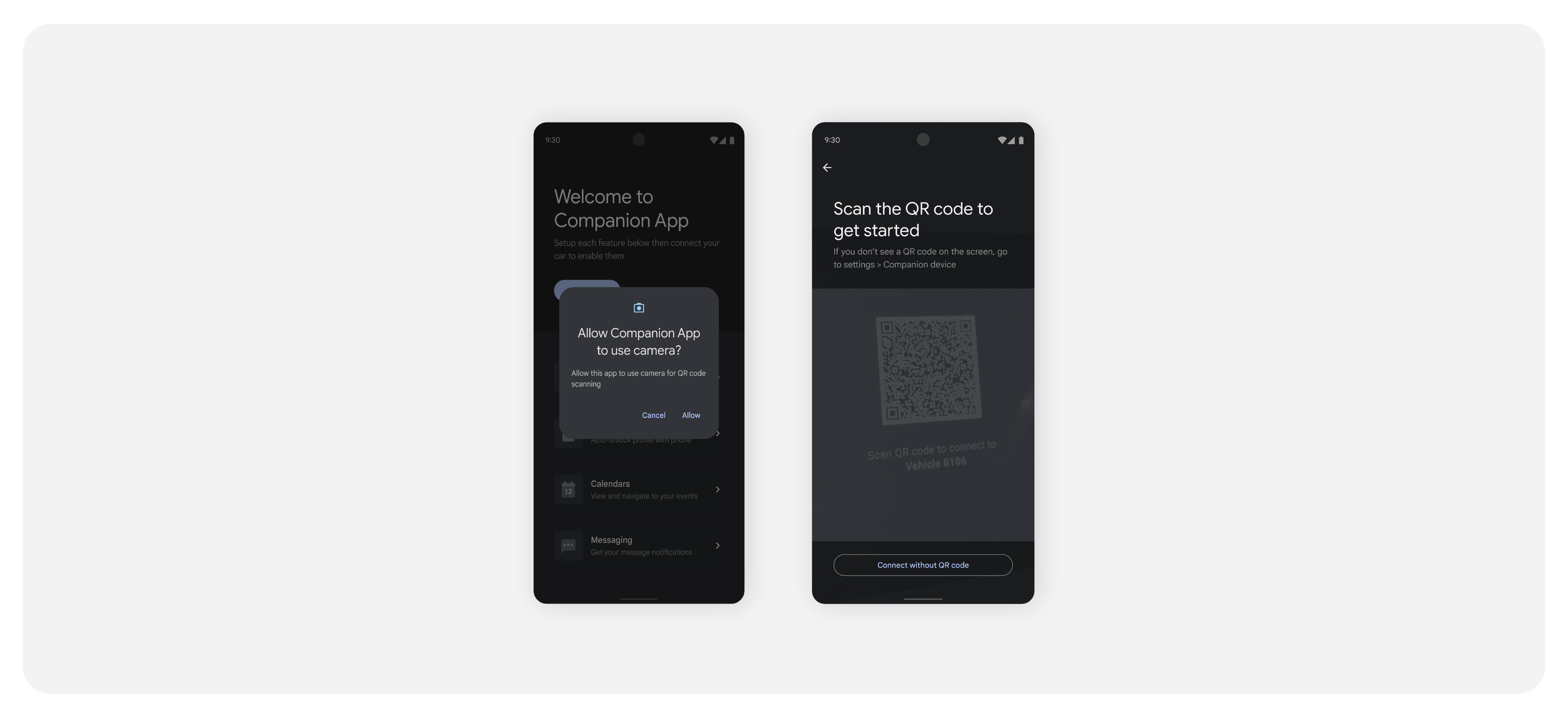
Because users might not be sure how to transition from their car to phone screen, it's important to create clear and lightweight QR scanning flows to ease them through the process.
Implement QR scanning flows based on familiar patterns, including camera access and scanning.
Design loading screens
Complete the flow and redirect user attention
After scanning the QR code, users go through Google sign-in flows. Present users with a sign-in confirmation, and direct their attention back to the car screen.
This transition screen should include dynamic animation and messaging that is closely aligned with your branding.

Update entry points
For users who have finished setup, you should update the app entry points, either by removing them altogether, or communicating through messaging or UI affordances that setup is complete.
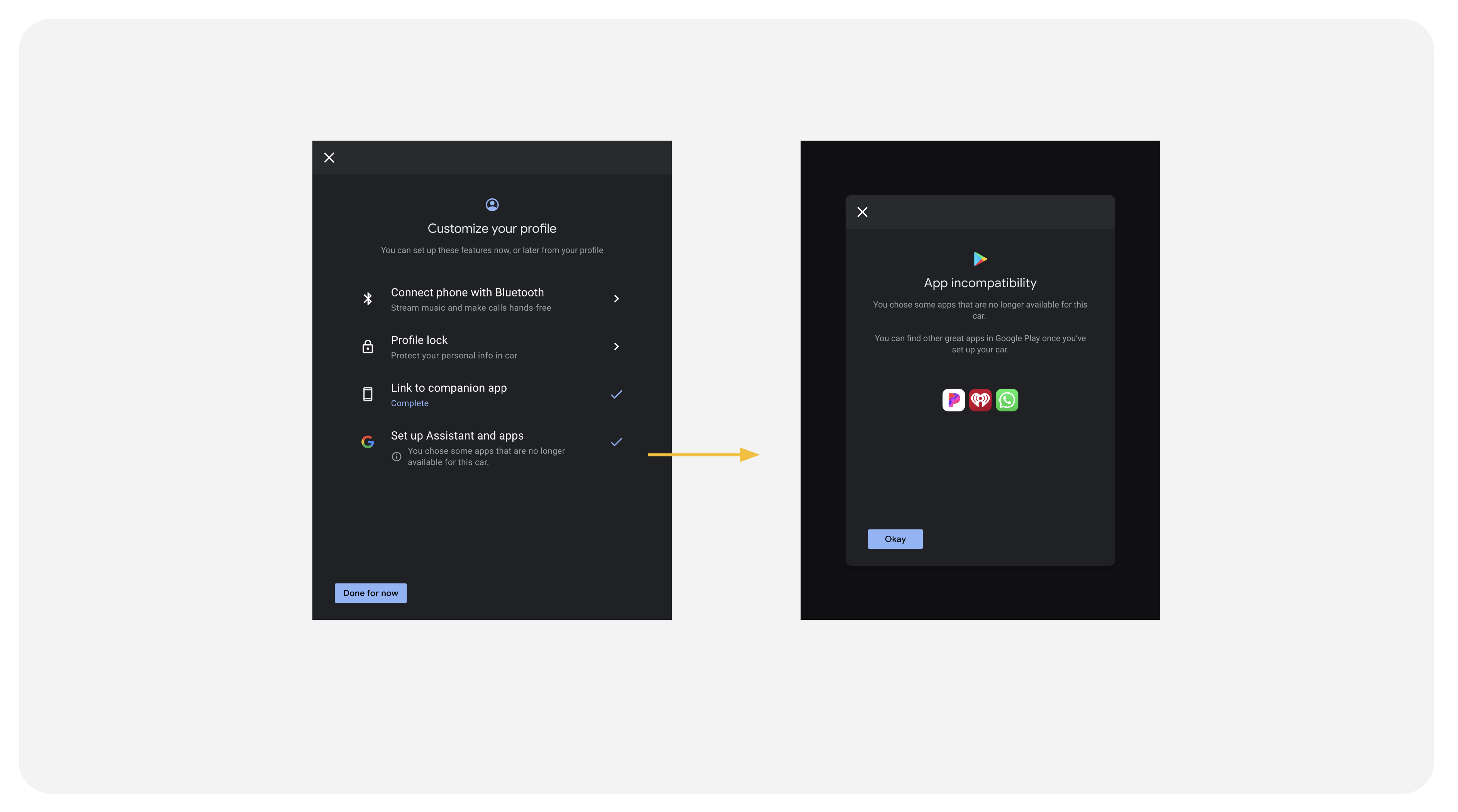
Identify incompatible apps
On occasion, users have chosen apps that are no longer available in the car. It's important to help them understand that those apps won't work. In turn, we encourage them to discover and download alternative apps they might like.