The voice plate appears on the screen when the driver initiates a conversation with Assistant, and disappears when the conversation is over.
The example below shows the rectangular voice plate as it appears in the Android Auto UI. In Android Automotive OS, the rectangular voice plate has the same visual design but is layered within an OEM-customized UI.
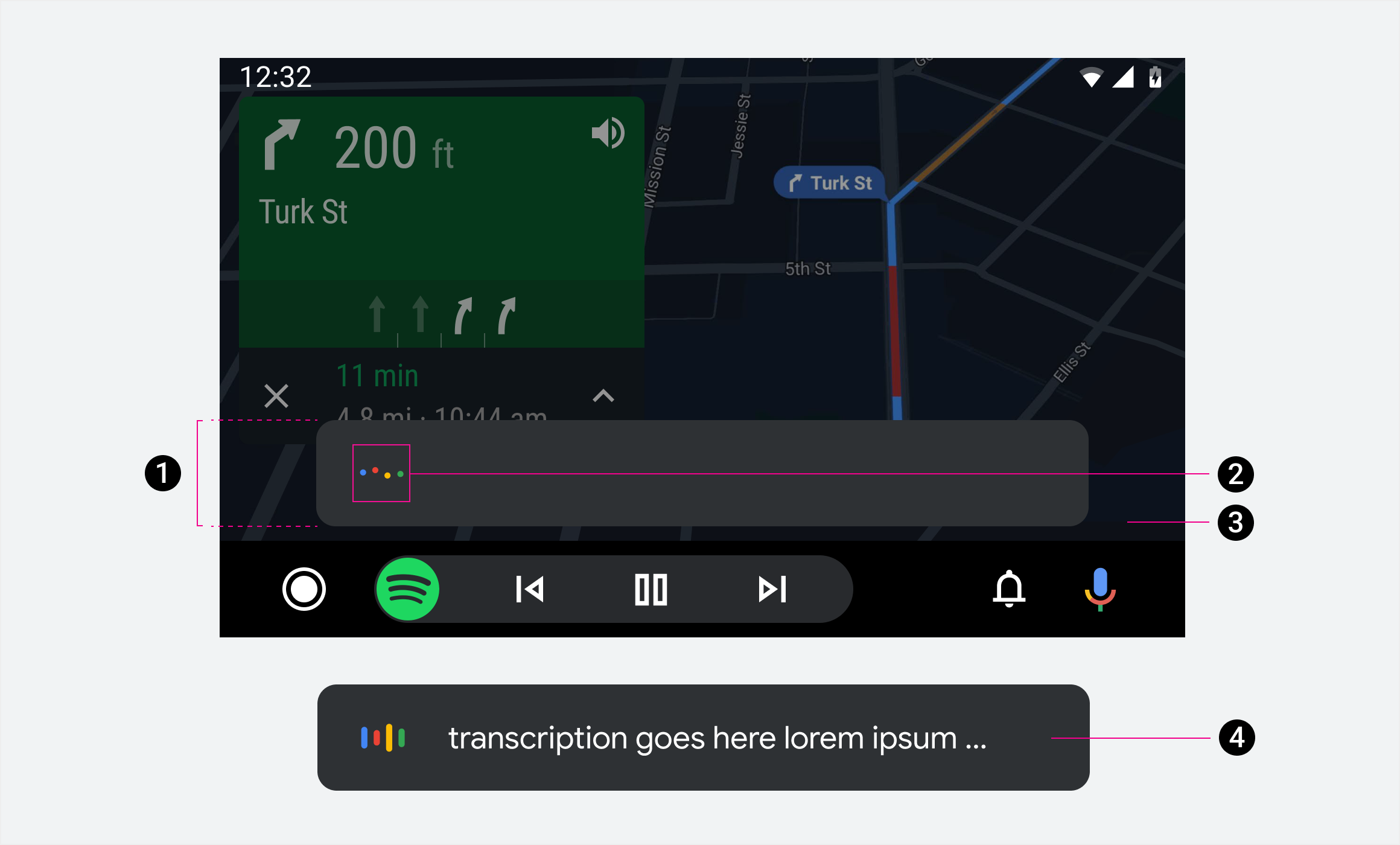
2. Listening state indicator
3. Scrim
4. Transcription
The example below shows the circular voice plate as it appears in the Android Automotive OS UI.
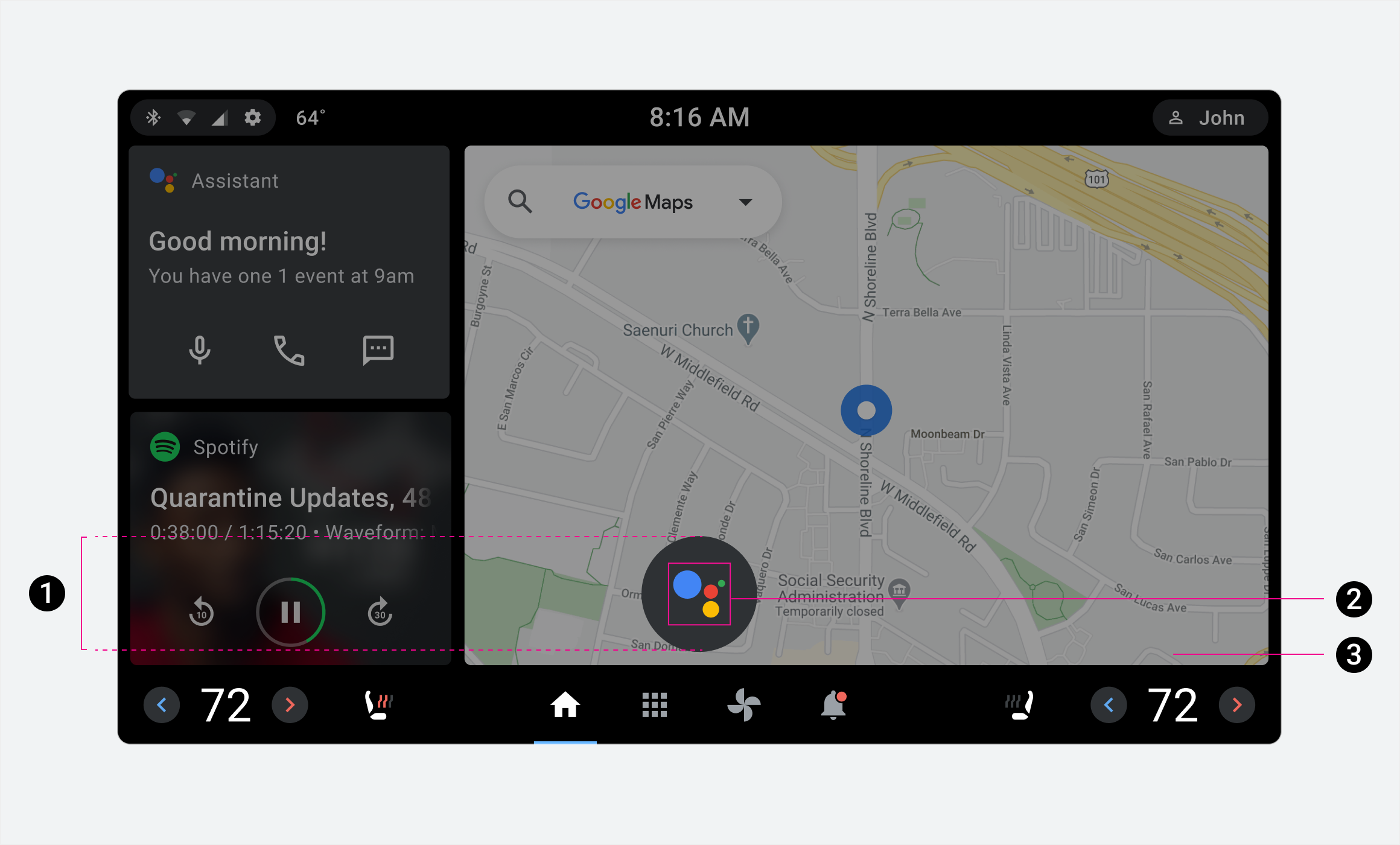
2. Listening state indicator
3. Scrim
Hierarchy
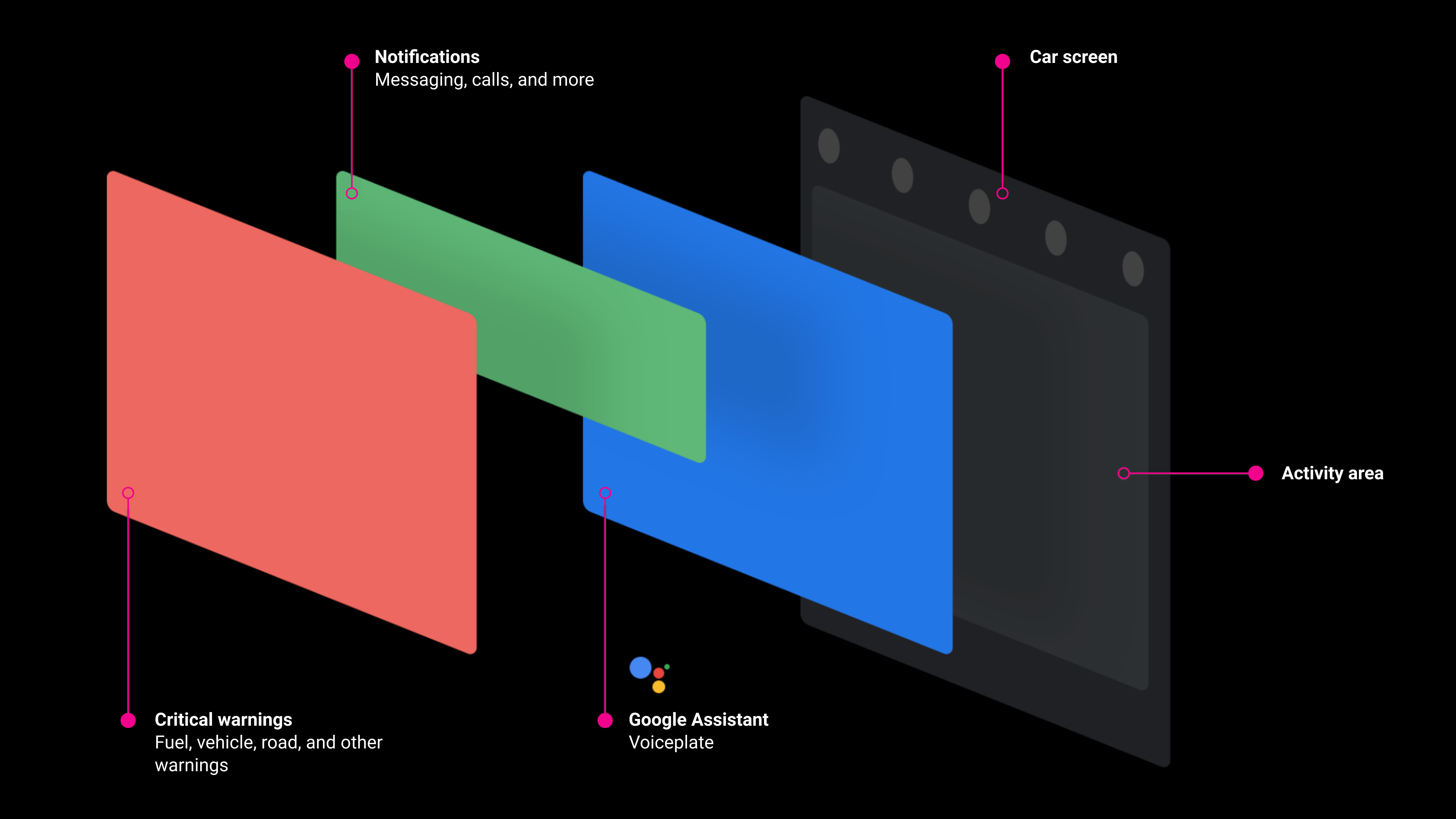
When there's an active conversation between Assistant and the driver, the voice plate is given prominence on the app canvas.
Only notifications (like incoming messages and calls) and critical warnings (like alerts about road conditions and the vehicle) cover the voice plate.
Position
The voice plate's position is determined by the orientation of the screen and how the screen is divided.
Whether the screen is landscape or portrait, the voice plate is centered horizontally at the bottom of the app canvas. If the screen is divided into sections, the voice plate is centered horizontally at the bottom of the app canvas in the section closest to the driver.