Saved messages
Stay organized with collections
Save and categorize content based on your preferences.
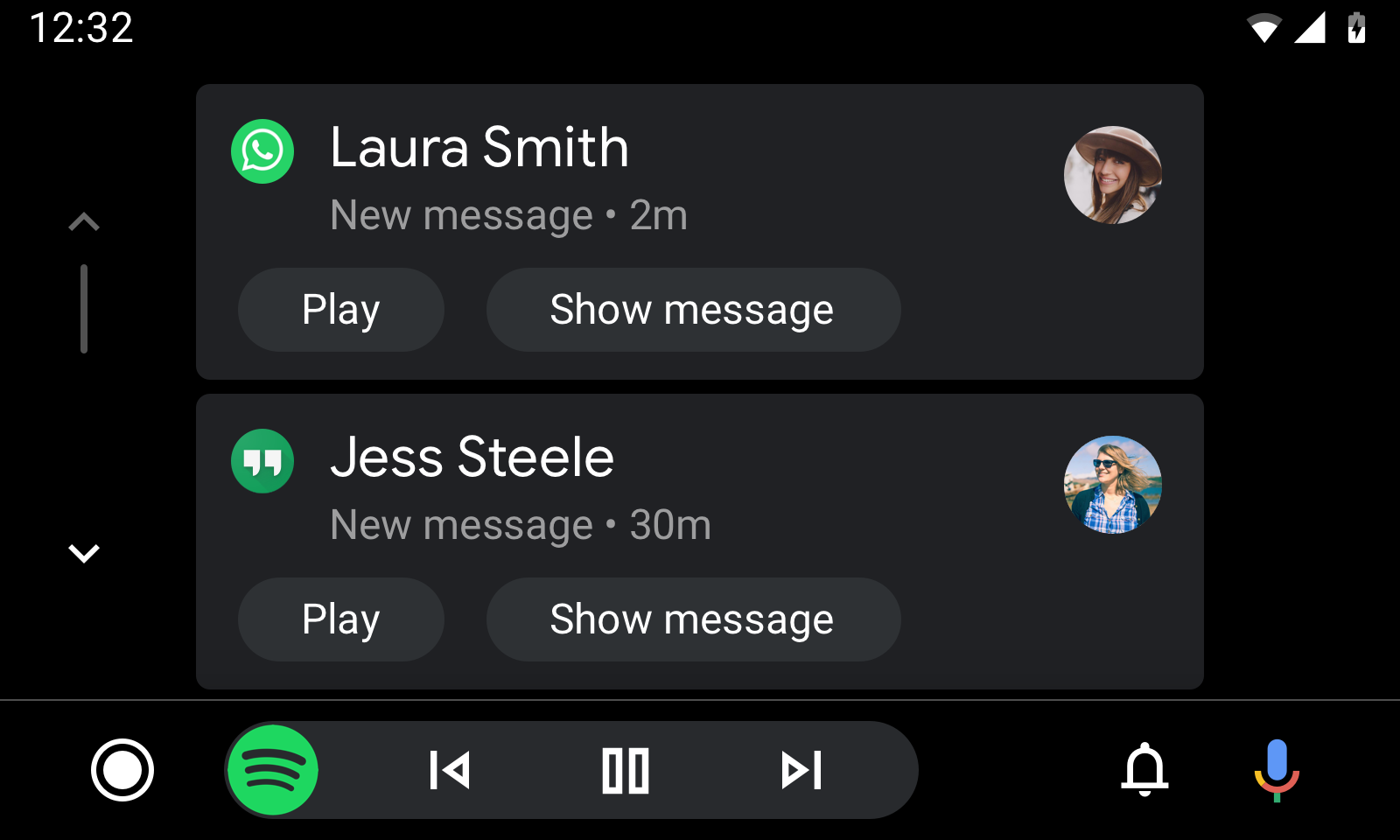
In addition to appearing briefly as incoming notifications (which are
automatically dismissed if not addressed), messages also appear in the
Notification Center, where users can interact with them later.
Ordered by time of arrival, with the most recent message at the top
Capped in quantity to limit driver distraction
To keep the list length in the Notification Center manageable, you can push
older messages from the Notification Center to make room for newer ones.
All messages from the Notification Center, even those that are removed, remain
available on the phone.
Notification Center with two new messages displayed.
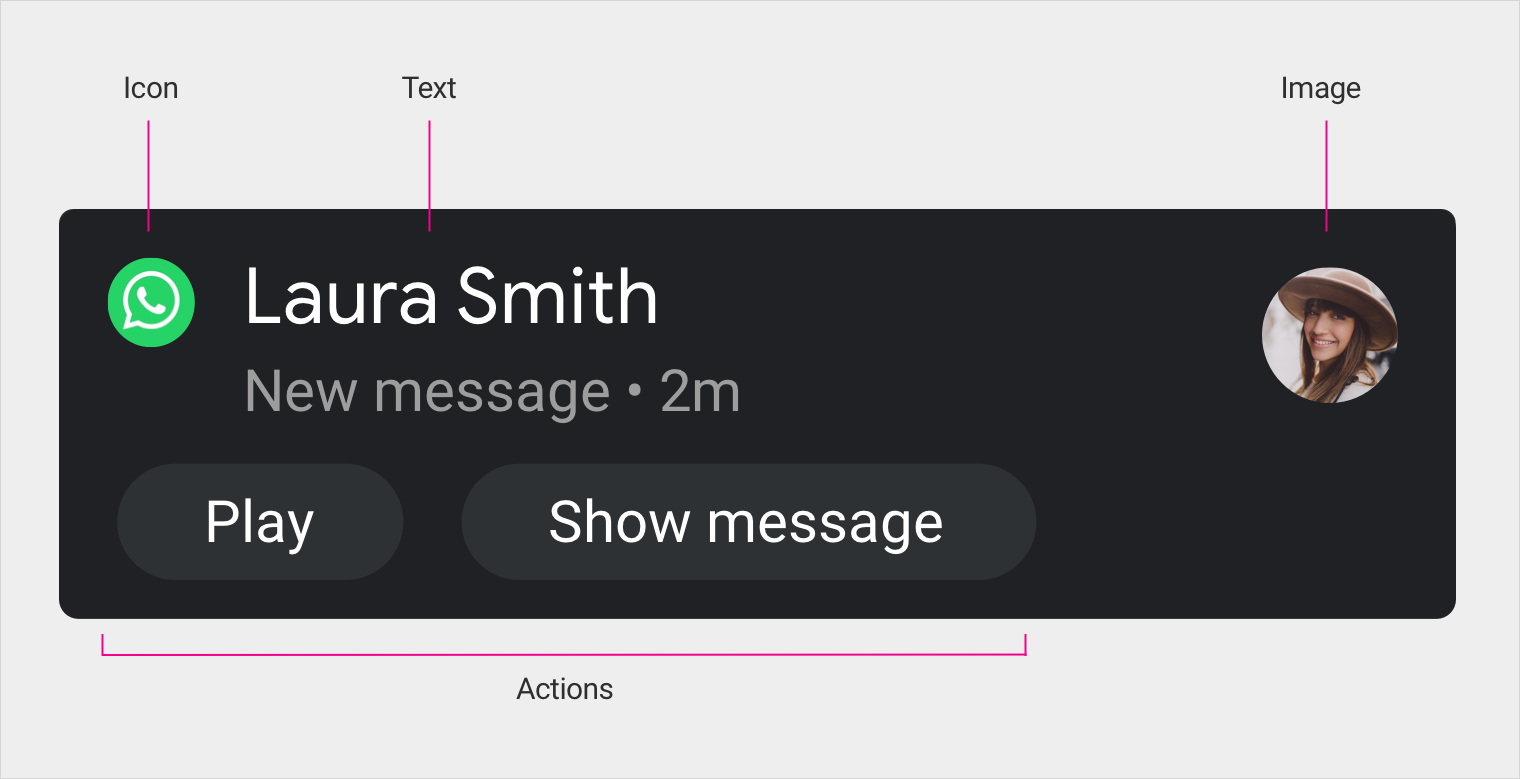
Anatomy of a message card
Image and icon
An avatar image indicates the origin of the message, paired with the app's icon.
Content area
When tapped, the message plays using text-to-speech (TTS). After the message
plays, the system displays reply prompts (see Conversational
flow).
[[["Easy to understand","easyToUnderstand","thumb-up"],["Solved my problem","solvedMyProblem","thumb-up"],["Other","otherUp","thumb-up"]],[["Missing the information I need","missingTheInformationINeed","thumb-down"],["Too complicated / too many steps","tooComplicatedTooManySteps","thumb-down"],["Out of date","outOfDate","thumb-down"],["Samples / code issue","samplesCodeIssue","thumb-down"],["Other","otherDown","thumb-down"]],["Last updated 2026-03-02 UTC."],[],[]]