When users enter a vehicle with expansive screen real estate, they expect a seamless transition between complex tasks. Android Automotive OS (AAOS) provides the Layered framework – optimized specifically for large, portrait-oriented displays – as a flexible framework to meet these needs starting in Android 14.
The layered model is built for multitasking on expansive displays. It moves away from the typical full-screen app model to a "base layer" architecture that keeps navigation anchored and visible at all times.
With Scalable UI, you can enable drivers to:
- Browse apps on the go: Help drivers maintain their location and orientation on navigation apps while simultaneously browsing a media app.
- Multitask with top-layer apps: Open phone or media apps directly over the map. The navigation view automatically scales down so that the route remains visible while the driver interacts with the app.
- Customize their experience with widgets: Give drivers access to helpful widgets that are easy to access during the drive.
Spatial model: How layers work
The Home screen is organized into a hierarchy of persistent and dynamic layers:
- Background layer: This layer hosts the visible background app. In the portrait reference, this is defined it as the navigation app.
- App layer: This layer hosts the secondary app to let users multitask while still seeing the map context. When an app is opened, the navigation app content resizes to make sure the users can still interact with the navigation app while multitasking.
- Media and audio controls: This layer hosts the media widget and basic browsing controls. The media player widget has built-in browsing and player controls to minimize the need for a user to switch apps.
- System UI layer: This layer sits at the highest priority to provide constant access to system-level controls. The layer consists of a Status Bar at the top of the screen and a Navigation Bar at the bottom, framing the interactive content.
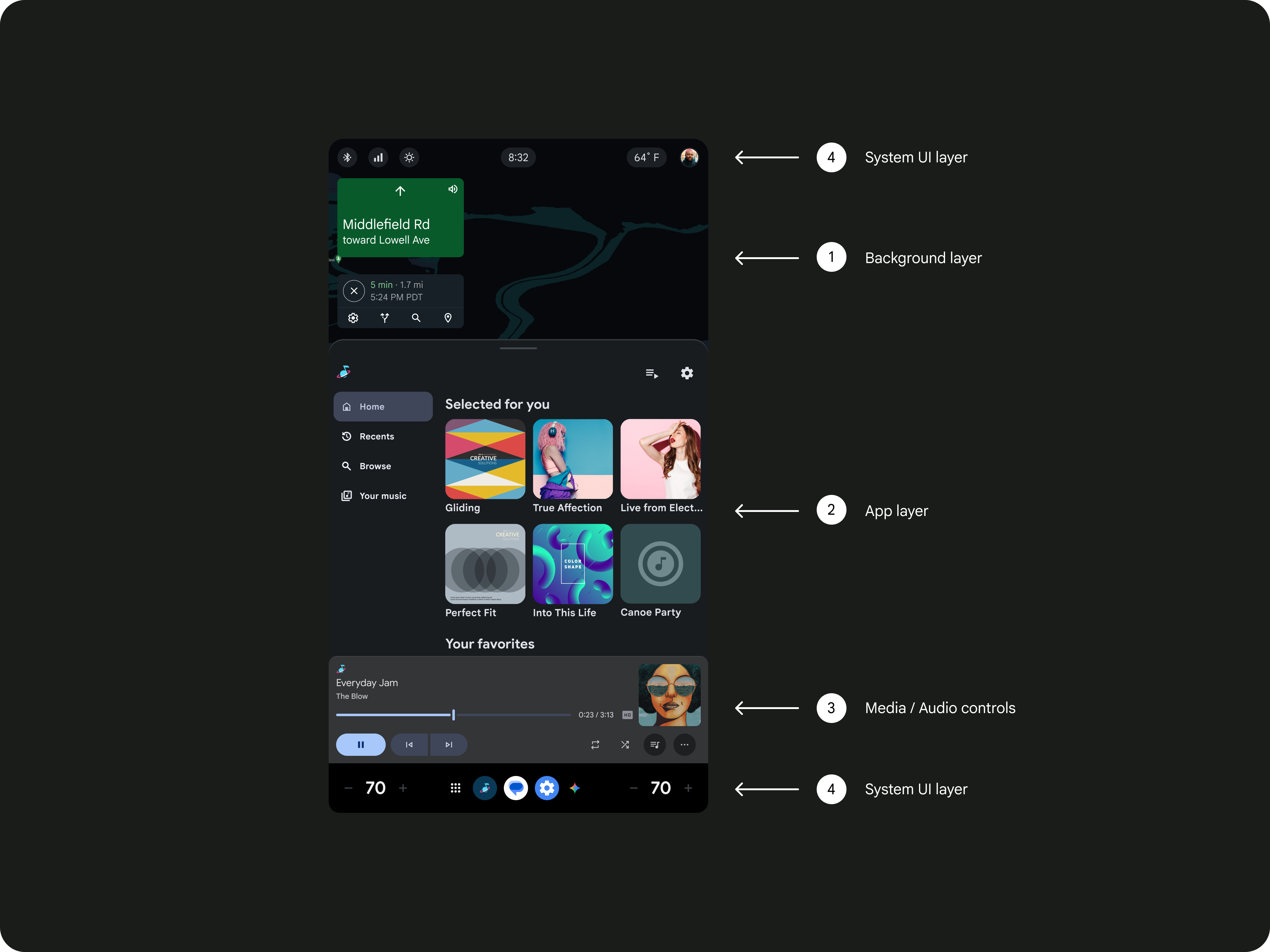
2. App layer
3. Media and audio controls
4. System UI layer
Essential system UI elements
The layered framework includes these persistent elements that provide a convenient starting point for drivers:
| UI element | Description |
|---|---|
Status bar |
Located at the top, hosting connectivity icons (Bluetooth, Wi-Fi), the profile selector, and quick controls. |
Control bar |
Features dedicated audio controls and a "mini player" media card. |
System rail |
Positioned at the bottom, providing access to the app launcher, voice assistant, notifications, and climate controls. |
Design guidance
You can customize the design to reflect your brand while benefiting from pre-engineered usability and safety.
Optimize for reachability.
The framework is designed with "reach curves" in mind. Place commonly used functionality near the driver to increase usability and physical anchoring.
Enable safe multitasking.
Drivers should be able to perform multiple tasks with minimal distraction. Use the layered model to ensure that media controls and navigation are always accessible, reducing the need for deep menu diving or frequent app switching.
Handle data and themes.
- Theme adaptation: Use the Dark theme for low-light conditions to reduce glare, and the Light theme for direct sunlight visibility.
- App separation: Best practices recommend running separate apps on the base and top layers—do not run the same app on both layers simultaneously.