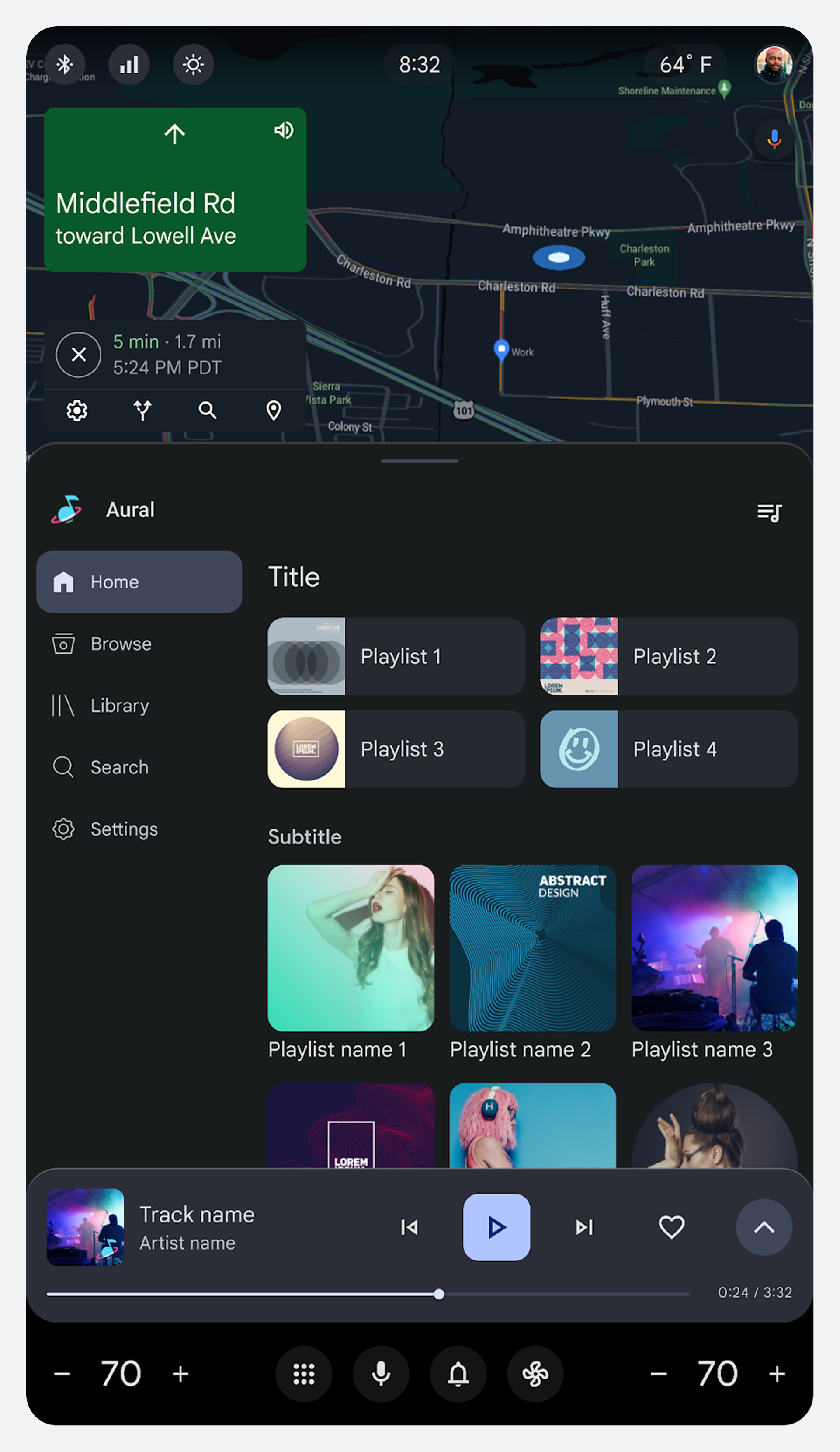
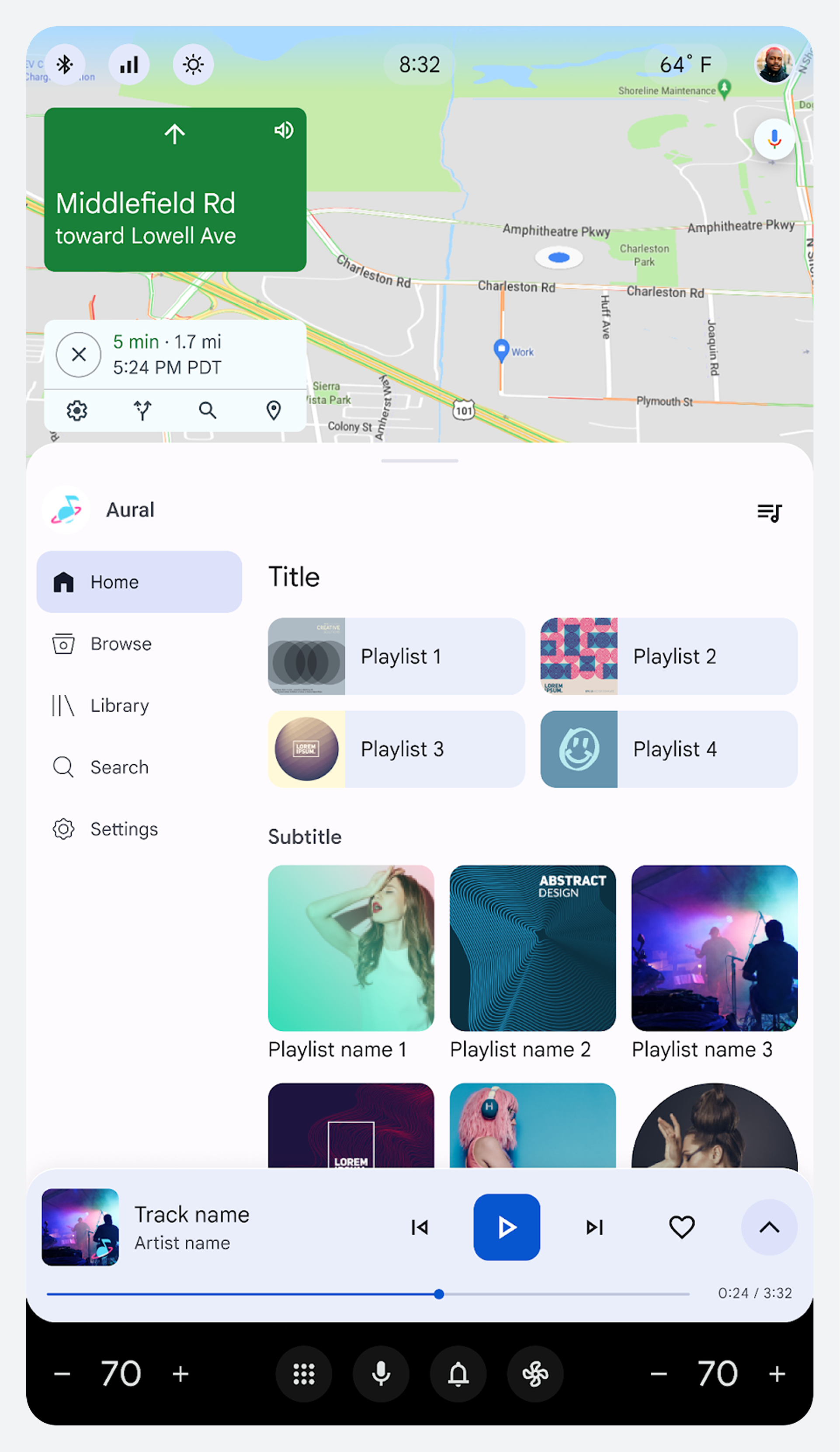
Automotive OS (AAOS) design frameworks include the Home screen and three persistent system UI elements:
Home screen
The Home screen provides an all-inclusive starting point for drivers, with all controls easily accessible. It addresses most drivers' needs, so the driver can focus on navigating the road instead of switching between apps.
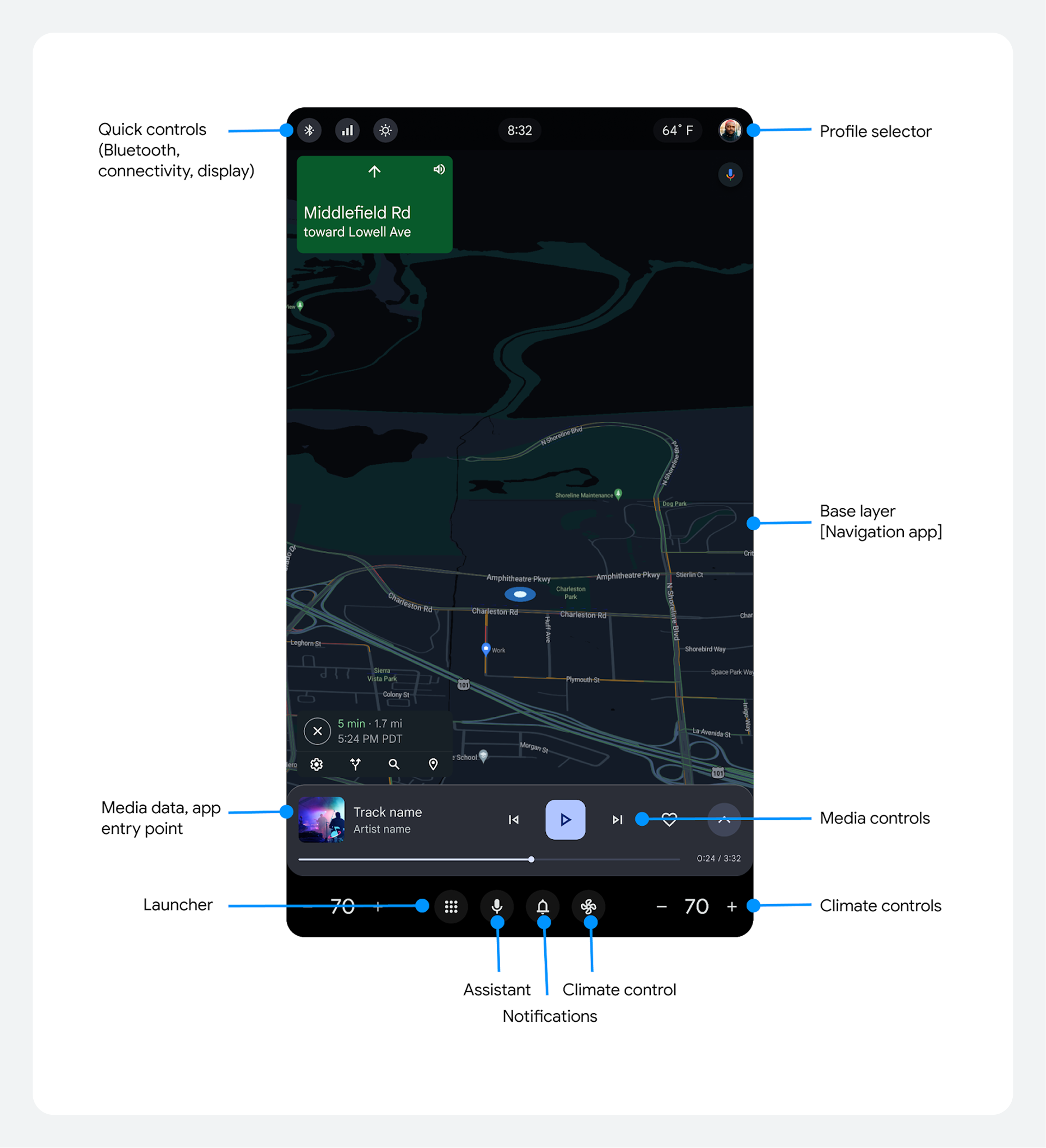
Without leaving this screen, the driver can access:
- The status bar at the top featuring quick controls and a profile selector
- The base layer in the body of the screen, typically running a navigation app
- Control and system navigation bars at the bottom
Control bar
The control bar hosts controls for media (video and music), podcasts, Bluetooth, radio, and active calls.
For media and phone apps, the control bar sits above the navigation bar in the bottom half of the screen. The controls change from media to active phone call when the user accepts an incoming call.
For Google built-in partners, customizations of these controls should follow the Google built-in UX requirements for media and phone apps.
Media controls
The media controls provide the ability to play, pause, rewind, and forward. They also allow the user to mark favorites and access additional custom controls, if any.
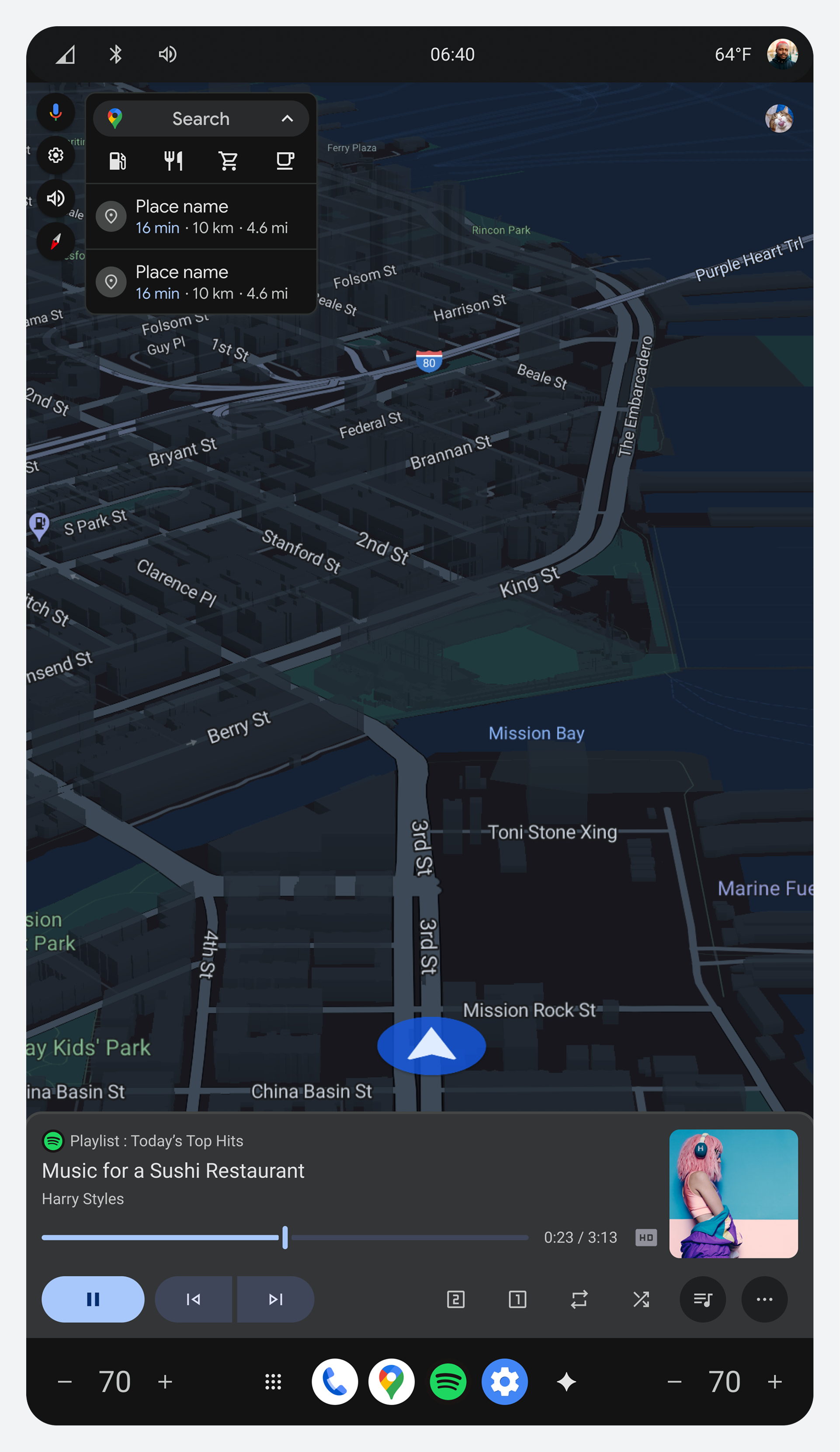
Active phone call controls
The phone controls provide the ability to mute speaker, switch to Bluetooth, and cancel a call.
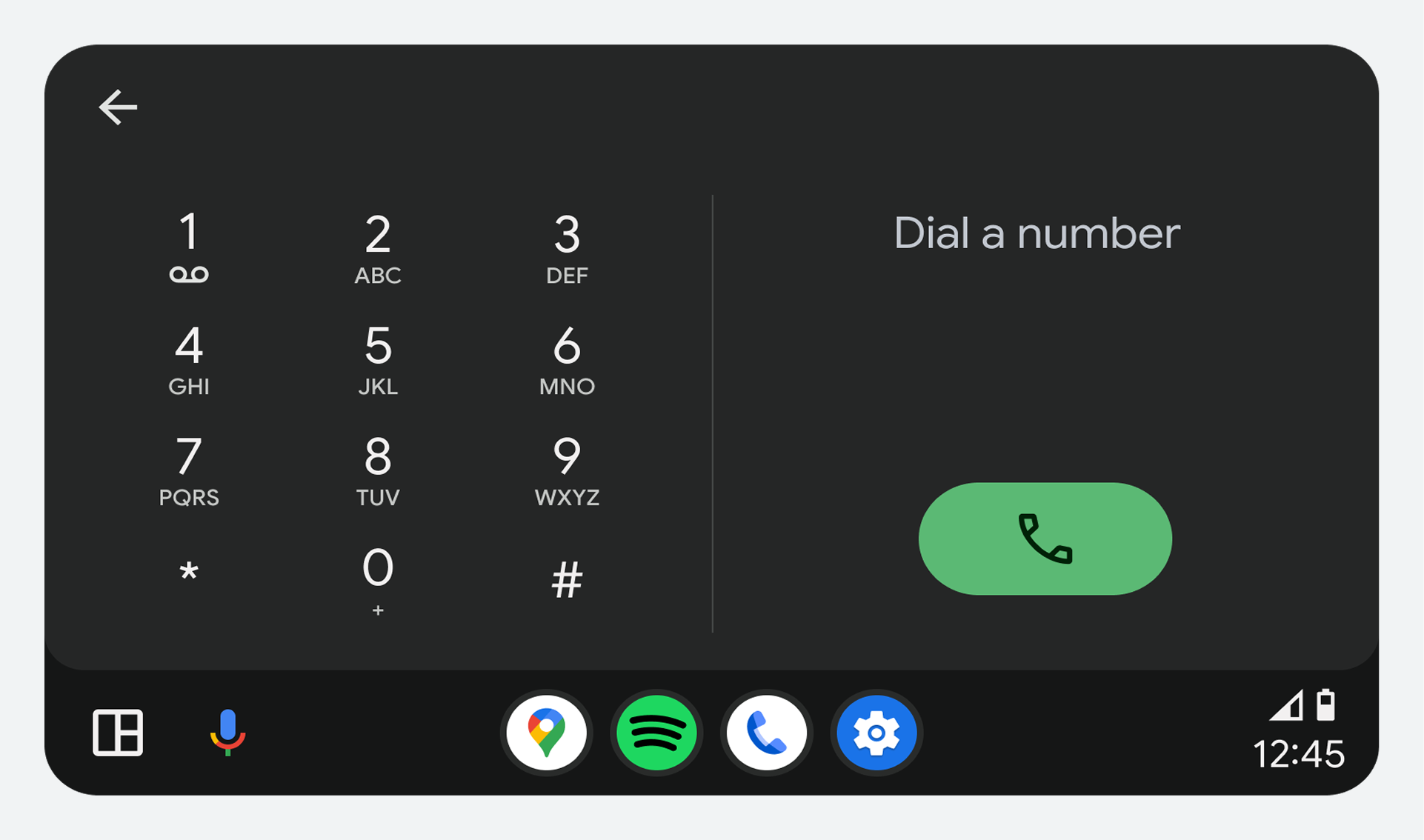
Status bar
The status bar appears at the top of the screen and hosts the profile selector, quick controls, and time and weather information.
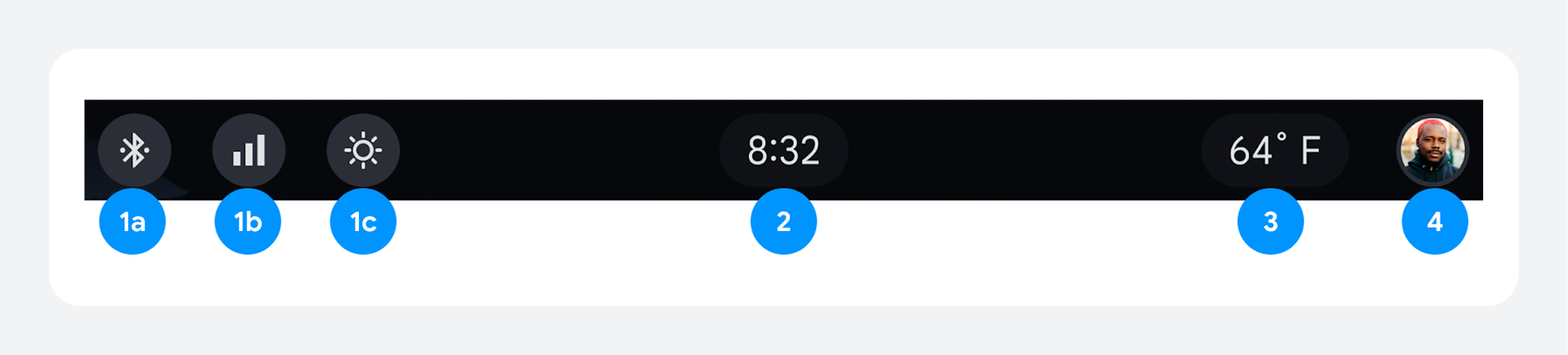
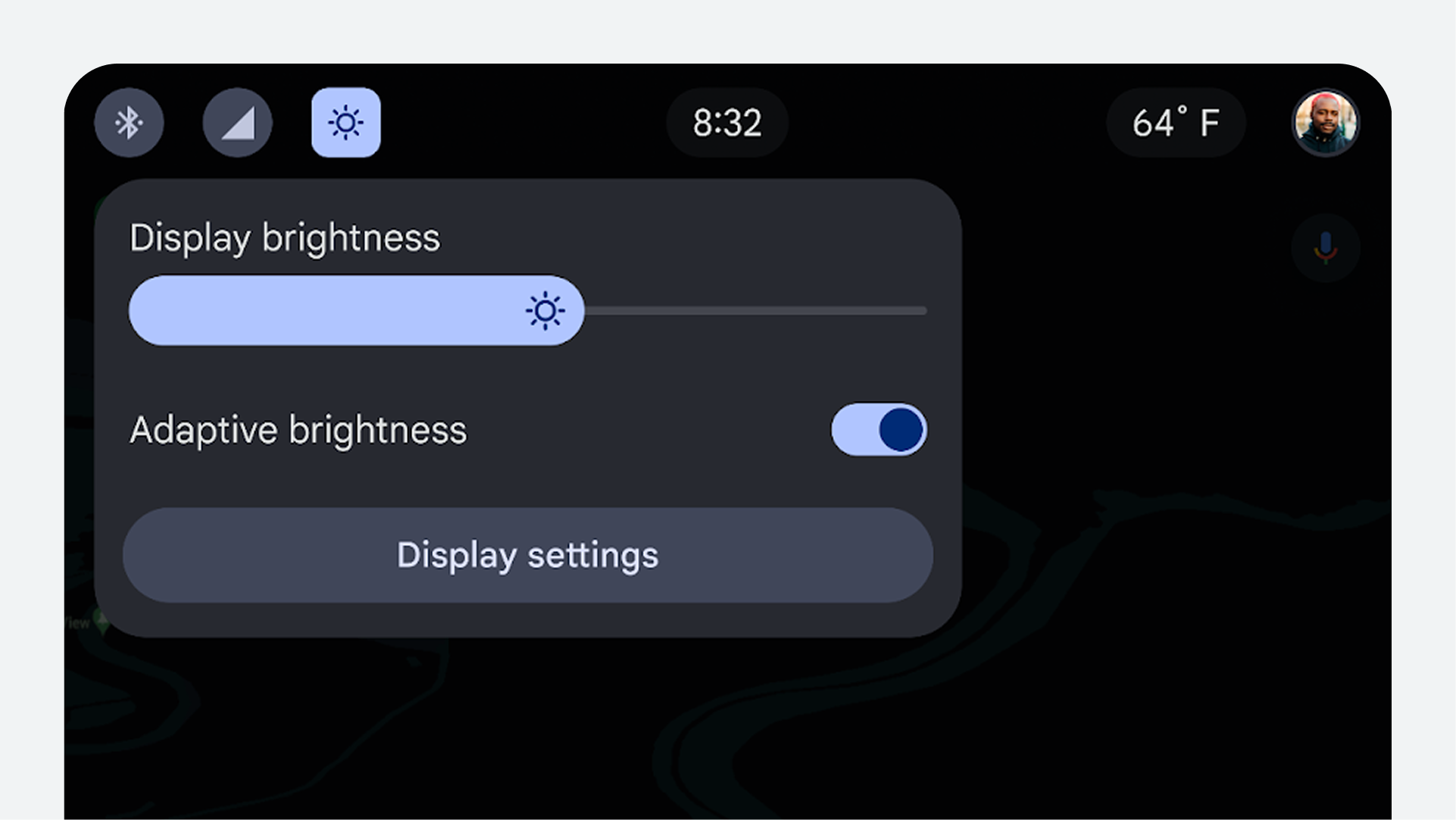
- Quick controls:
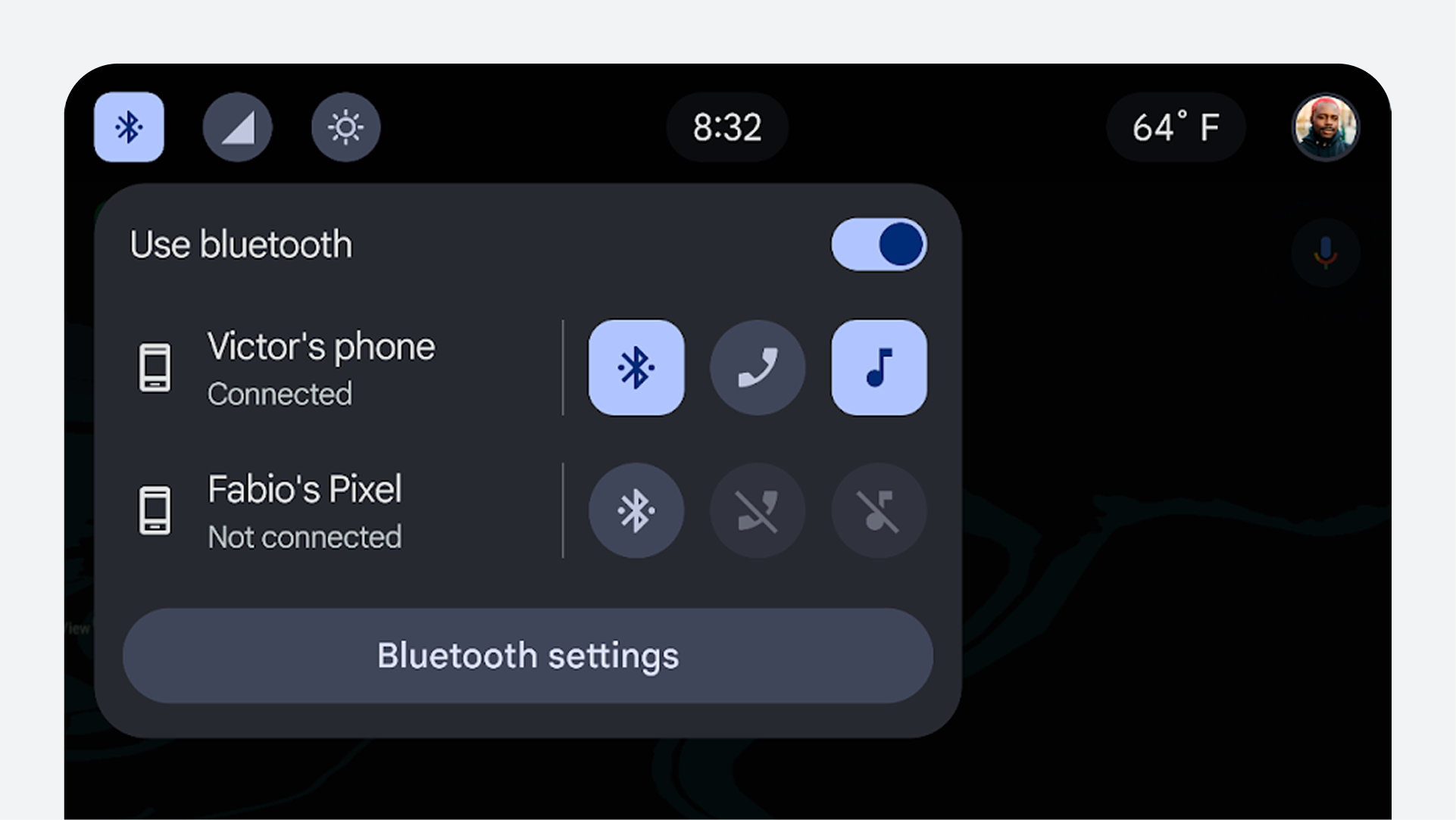
- Bluetooth: Bluetooth status
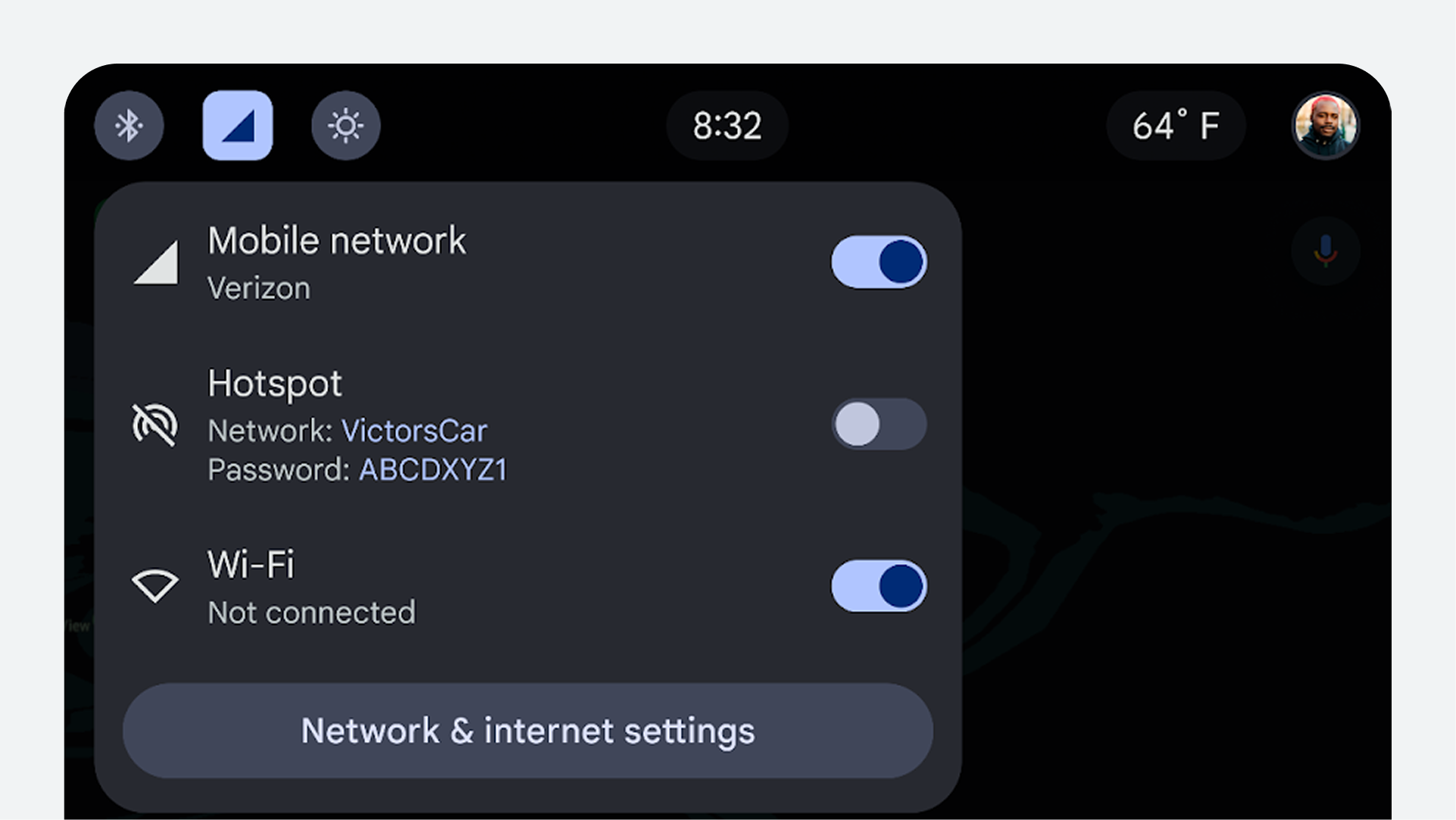
- Connectivity: Wi-Fi, mobile network, and hotspot
- Brightness display: Allows user to adjust screen brightness level
- Clock: Digital display of the current time
- Weather information: Displays exterior temperature
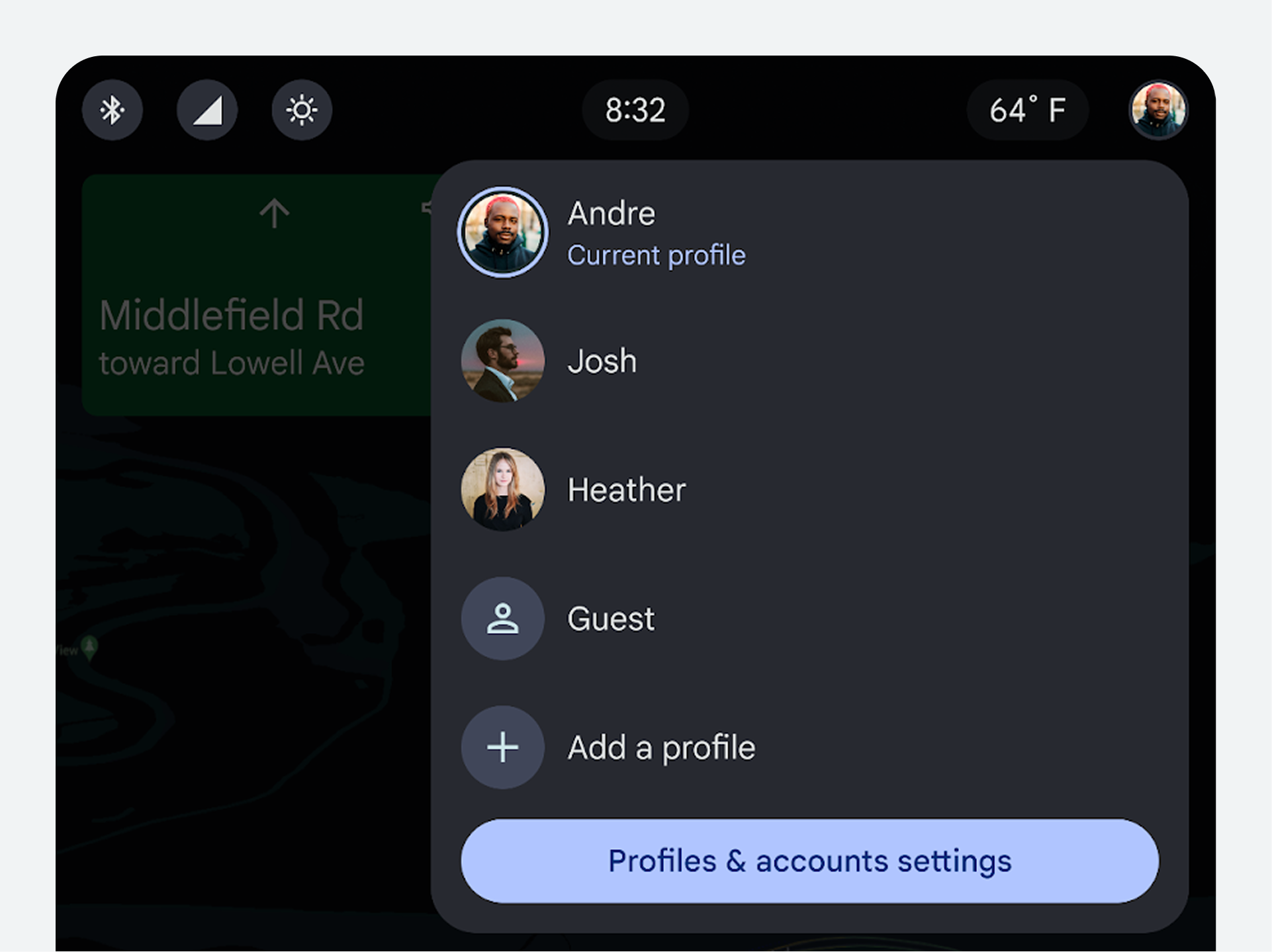
- Profile selector: Displays user profile in current use and allows user to select a different profile if needed
The elements of the status bar appear in the same order for left-hand-drive and right-hand-drive cars.
Users can toggle the weather display on and off in Settings.
For best practices and guidance about customizing the status bar, see Status bar best practices.
1. Quick controls
The quick controls on the status bar provide easy access to settings for Bluetooth, network and internet, and display brightness.
2. Profile selector
The profile selector on the status bar allows quick selection of profiles and access to profile settings with a shortcut.
Status bar best practices
App developers should follow these best practices:
- Use transparency to avoid covering app content: If the app is positioned partly behind the status bar, rather than entirely below it, app developers should leave the status bar transparent.
- Apply color strategically: If the app is entirely below the status bar, then app developers should choose a color for the status bar.
System navigation bar
The system navigation bar hosts controls for the app launcher, the digital assistant, the Notification Center, and comfort controls.
The system navigation bar sits at the bottom of the screen and displays the following controls:
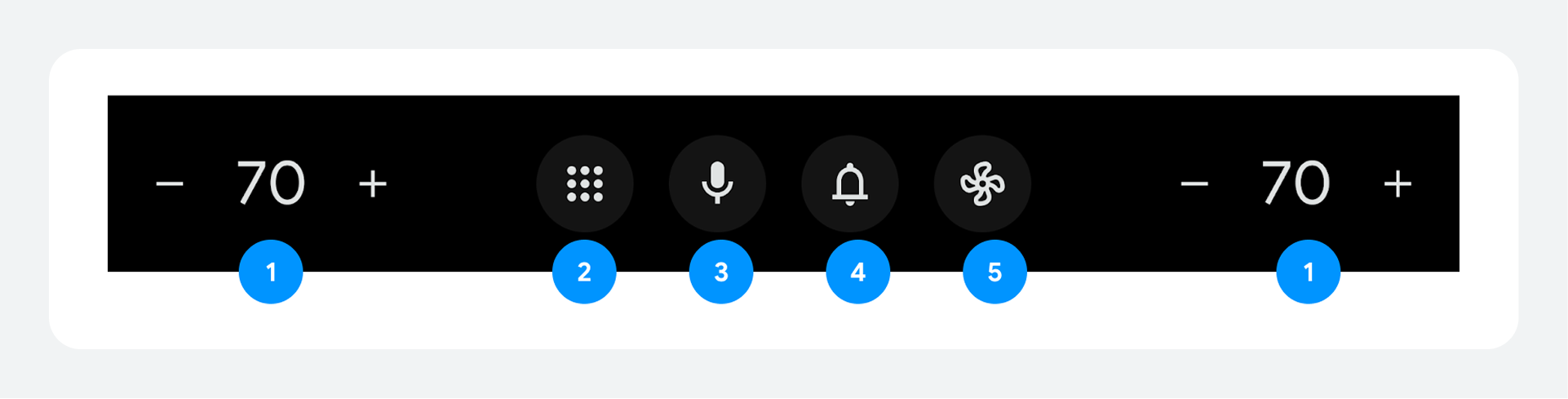
- Cabin temperature: In-car temperature
- App launcher: Apps available to the driver
- Digital assistant: Access to chosen digital assistant, such as the Google Assistant
- Notification Center: Access to the Notification Center
- Climate control: Access to climate control systems in the vehicle
For guidance about customizing the system navigation bar, see System navigation bar customization.
App launcher
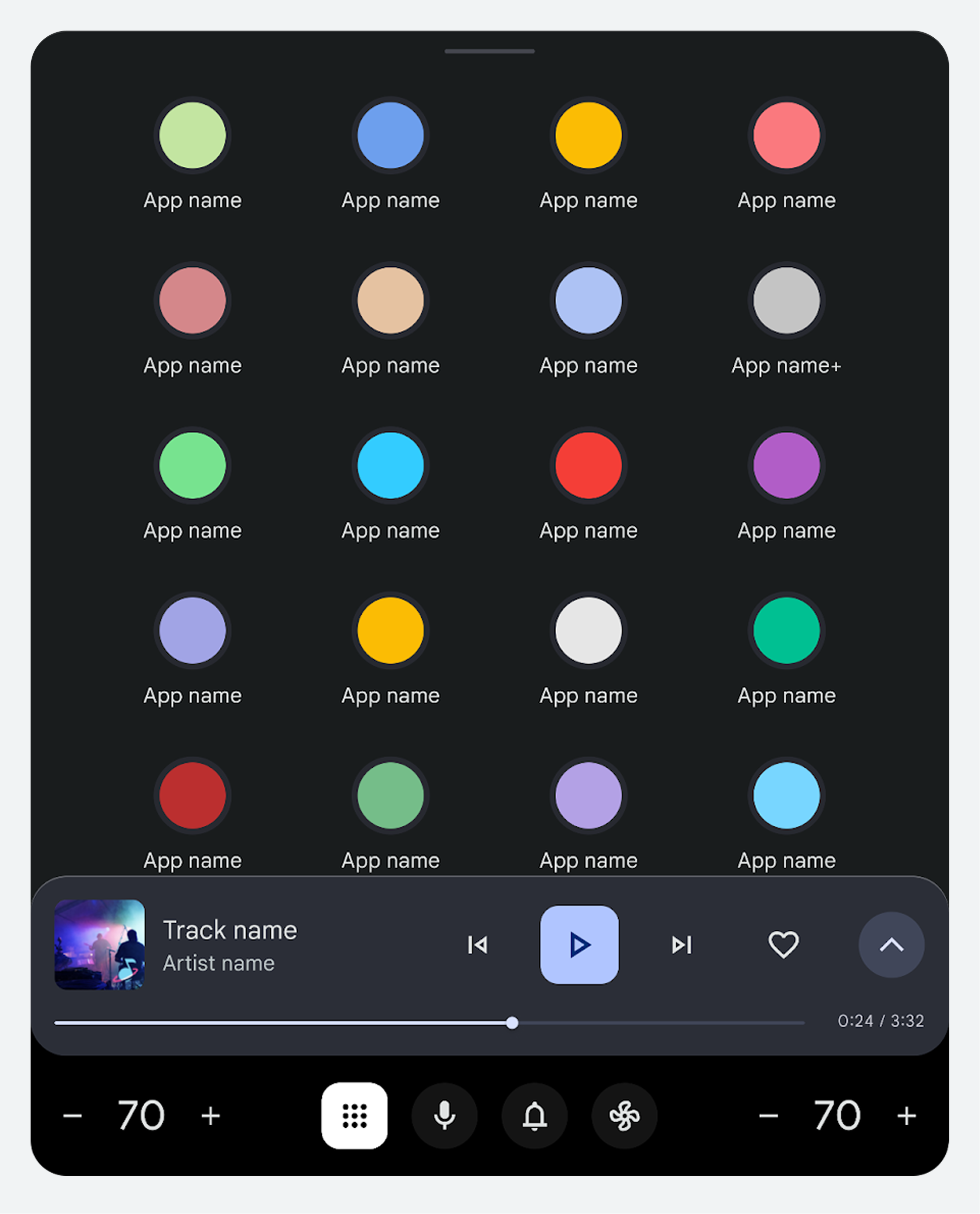
The app launcher is shown in the primary app space, in a standard app launcher grid view. Apps are ordered from A through Z. Users can reorder apps based on their preference.
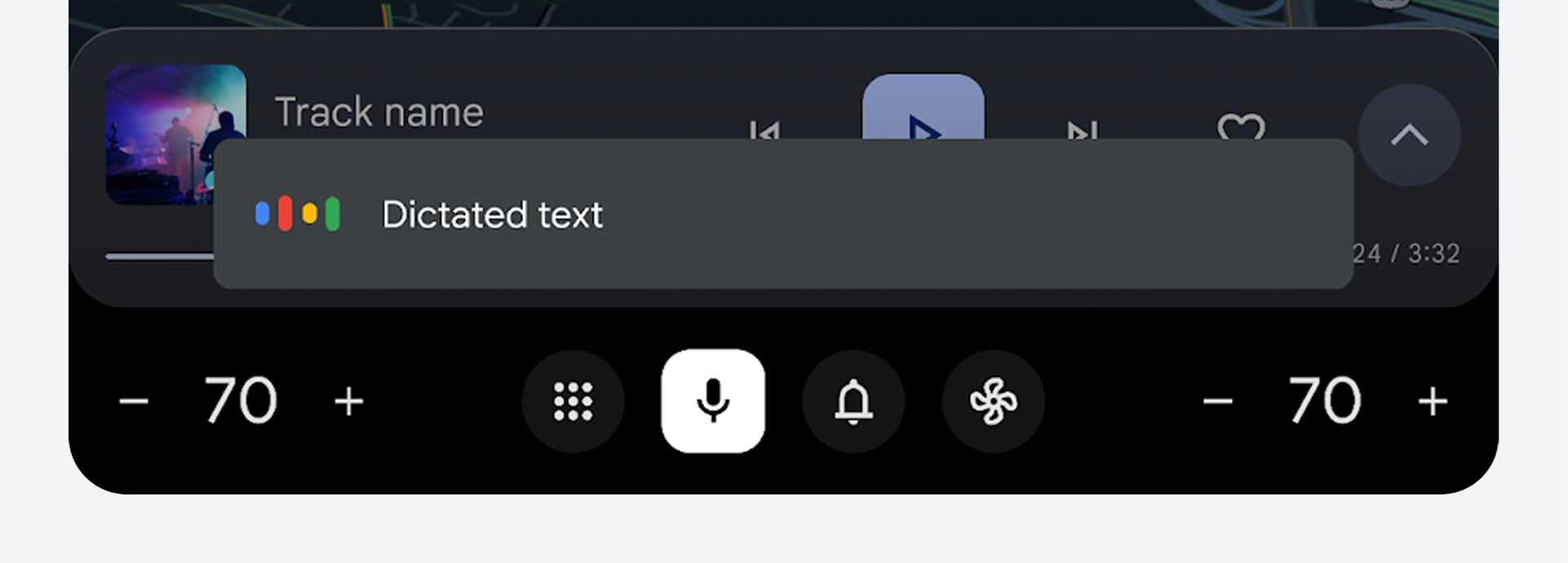
Digital assistant
When tapped, this affordance invokes the currently active digital assistant for voice communication.
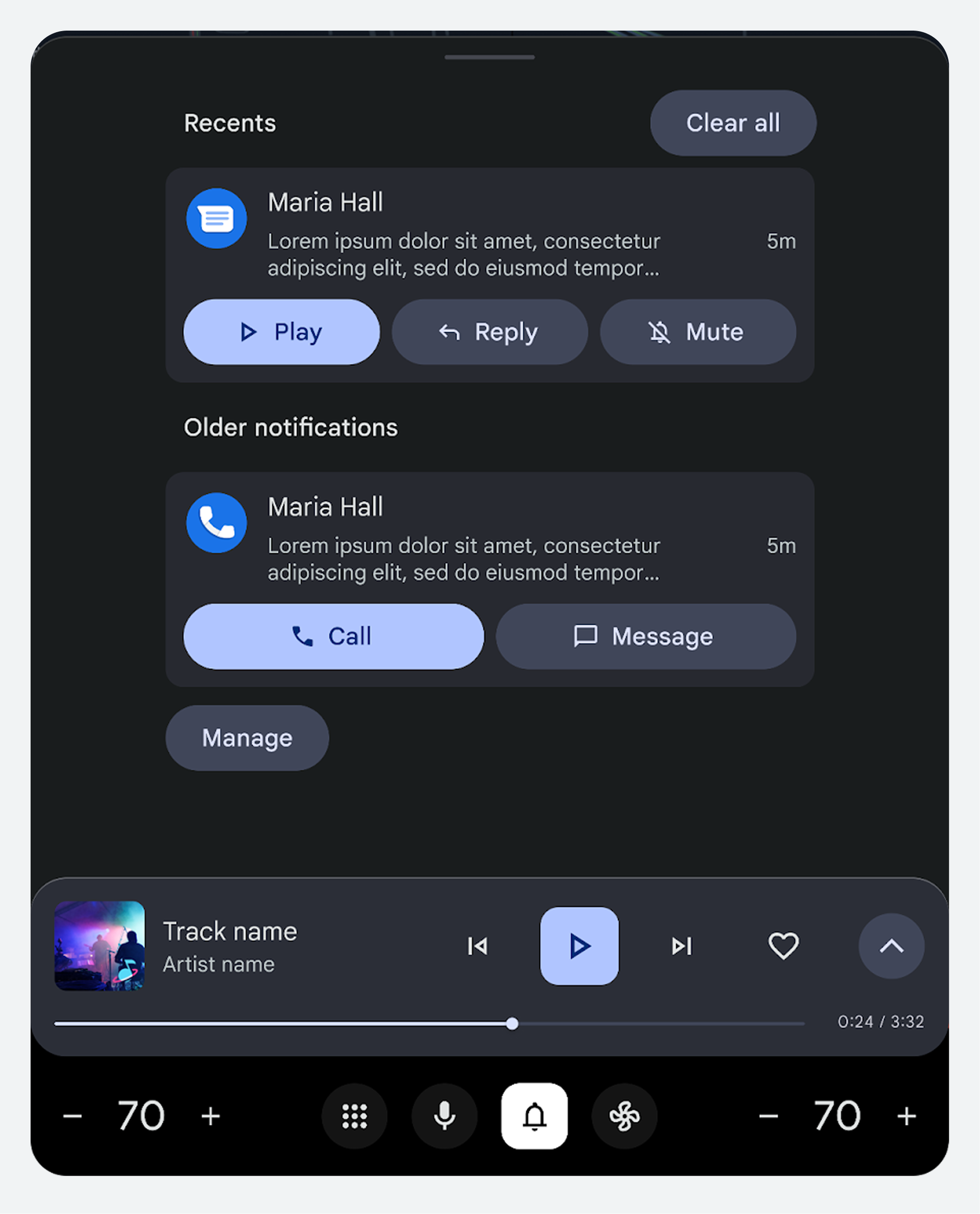
Notification Center
The Notification Center takes the user to all saved notification messages, both read and unread.
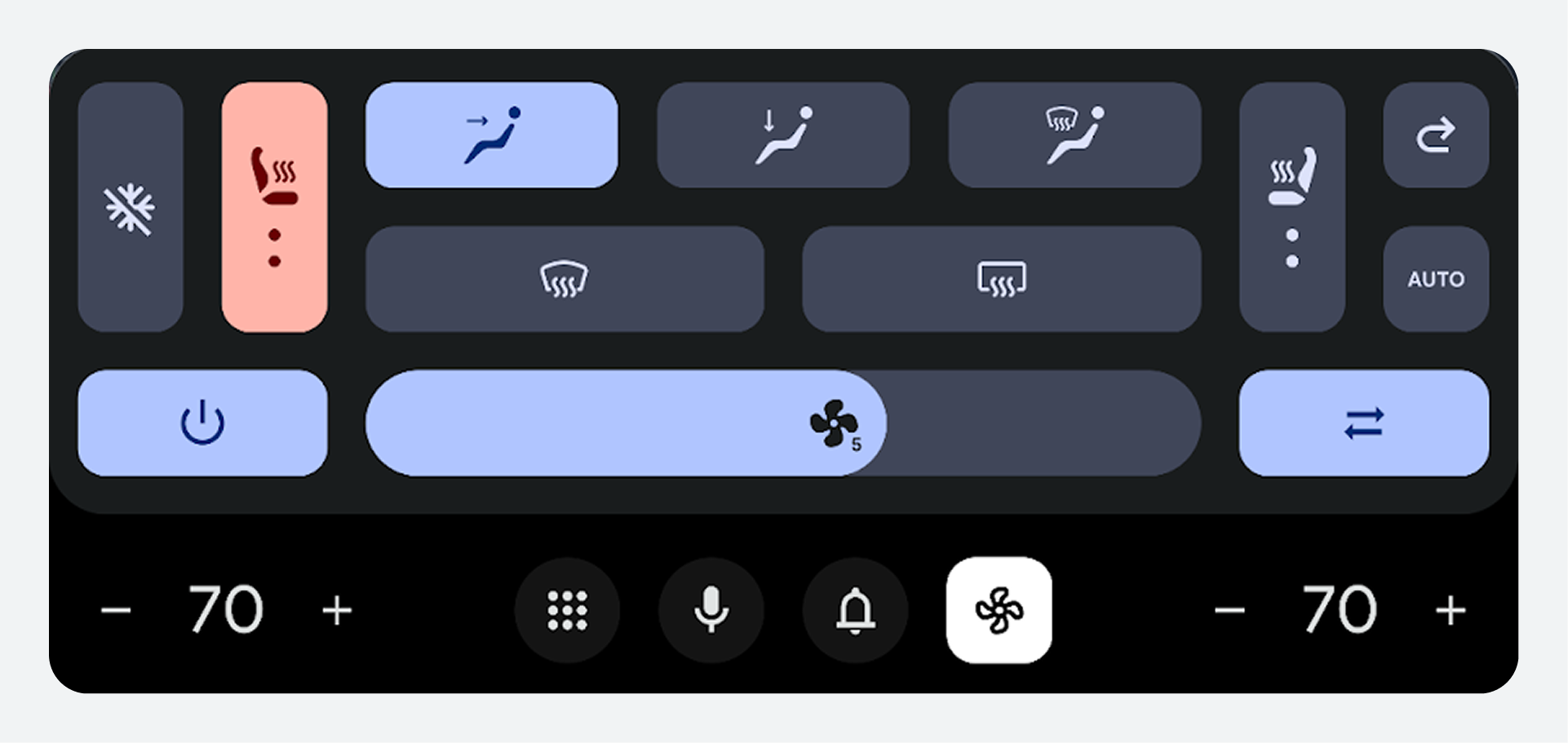
Climate control
The climate control icon provides easy access to the climate control systems of the car.
Additional features
Additional features that apply to both the system experience and the app experience include the voice layer and themes.
Voice layer
The voice layer is a transparent layer that sits above all layers and above the control and system navigation bars.
It can run any type of digital assistant integrated into the system, such as Google Gemini.
Themes
Two themes are available to use based on light conditions.
|
Dark theme
Use Dark theme for night or low-light conditions to reduce glare. Learn more about glanceability at night. |
Light theme
Use Light theme to help drivers and passengers see the car screens in direct sunlight. The system navigation can remain black to blend with the hardware. |