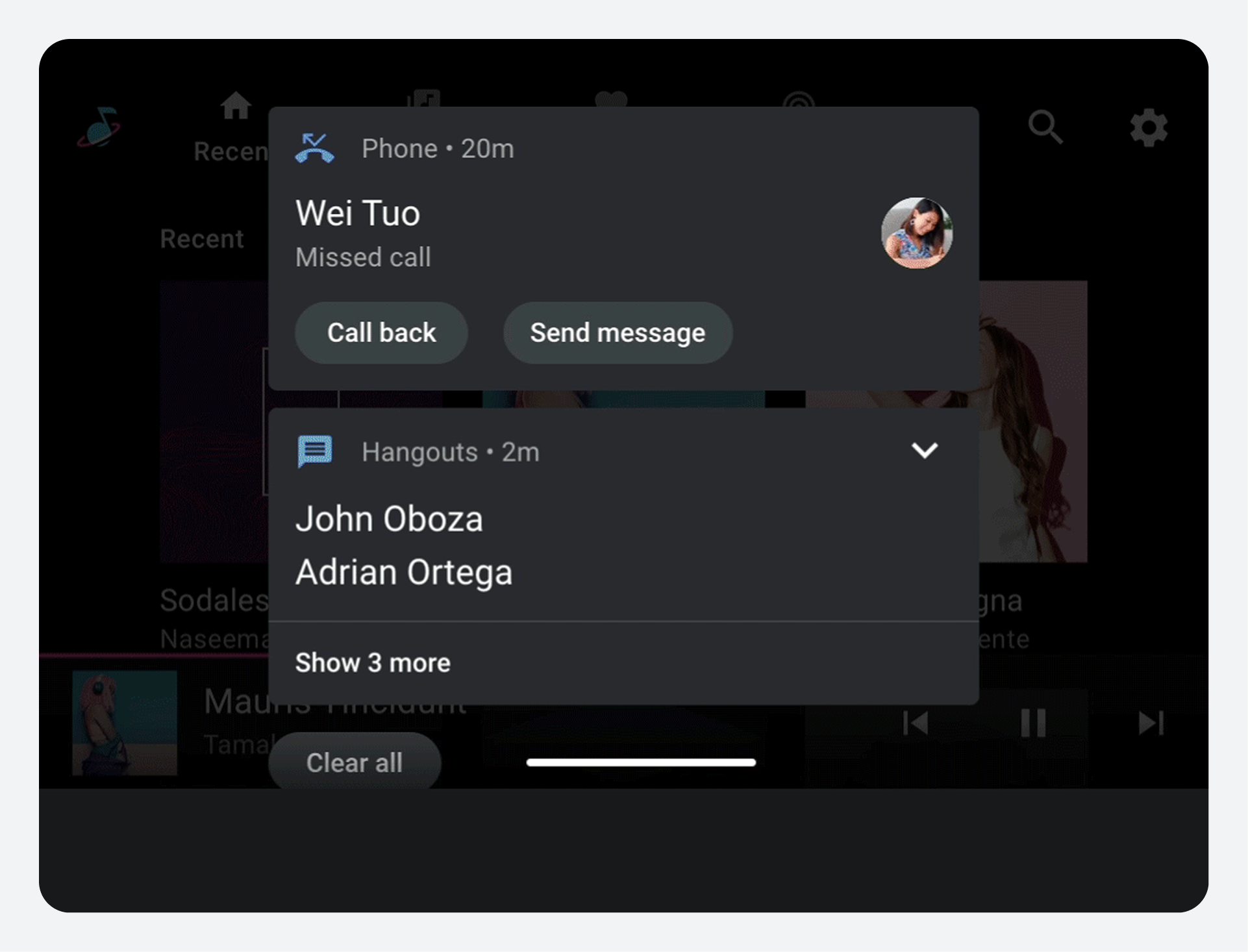
How notifications behave in Android Automotive OS (AAOS) depends on their priority, which determines whether they arrive as heads-up notifications (HUNs) or in the Notification Center.

Notification priority
In AAOS, the priority of a notification depends on its importance level and content category.
Importance levels
The importance levels for notifications in cars are the same as for notifications elsewhere.
These importance levels are ranked as follows, from most to least important:
MAXHIGHDEFAULTLOWMIN
In cars, importance levels are used to help determine which notifications appear as HUNs and also to suppress unimportant foreground service notifications that could distract drivers.
Content categories
The content categories for notifications in cars include most of the usual
Android notification categories, plus three car-specific categories:
CAR_EMERGENCY, CAR_WARNING, and CAR_INFORMATION.
The car-specific categories are among the small subset of notifications that are
allowed to appear as HUNs, along with those in the CALL, MESSAGE, and
NAVIGATION categories.
Only two types of Android notifications are not represented as notifications in cars:
TRANSPORTnotifications (for media playback)- Unimportant foreground service notifications (importance level of
LOWor below), regardless of category
Notifications in the TRANSPORT category aren't needed in cars because media
playback information is provided in the media template (with the playback view
or the minimized control bar), rather than in notifications.
Which notifications appear where
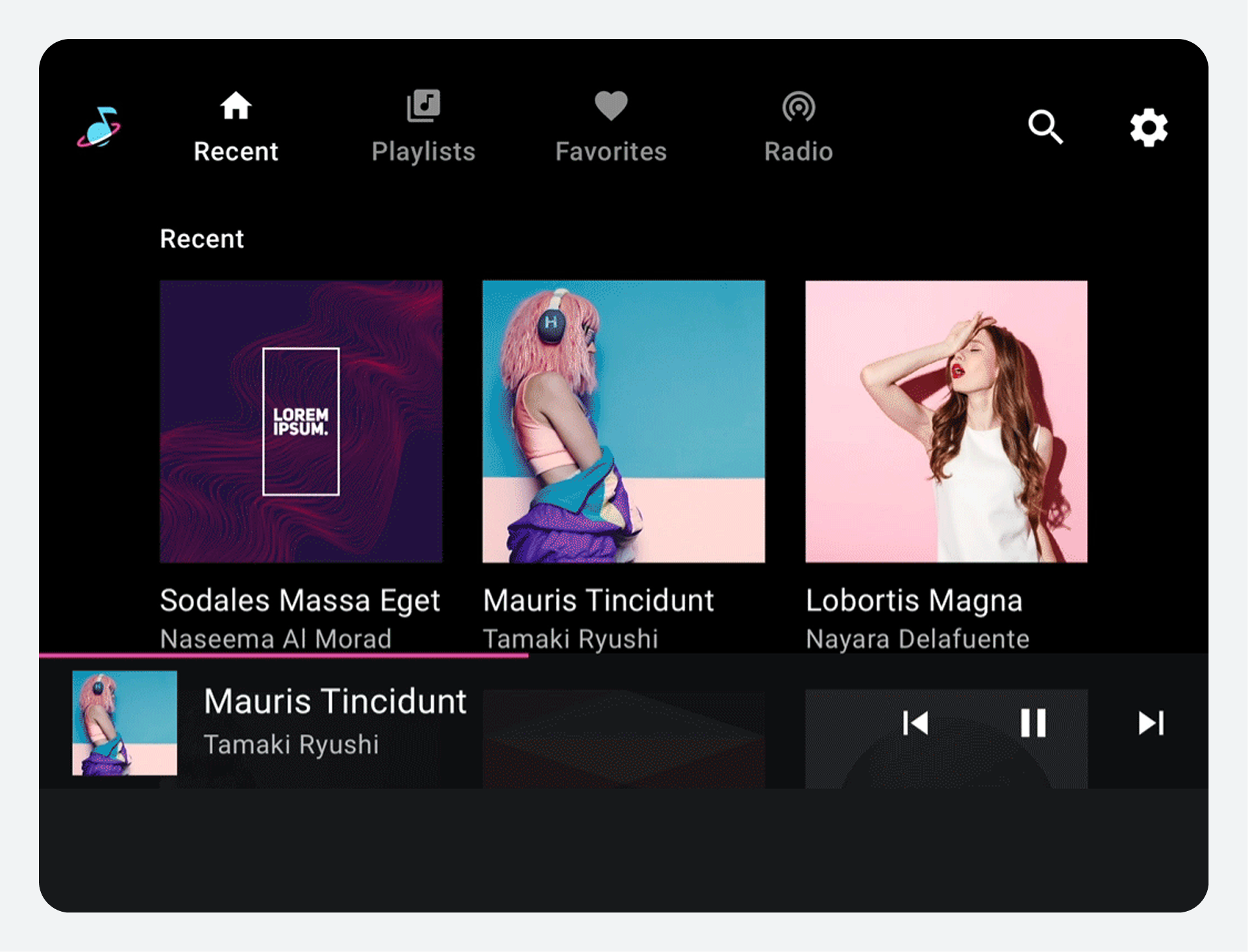
In AAOS, some notifications show up as HUNs (heads-up notifications), which temporarily cover part of the current screen. Most notifications also go to the Notification Center, where they can be consulted later.
The decision about whether to interrupt the driver with a HUN is based largely on the content category of the notification, with importance level also contributing to the decision in some cases.
Details of which notifications appear in which places are in the following table:
| HUNs These notification categories appear as HUNs only when their importance level is HIGH or above |
Notification Center | Neither HUN nor Notification Center |
|---|---|---|
* In addition to having an Importance level of |
All notifications that appear on phones, except |
Foreground service notifications with importance level |
Foreground services notifications relate to background operations that users
might notice, most typically the playing of audio tracks. As with TRANSPORT
notifications, foreground service notifications related to media play aren't
needed in AAOS because media play is handled through the dedicated media
components described in Playing media.
How HUNs work
When a HUN arrives:
- In the portrait reference experience, it appears on the bottom of the screen
- In the small landscape reference experience, it appears on top of the current screen, covering the content behind the notification card
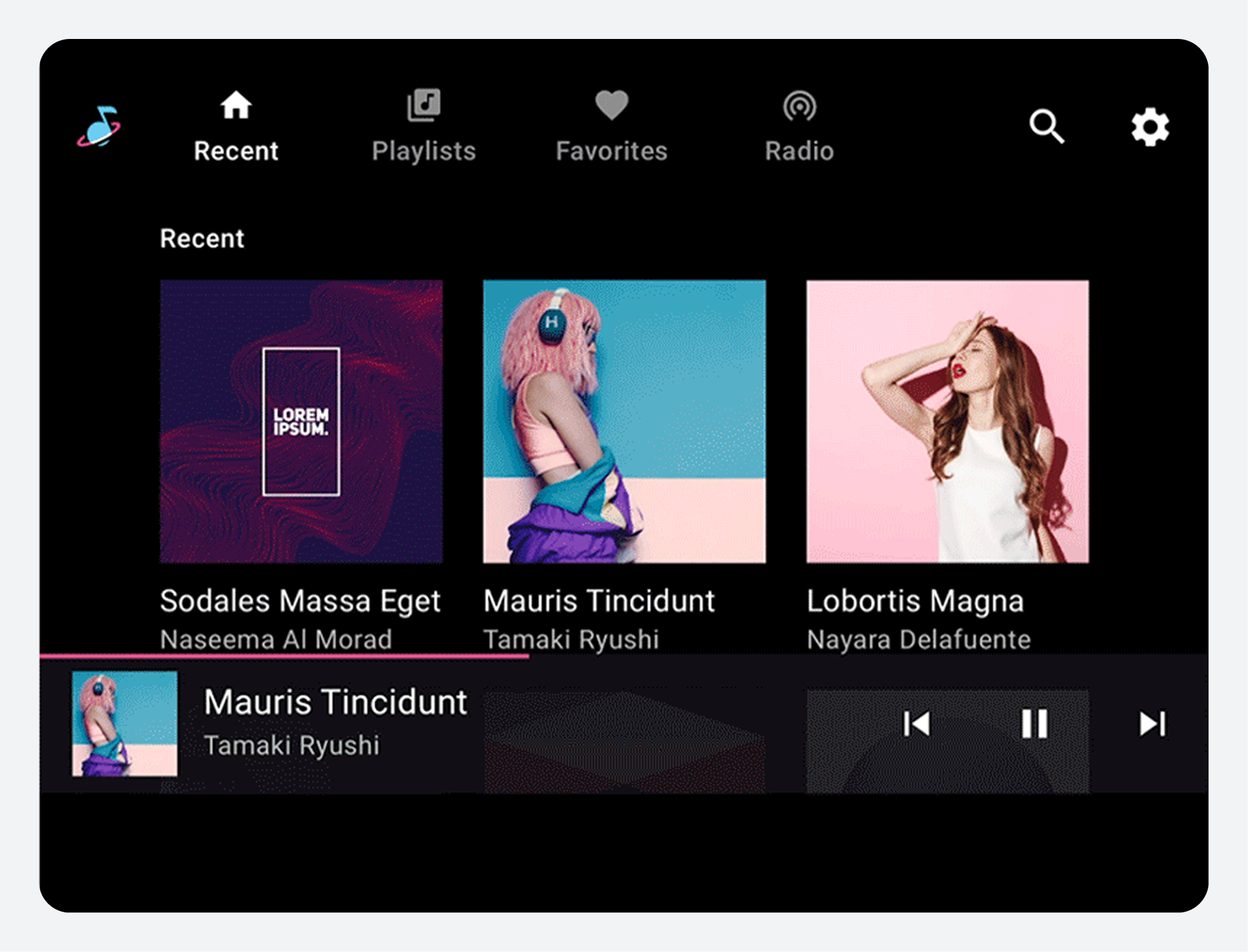
Drivers can interact with the contents (including playing messages) or dismiss the HUN by swiping. Because most HUNs are also sent to the Notification Center, drivers can go there later to interact with notifications they have dismissed as HUNs.
If the driver takes no action, the HUN is automatically dismissed after a default time of 8 seconds (configurable by car makers), except in a couple of special situations: ringing phone calls and navigational ("next turn") HUNs.
CALL, MESSAGE, and NAVIGATION are the only non-car-specific categories of
notifications that can appear as HUNs. They also have some special design
considerations, as noted in the sections that follow.
Incoming phone call HUNs
A HUN for an incoming phone call displays as long as the phone is ringing, that is, until the call is either answered or declined.
Users should be able to answer or decline the call using action affordances on the HUN.
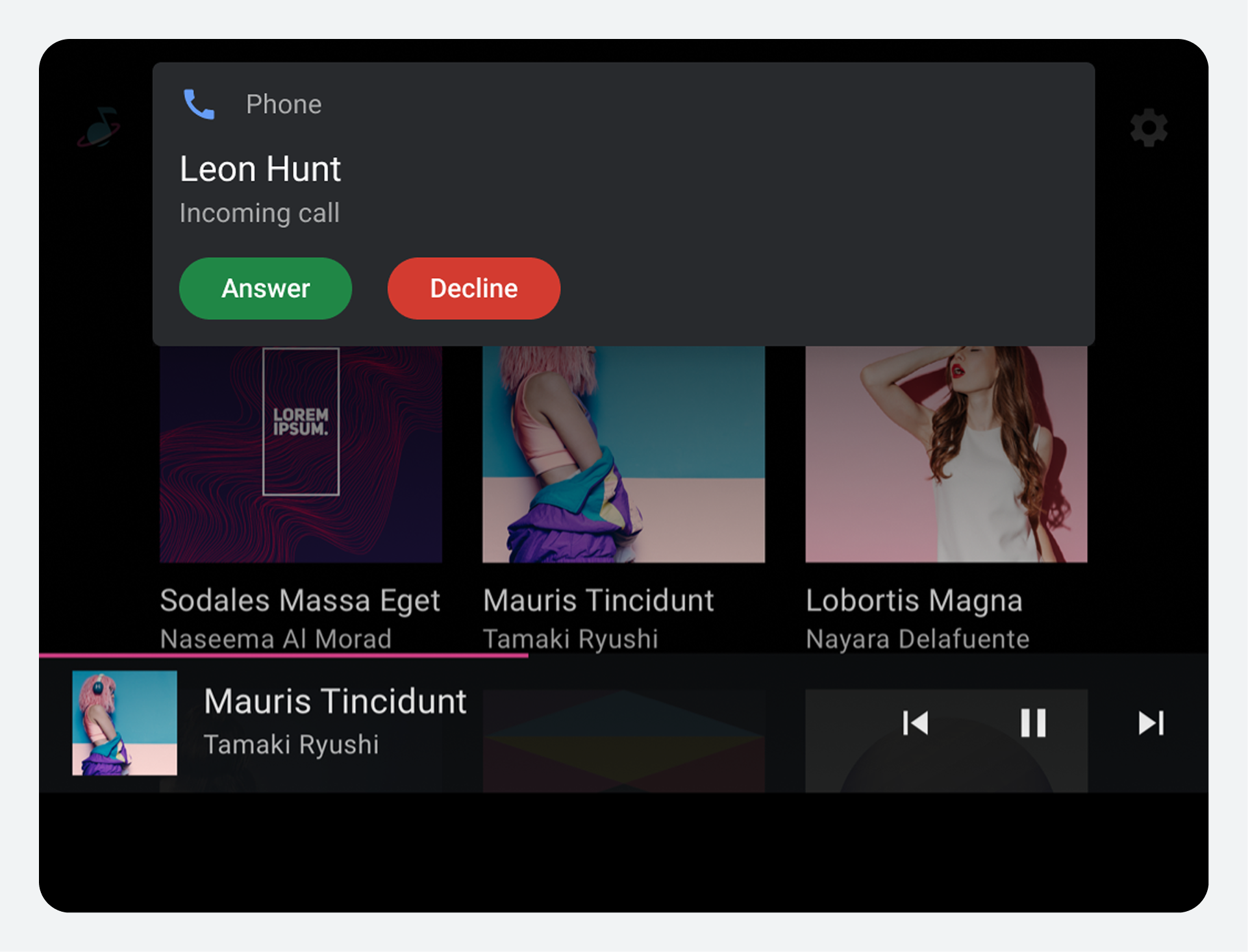
Car makers can use color to help users easily distinguish between the Answer button (colored green here) and the Decline button (colored red)
Incoming message HUNs
Notifications are the only way users can receive text messages in AAOS while driving.
Users should be able to take the following actions using action affordances on the message HUN:
- Play the message
- Mute the conversation (stop its messages from appearing as HUNs for the duration of the drive)
If a user chooses to play the message, it is read aloud either by Gemini (if Gemini is enabled) or by TTS (Text to Speech). If users mute notifications from a conversation, they can read those notifications later in the Notification Center.
When the user is driving, the message HUN shouldn't display a message preview, to minimize "eyes off the road" time. However, when the car is stopped or parked, car makers can choose to allow message previews.
Navigation HUNs
A navigation HUN, such as a "next turn" instruction, stays up if the app continues to send updates to it. Otherwise, it's dismissed after 8 seconds or whatever has been configured as the default time.
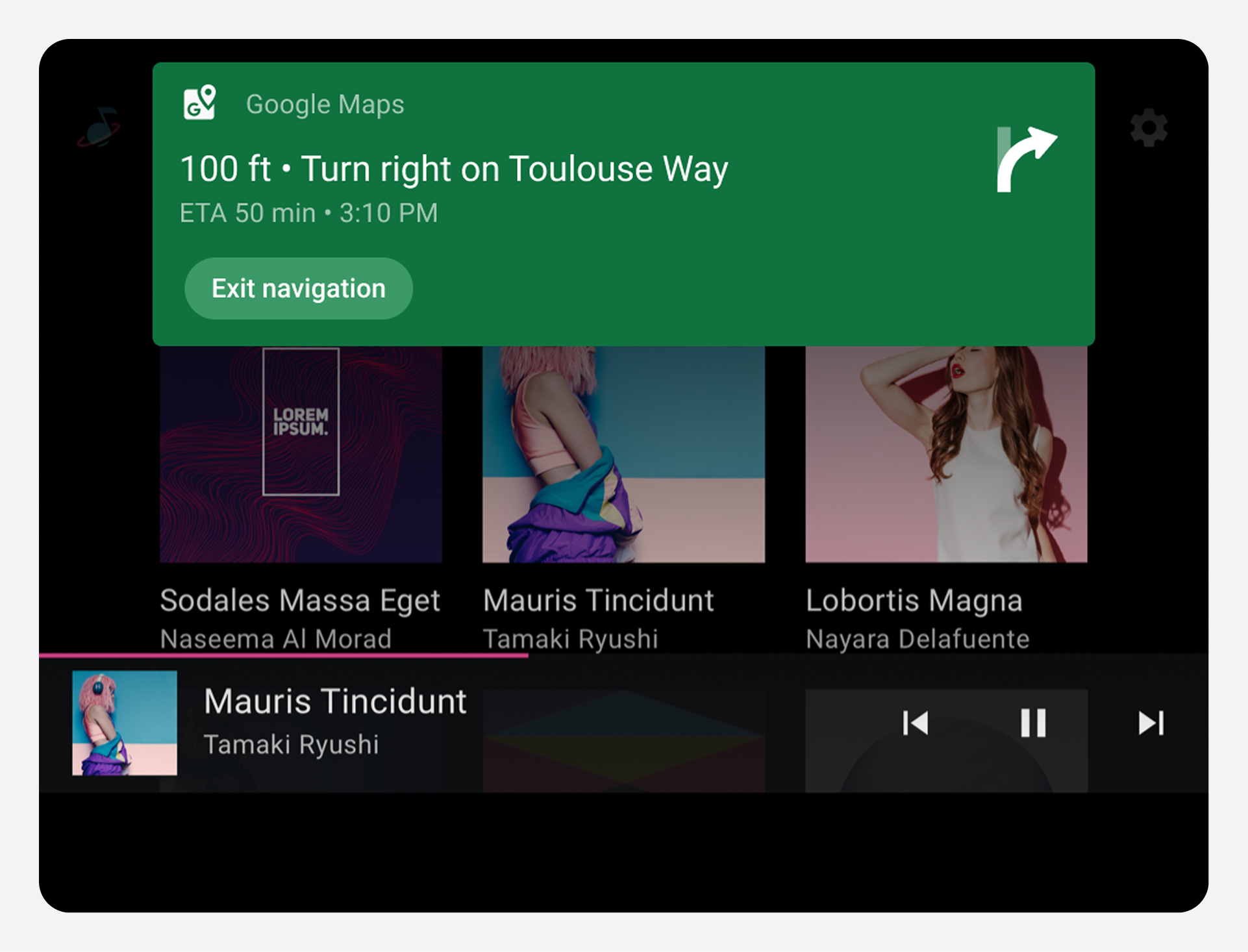
Navigation notifications can have custom background colors supplied by app developers (if allowed by car makers) and can use large icons to show turn arrows or other symbols that graphically reinforce the navigation instruction
Navigation HUNs are the only HUNs that are not also sent to the Notification Center for users to refer to later. They are relevant only during the short time period preceding the turn or other navigation event.
You can prevent navigation notifications from appearing as HUNs if they don't need them.
How the Notification Center works
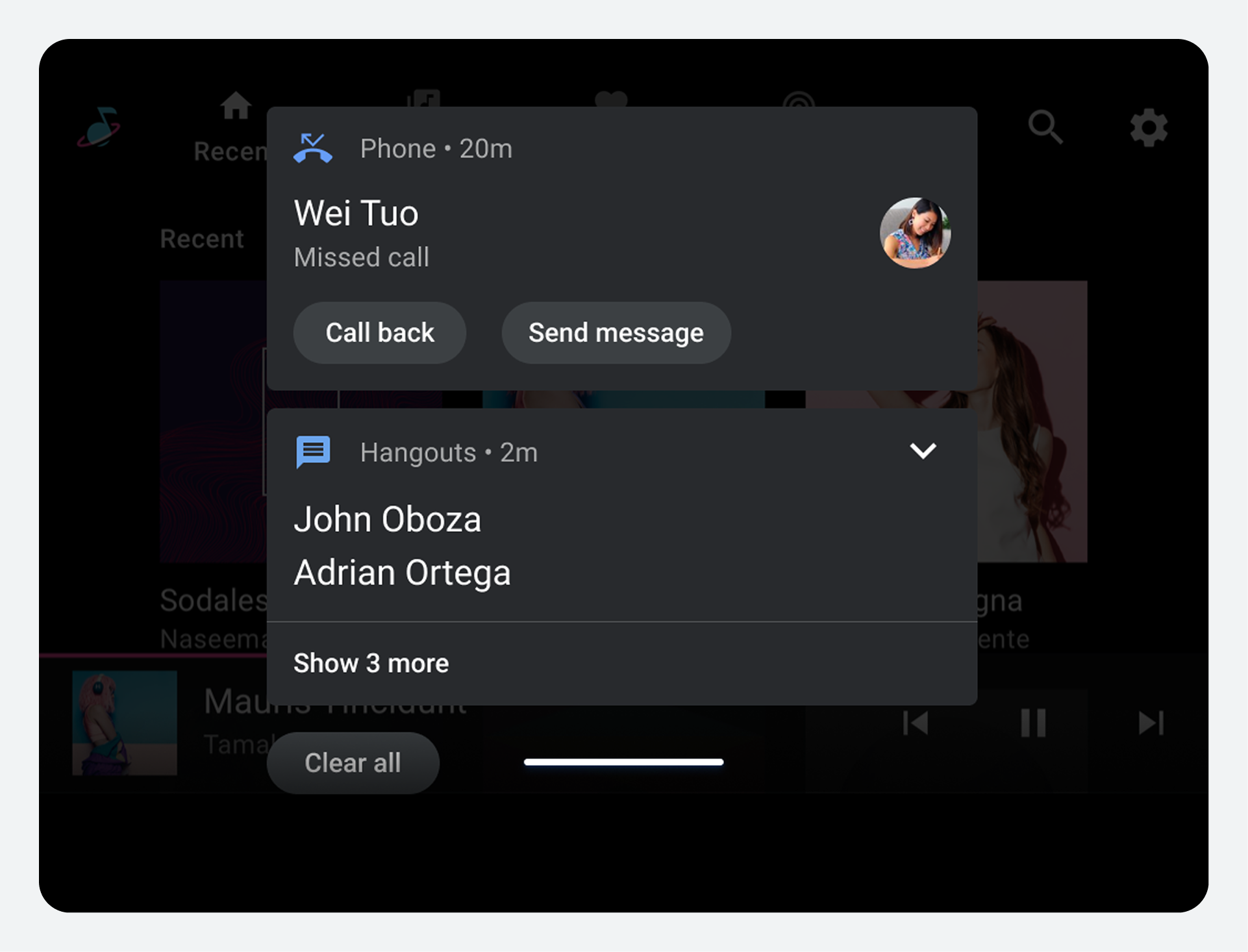
The Notification Center is the central destination for interacting with notifications in cars. It is automatically cleared at the beginning of each drive.
Most notifications in cars are listed in the Notification Center, even if they also appear as HUNs and are dismissed in that context. For details regarding types of notifications sent to the Notification Center, visit Which notification appear where.
Access to the Notification Center
You can customize how users access their Notification Center. You can implement it as a shade that users pull down over the current screen, or make it a standalone screen that users access using a button on the system status bar or navigation bar.
List order and scrolling
Within the Notification Center, notifications are presented in a scrolling list,
in order of priority (highest to lowest), where priority is determined by
category and importance level. Notifications in the categories of
CAR_EMERGENCY and CAR_WARNING have the highest priority, so they're always
at the top.
Interact with grouped notifications
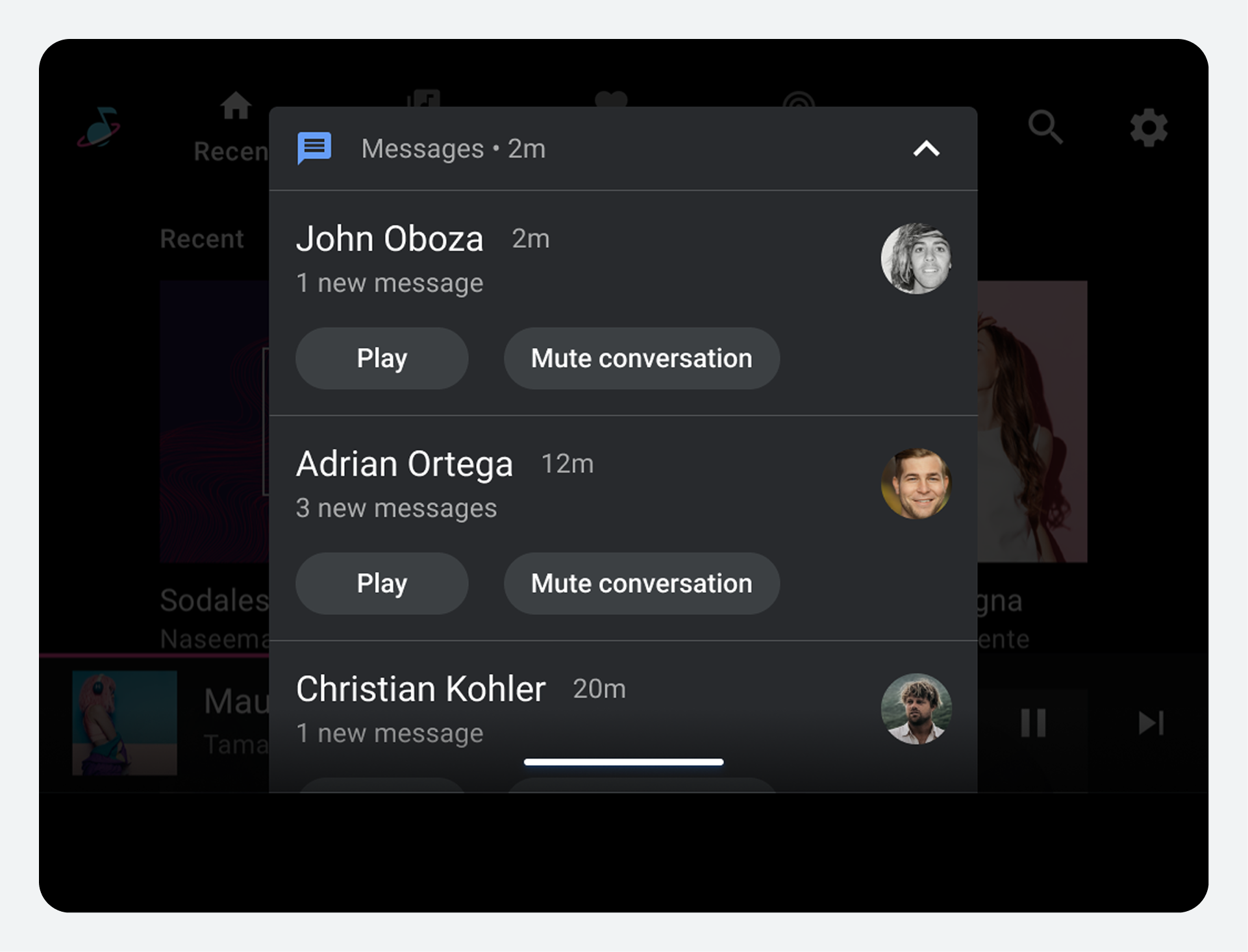
If a single app has 4 or more notifications in the Notification Center that belong to a group, those notifications are grouped into a single card. Swiping on a grouped notification card dismisses all of the notifications in the group.
Grouped notifications have an expand or "show more" button that users can tap to show all notifications in the group and interact with them individually. When the group is expanded, the same button can be used to collapse the notifications back into a single card ("show less").
Interact with individual notifications
Within the Notification Center, users can browse, respond to, and dismiss notifications. As with message HUNs, users can play messages directly from the corresponding message notifications.
Users can dismiss individual notifications in the Notifications Center by swiping them.
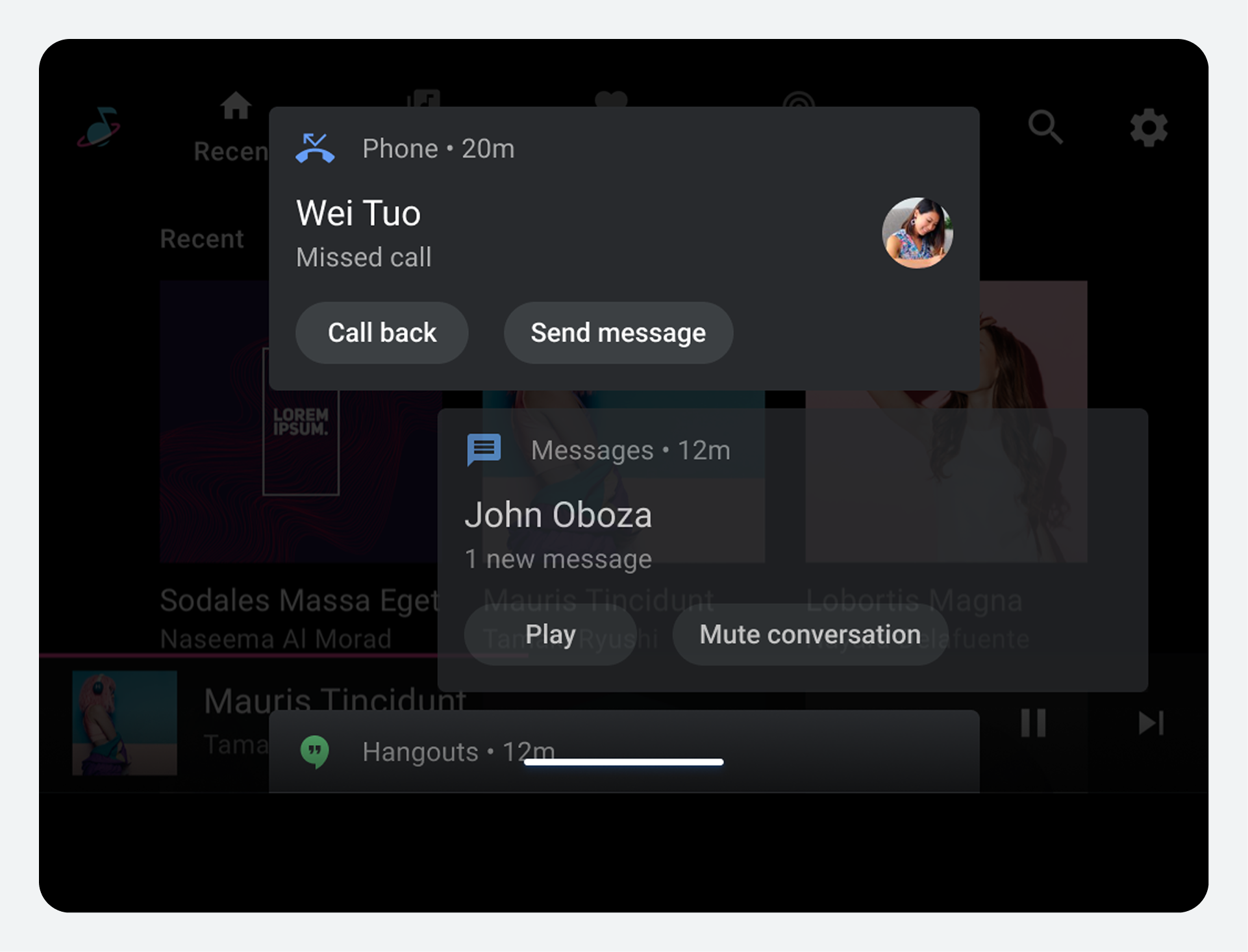
Dismissing a message notification does not delete the corresponding message. However, dismissing other types of notifications in the Notification Center deletes them (removes them from the user experience).
Close the Notification Center
Users can close the Notification Center in a variety of ways. Depending on how the car maker has implemented the Notification Center, users may be able to close it by:
- Interacting with a notification in a way that launches another foreground activity
- Tapping outside of the card area
- Tapping on the system status bar or navigation bar (if visible)
- Swiping up on the handlebar of the shade (if the Notification Center is implemented as a shade)
In addition, car makers who include a "Clear all" action in the header or footer for their Notification Center can configure this action to close the Notification Center when the notifications are all removed.