The Calendar app for Google built-in allows drivers to view and interact with their calendar safely while on the road. Car makers can customize this app to align with their car's brand identity while maintaining Android Auto's core safety principles. With glanceable access to a user's upcoming events, it is designed to minimize driver distraction by focusing on essential information and high-value actions, such as navigating to a location or joining a conference call.
Key features
- Event syncing: Synchronizes event data from a companion app on the user's phone.
- Daily schedule: Displays a list of events for the current day.
- Driving actions: Provides direct links to Navigate (using the car's navigation system) or Call in (using the Dialer) for events with valid location or meeting data.
On this page:
Anatomy
The Calendar UI consists of:
- An app header, which displays the app name
- A scrollable set of upcoming events arranged for the current day and the following day.
Events for a given day are split between all-day events and time-boxed events.
For detailed descriptions of user interactions, see Interaction model.
Events for the current day
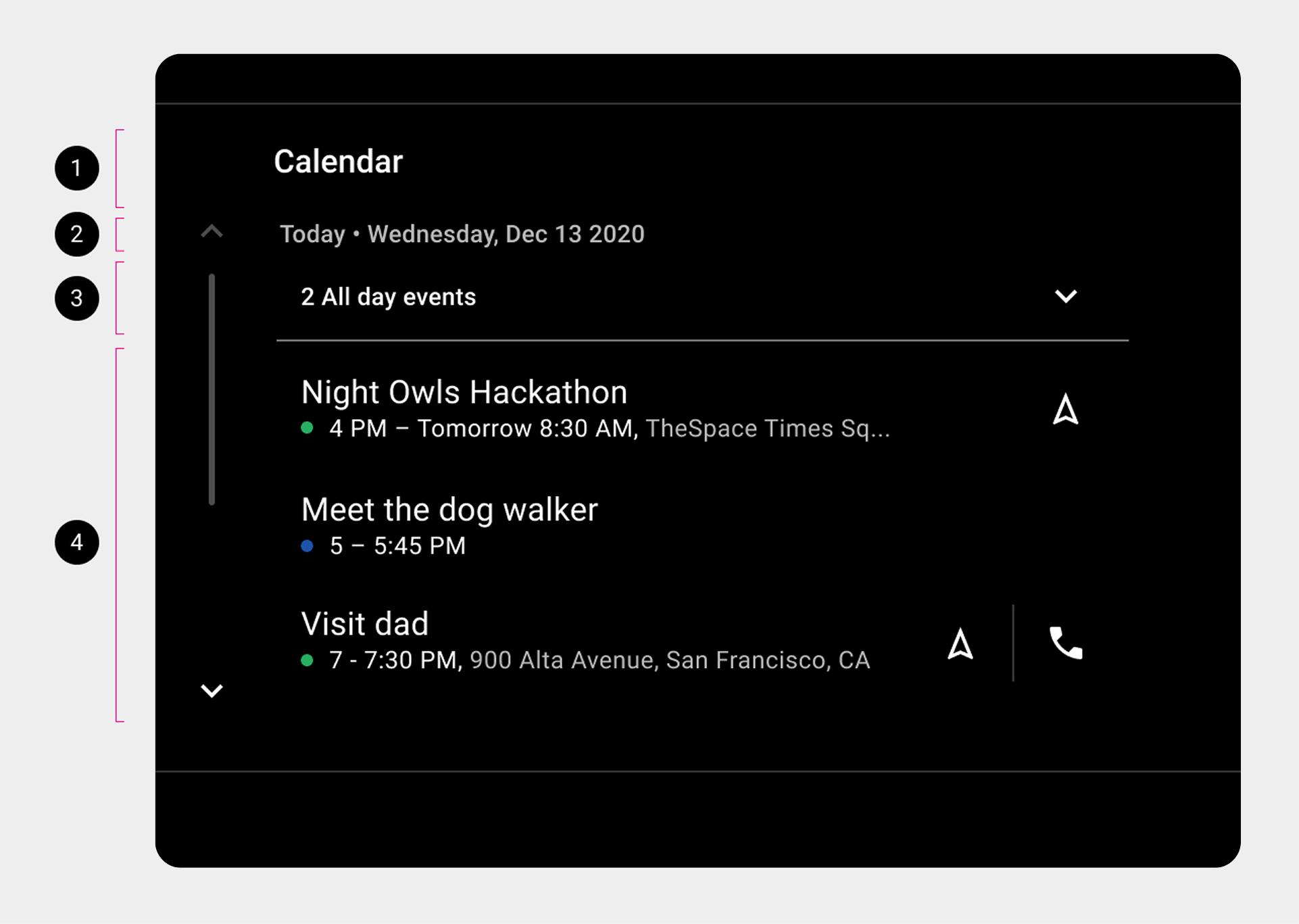
2. Today's date
3. Today's all-day events collapsed
4. Today's scheduled events
Events for the next day
A scrollbar allows users to view additional event listings. For example, a user might need to scroll down to view events from the next day.
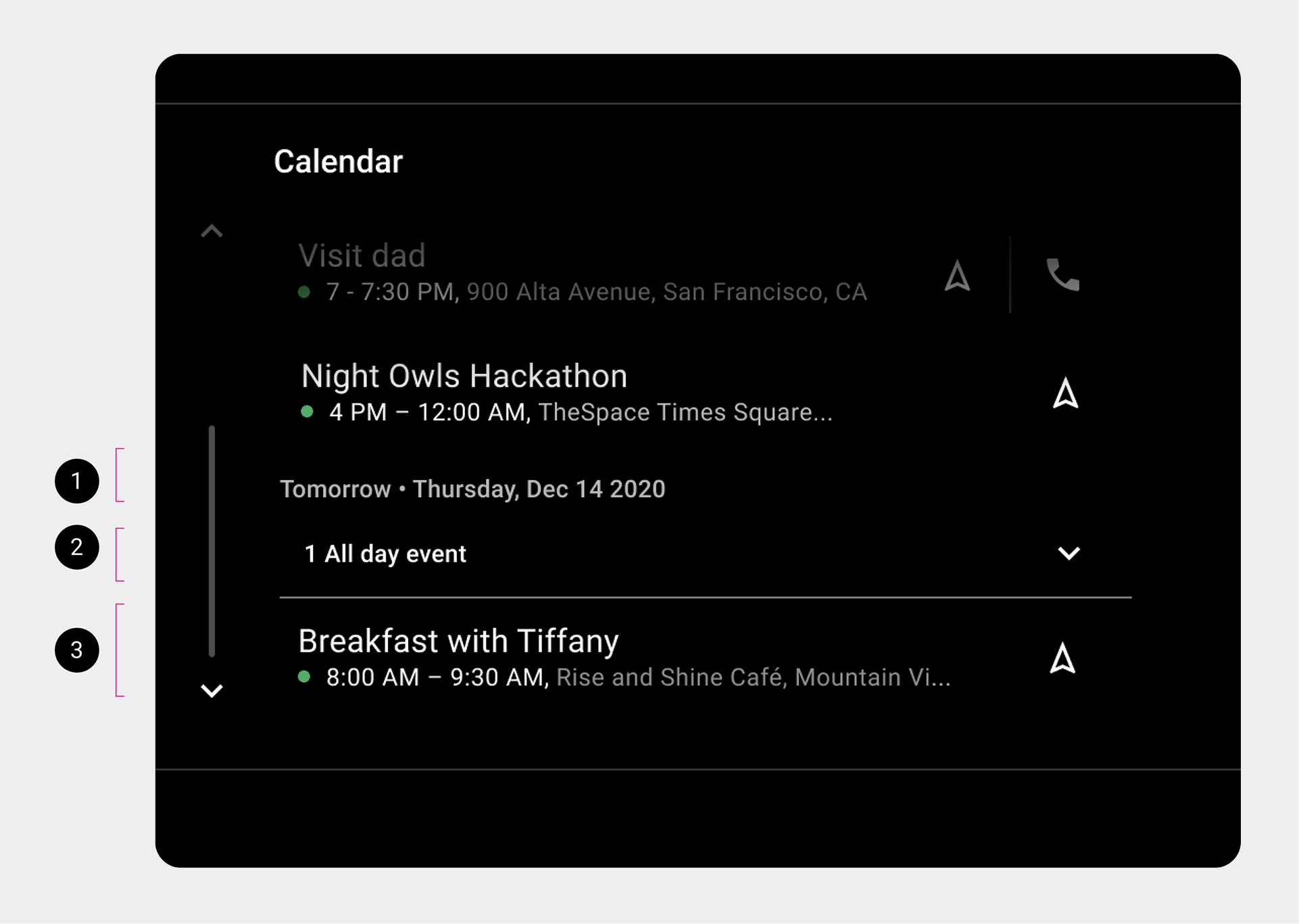
2. Collapsed list of tomorrow's all-day events
3. Tomorrow's scheduled events
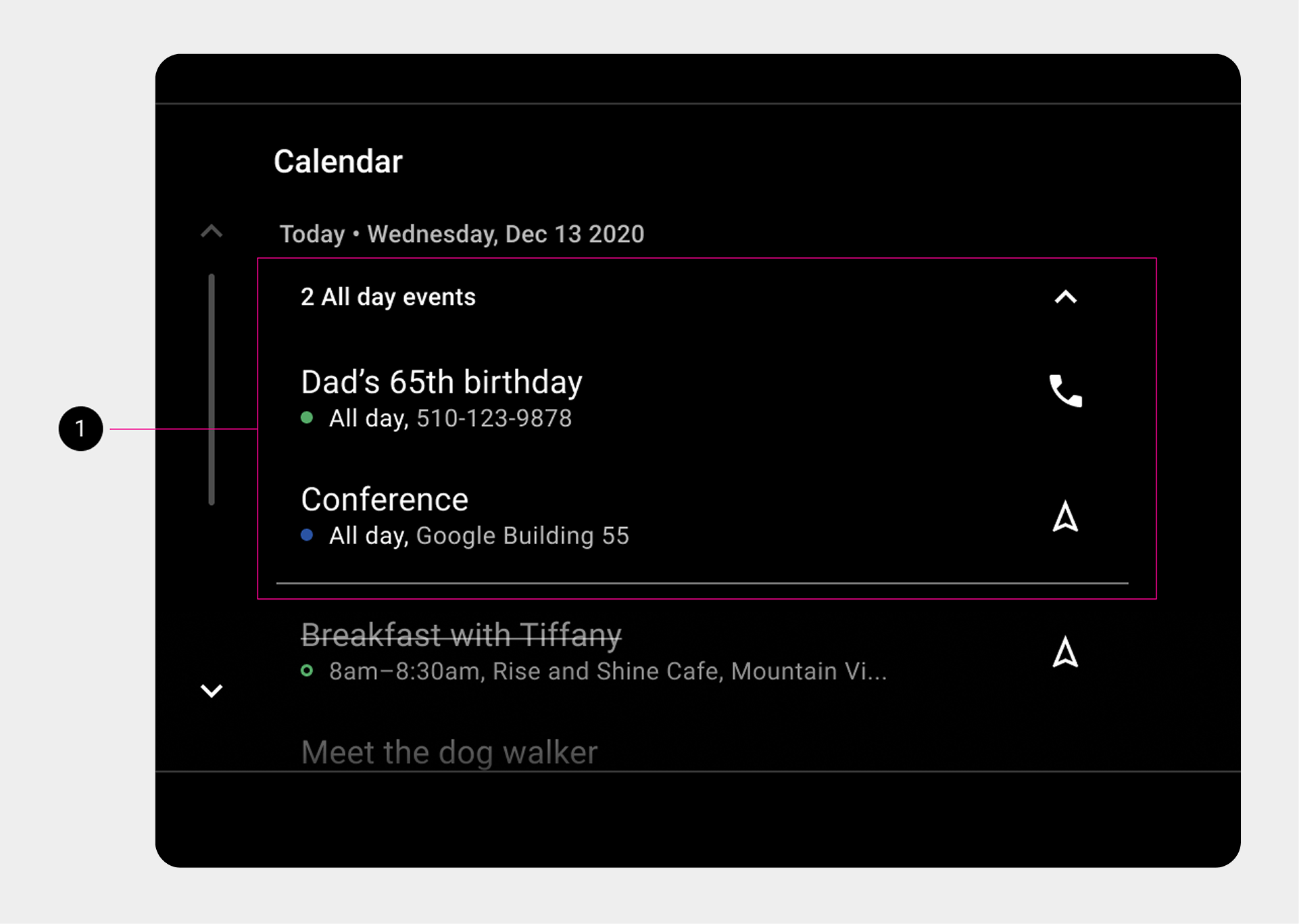
All-day events
All-day events stay collapsed to prioritize upcoming scheduled events. Expand the list to see all-day events, which pushes scheduled events down.
Event listings
Individual event listings display:
- Event title
- Calendar source indicator
- Event time information, either start and end times for scheduled events or "All day" for daylong events.
In addition, event listings might display:
- An address and a navigation affordance
- A phone number (displayed only when a phone number is provided and an address isn't)
- A phone affordance (if an event included a phone number)
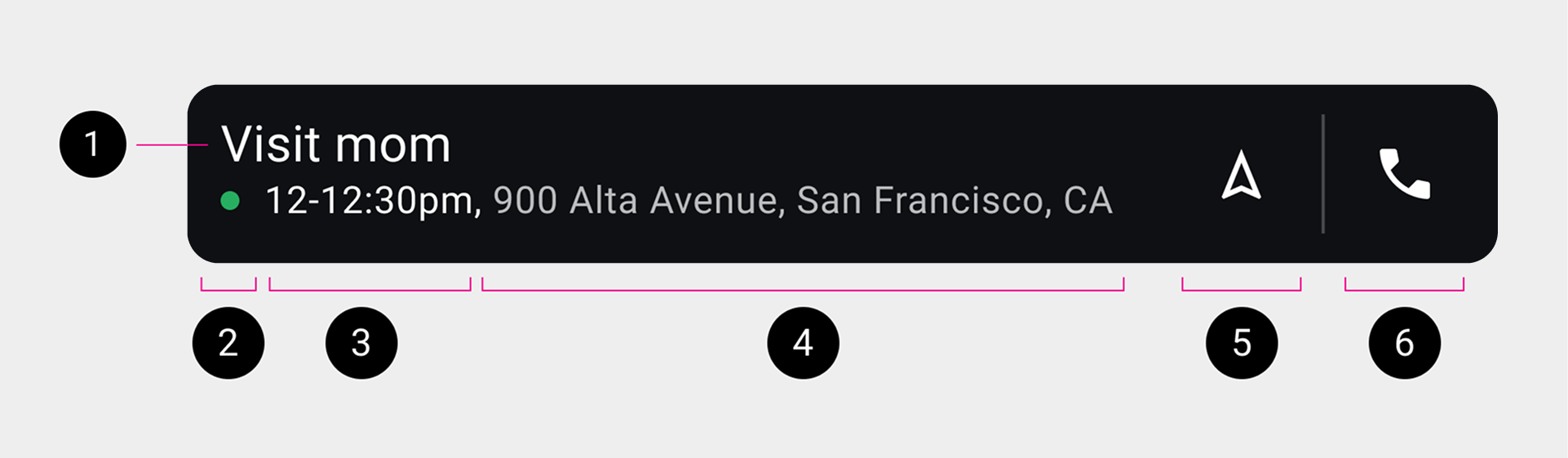
2. Calendar source indicator
3. Event duration
4. Event location
5. Navigation affordance
6. Phone affordance
Interaction model
The Calendar app reads a user's calendar data sources to display on a car's screen. Calendar data is retrieved from a car maker's companion app on a user's phone, but car makers can provide other data sources, such as a Google Calendar sync adapter, to retrieve calendar data.
In the car, users can:
- View events for the current day and the next day
- Navigate to events that include location information
- Dial in to events that include a phone number
View events
Users automatically see a chronological event list of their appointments, meetings, and scheduled tasks for the current day and the next day. Users can scroll to view the entire list.
Users can see two kinds of events:
- Scheduled events, with start and end times
- All-day events
By default, users automatically see scheduled events for each day, while the list of all-day events for each day is initially collapsed.
Individual events include a description and duration, and might provide an event location and phone number.
See Anatomy for a detailed description of an event listing. Users can navigate to events that include location, and they can dial in to events that include a phone number. If there are no scheduled events on a particular day, users see No scheduled events. You're free! for that day.
View all-day events
To view the list of all-day events for a particular day, users can select the expand button at the right side of the collapsed list. Expanding an all-day event list pushes scheduled event content down.
To hide an expanded list of all-day events, users can select the collapse button at the top right side of the expanded list.
View declined events
Declined events that users didn't delete from their scheduling apps on their companion devices appear in Calendar in dimmed, strikethrough text. If a declined event includes a location, however, the user can still navigate to the event, and if the event includes a phone number, users can still dial in to the event.
Navigate to an event
To navigate to an event that includes location information, such as a street address, a user can select the body of the event listing or select the event's navigation affordance.

Calendar automatically starts the user's Android Automotive navigation app and passes the event location information to the app.
Dial in to an event
To dial in to an event that includes a phone number, a user can select the event's phone affordance.

Calendar automatically starts the Android Automotive Dialer app and passes the phone number to the app.