
拨号器是一款功能齐全的应用程序,可与用户的手机配对,在车载屏幕上处理通话和管理联系人。
Dialer 内置于 Android Automotive OS 中,可提供蓝牙通话功能,最大限度地减少对驾驶员的干扰。
本指南将介绍拨号器的整体外观和用户体验。
空间模型
本节介绍拨号器的主要元素、它们的功能以及将它们结合在一起的架构。
解剖学
拨号器用户界面包含四种主要视图类型和一些常用元素,例如用于主要导航的应用栏。以下是对每种视图的详细介绍,包括其包含的内容和出现时机。
| 视图类型 | 包含的元素 | 显示于 |
|---|---|---|
| 可浏览联系人(最近联系人、联系人、收藏夹和详细信息视图) |
| 用户正在浏览联系人和通话信息或拨打联系人电话。 |
| 拨号键盘 |
| 用户正在输入电话号码以拨打电话 |
| 上门服务 |
| 通话正在进行中 |
| 应用控制(搜索和设置) |
| 用户正在查找联系人或调整应用设置 |
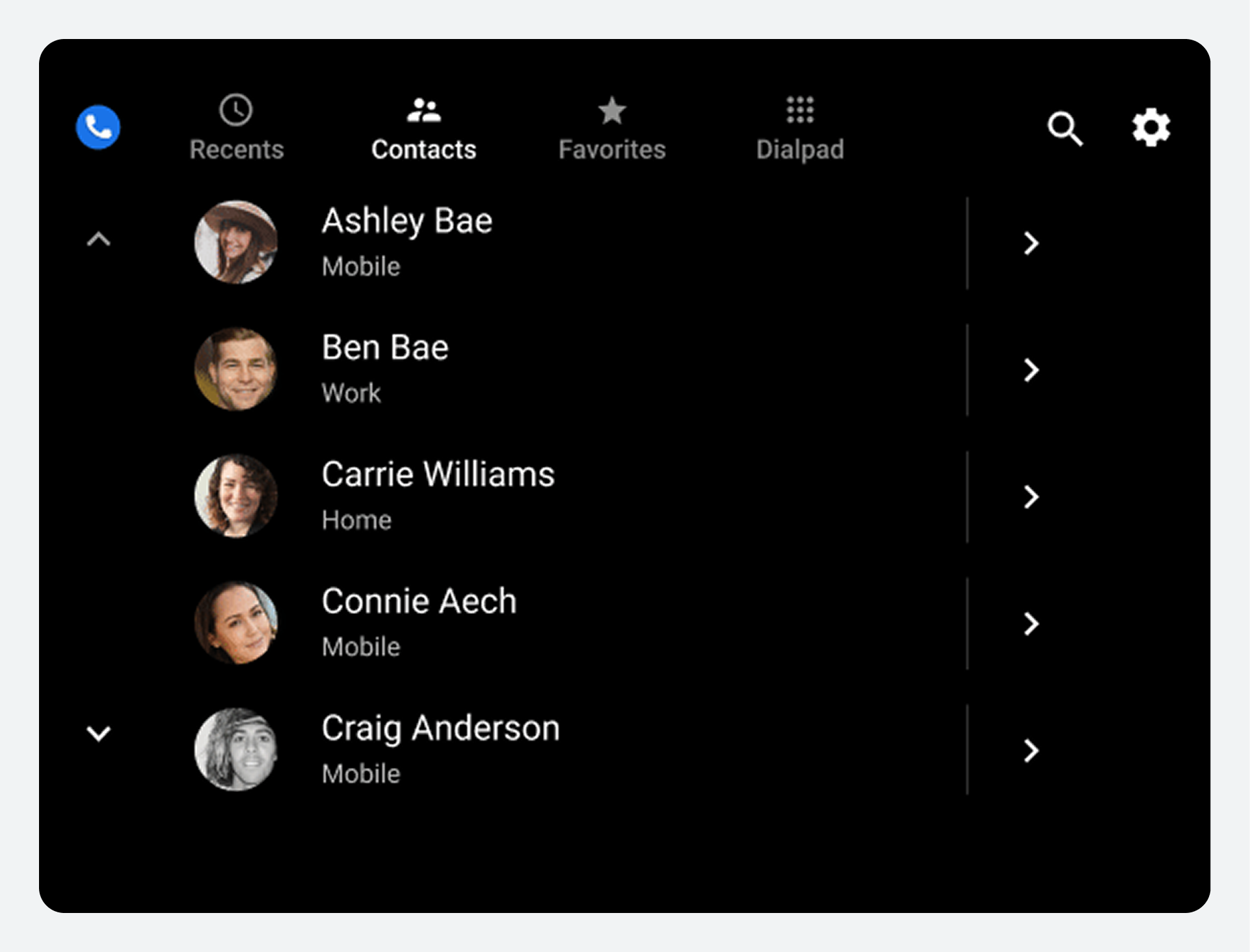
可浏览的联系人视图

2. 可浏览的联系空间。
This is the default arrangement of the app bar and contact space. Depending on screen dimensions, primary navigation and app controls might be stacked, rather than kept in a single horizontal bar.
拨号盘和通话中视图
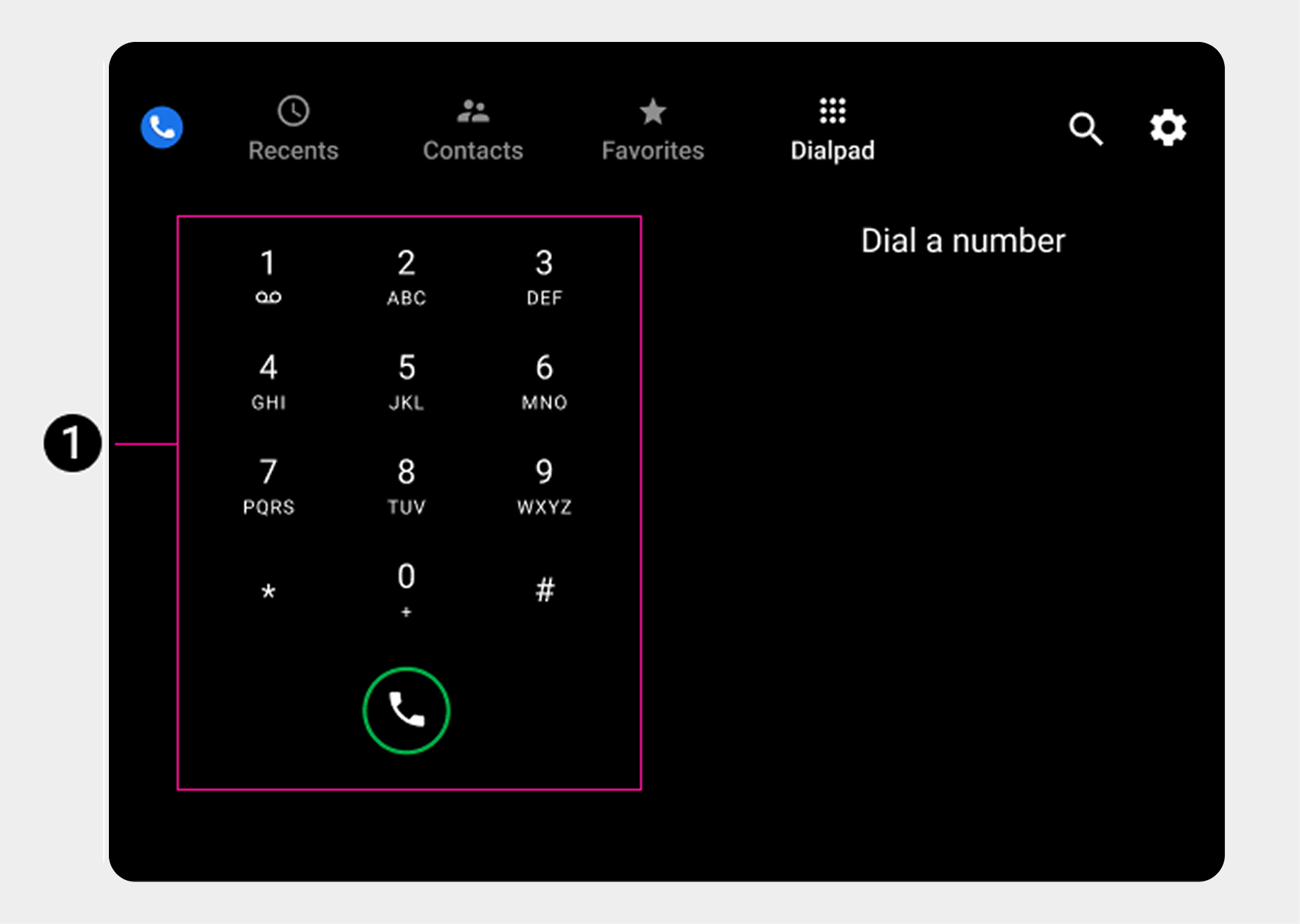 |  2. 控制栏。 |
应用控制视图(搜索和设置)
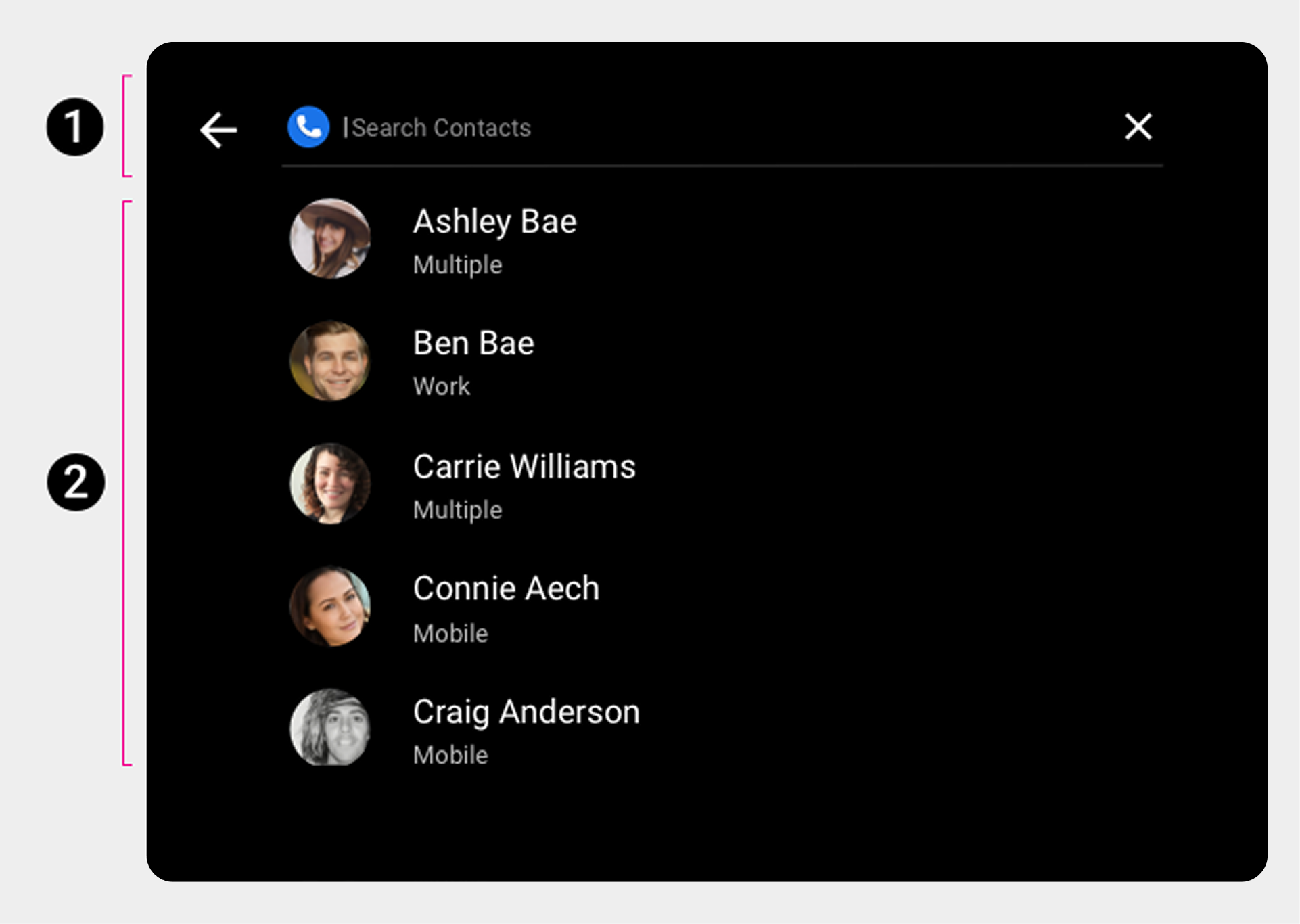 2. 搜索叠加层 | 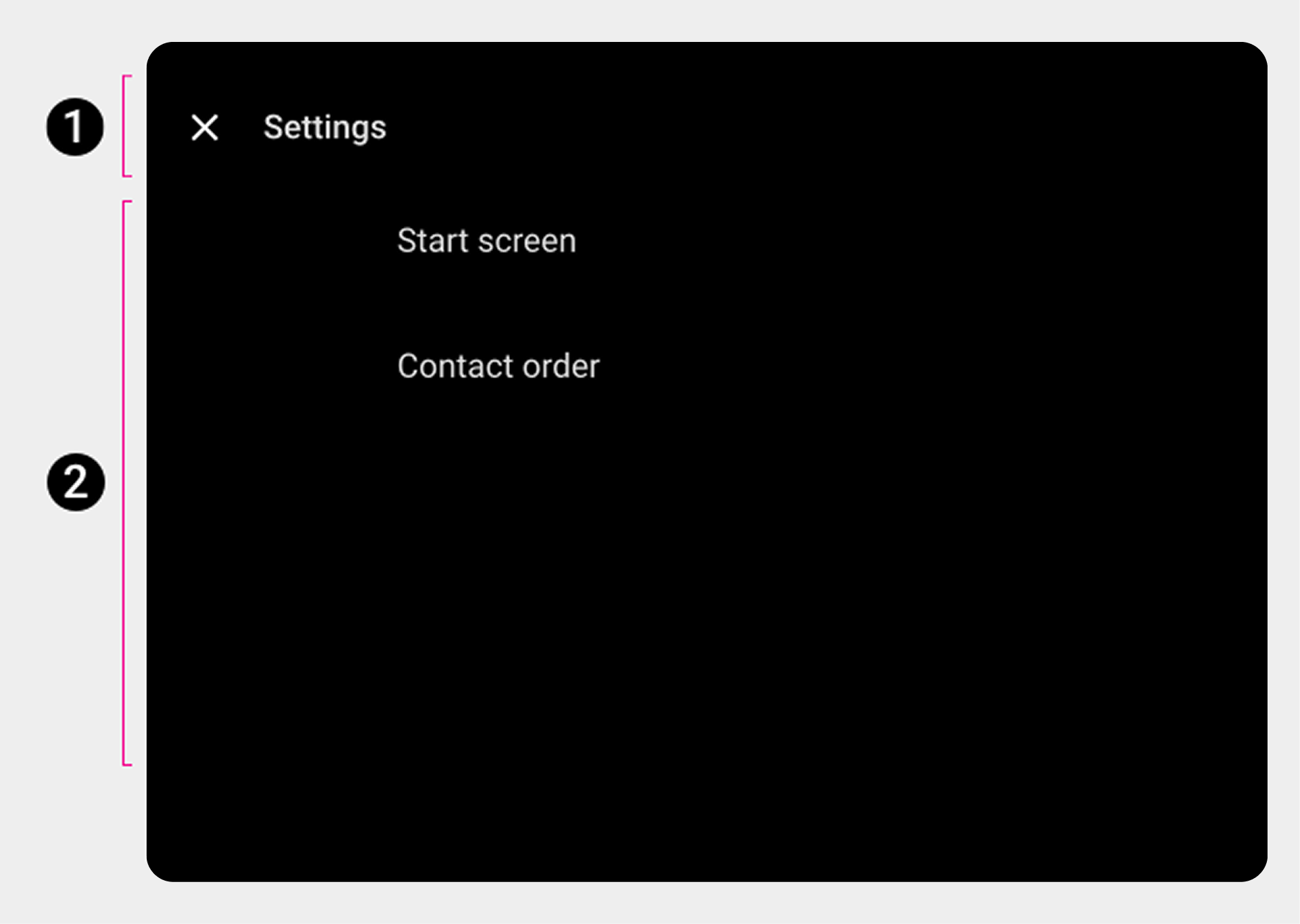 2. 设置叠加层。 |
主导航栏(应用栏)
主应用导航栏由多个标签页组成:
 |  |
应用程序控制
应用栏右侧的应用控件提供了对应用内搜索和设置功能的访问(分别用放大镜和齿轮图标表示)。
 |  |
可浏览内容空间
在可浏览的联系人空间中,用户可以垂直滚动浏览联系人,并通过 z 轴空间向下导航到各个联系人的详细信息,向下浏览一个层级。
因为在多个层级间导航会增加驾驶员的认知负荷,所以在拨号器中只有两个联系层级:主要层级和联系详情。
 |  |
拨号键盘
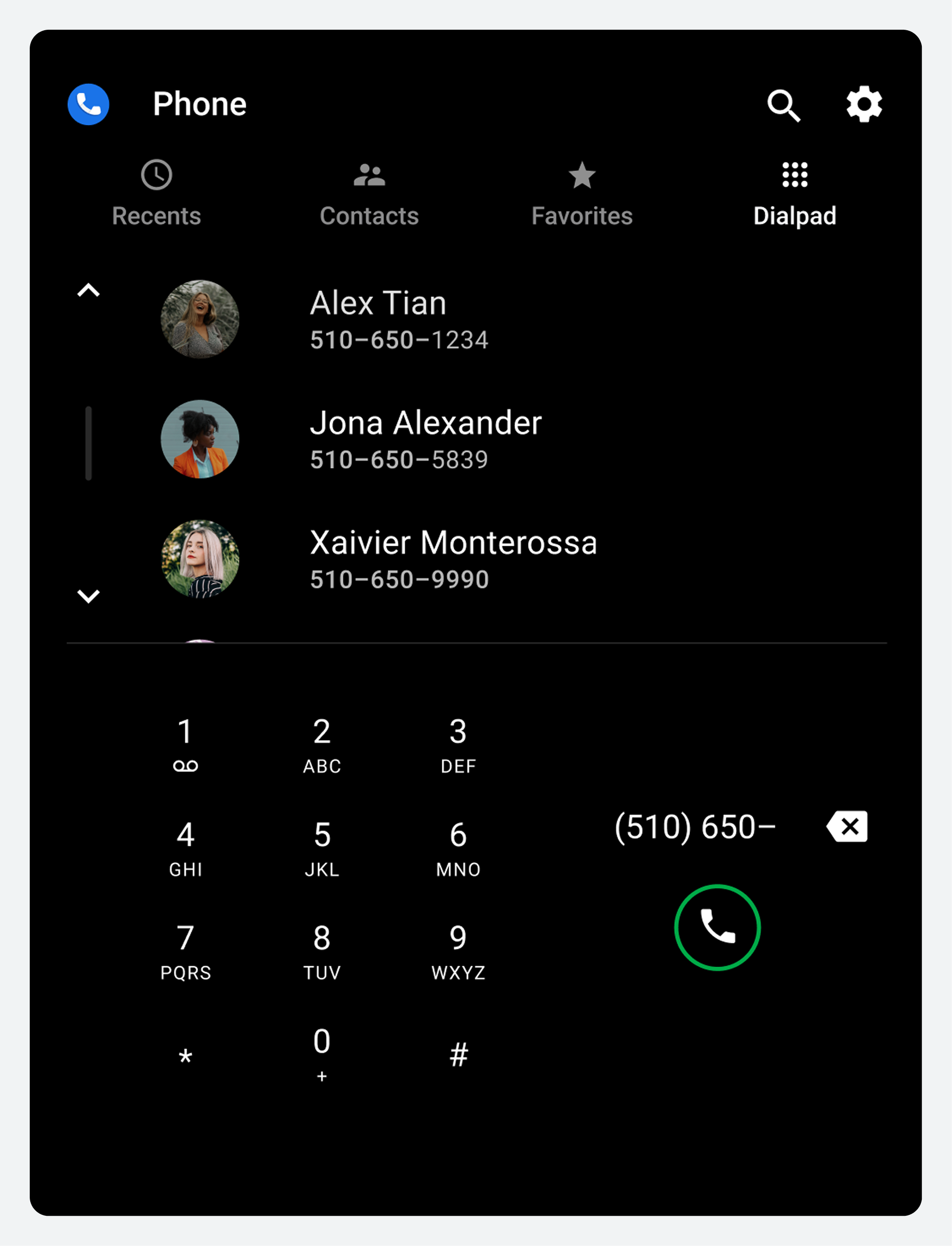
Users can select the Dialpad tab to display a dialpad for placing a call. If a partially entered number uniquely corresponds to a phone number in contacts, the match is displayed and the user can place a call without having to enter the full number.
 |  |
浏览应用
用户可以通过屏幕顶部的应用栏导航到拨号器中的主要视图和活动。

应用栏元素
| 应用程序栏选项卡或控件 | 它允许用户做什么 |
|---|---|
| 近期 | 查看并回复最近的电话 |
| 联系方式 | 浏览联系人并拨打电话 |
| 收藏夹 | 快速访问常用联系人并拨打电话 |
| 拨号键盘 | 输入电话号码即可拨打电话 |
| 搜索(放大镜图标) | 查找特定联系人 |
| 设置(齿轮图标) | 选择首选的起始屏幕和联系人顺序(名字或姓氏) |
When a user selects a tab, the destination reflects the user's previous interaction with that view. For example, if a list of contacts was previously scrolled during the app session, the scroll position is retained when the user returns to that tab.
In the Recents and Contacts views, users can navigate to a lower-level detail view for each contact, as described in Navigate contact details . In detail view, the app bar is replaced by an app view for each contact, as described in Navigate contact details . In detail view, the app bar is replaced by an app header with a back button for returning to the top-level view.
浏览和搜索联系人
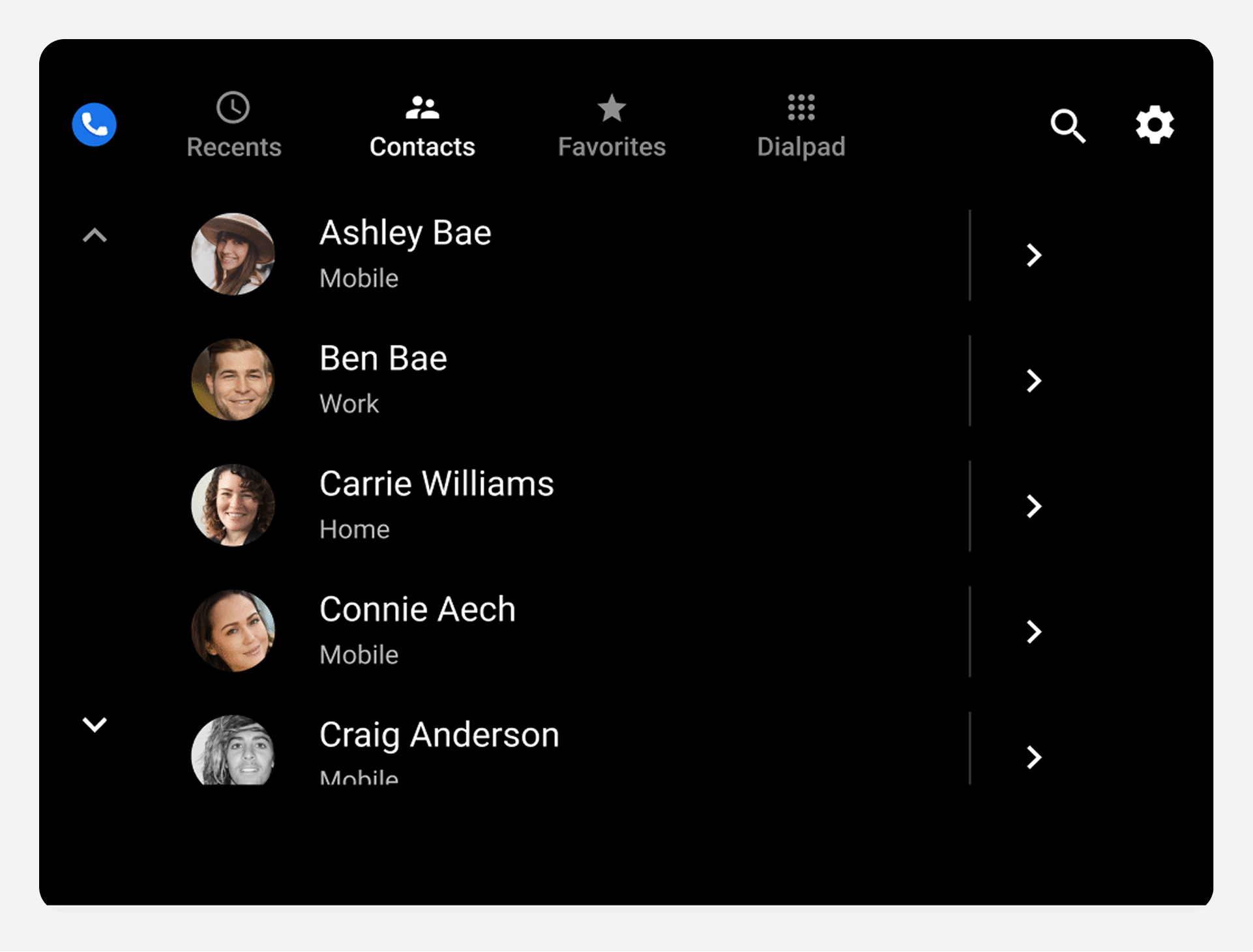
用户可以在“联系人”视图中浏览按字母顺序排列的列表,并导航到每个联系人的详细信息,或者使用搜索控件查找某人。
Other views that show contacts include Favorites (after the user has added favorites) and Recents (after the user has a call history). Users can start a search or place a call from any of these views, or from the Dialpad view.
浏览联系人列表
Users can scroll vertically through the top-level Contacts list to browse their contacts, which are imported from their phones. Favorites and preferred phone numbers aren't imported; users specify these within Dialer.
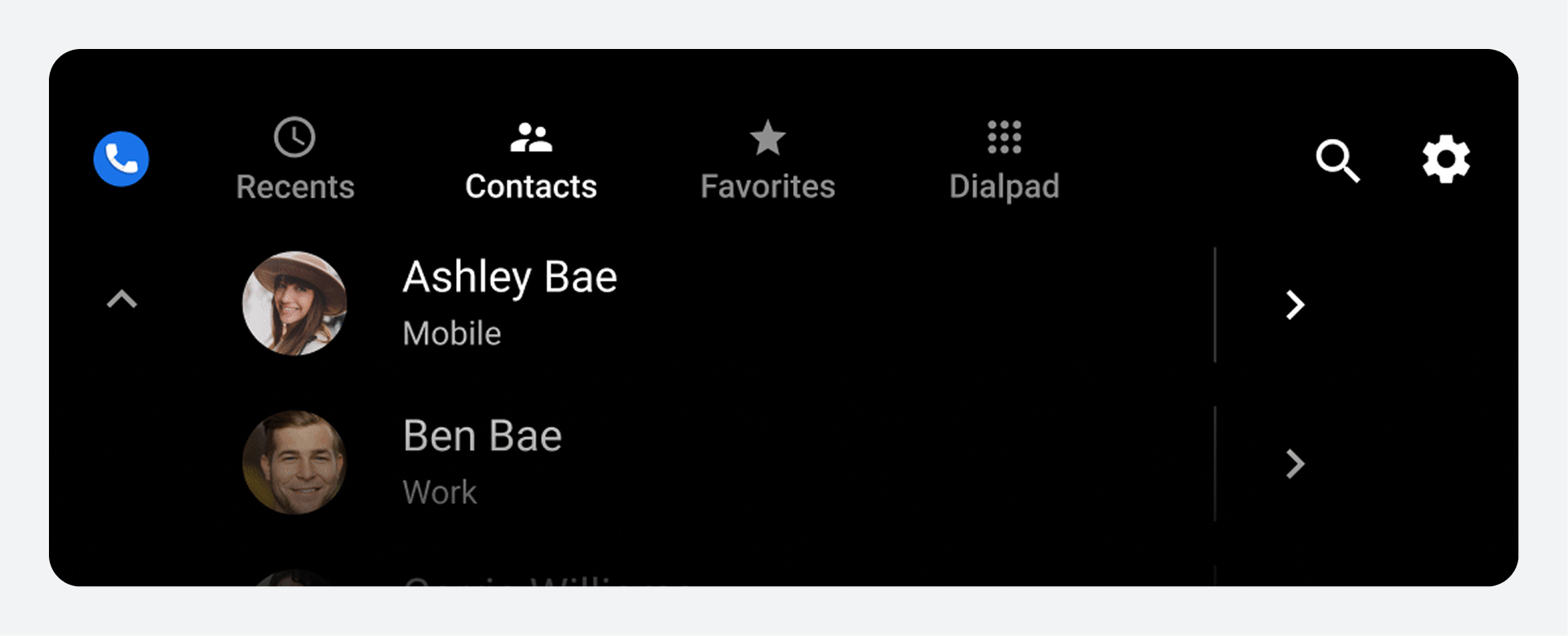
列表中的每个项目都显示有关联系人的信息,并允许执行两种可能的操作:拨打联系人电话或查看联系人详细信息。
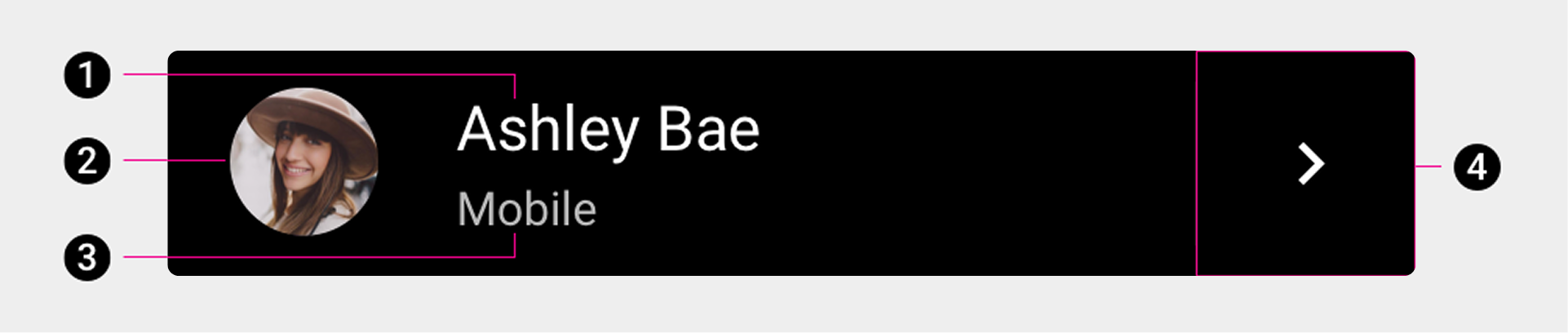
1. 联系人姓名
2. 阿凡达
3. 联系人首选电话号码类型
4. 联系方式图标。
Users can select any of the first three elements (or the area near them) to place a call to a contact's preferred number, or they can select the contact detail icon to navigate to a more detailed view of the contact.
浏览联系方式
当用户浏览联系人视图时,可以选择联系人详细信息图标来查看联系人的更详细信息。


在详情视图中,用户可以:
汽车制造商可以自行决定是使用谷歌地图还是自己的导航系统来导航到联系人的地址。
搜索联系人
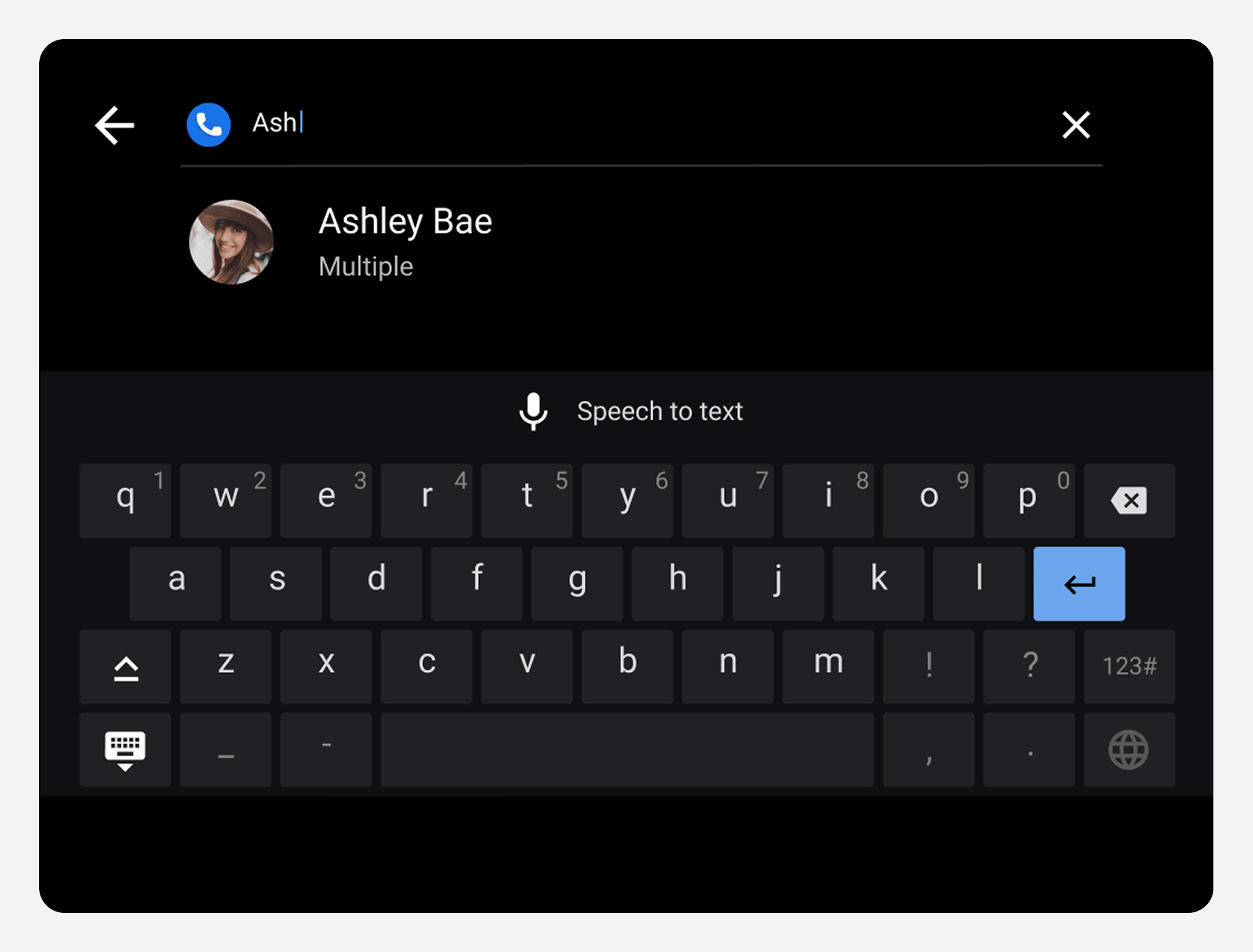
用户还可以通过选择应用栏上的搜索控件(放大镜图标)来查找特定联系人,无论他们是否在“联系人”视图中。
用户如何指定搜索条件取决于车辆是停放状态还是行驶状态:
- 停车时:用户在键盘触摸屏上输入搜索条件。
- 移动时:用户必须使用语音转文本输入搜索条件。
As the user enters search criteria, the search string appears in the search bar. Dialer uses the search criteria to filter the contact list in real time as the user types. It displays only those contacts that continue to match the user's search criteria.
当用户找到并选择联系人后,拨号器会显示联系人详细信息页面。用户可以在该页面选择联系人的可用号码进行拨打电话。
添加收藏
用户可以将重要或经常使用的联系人指定为拨号器中的收藏联系人。
After doing so, they can select the Favorites tab to quickly access and call favorite contacts. Users can add new favorites either from the Favorites view or from the detail view of a contact card.
查看并拨打收藏夹
当用户将某些联系人指定为收藏联系人时,他们可以:
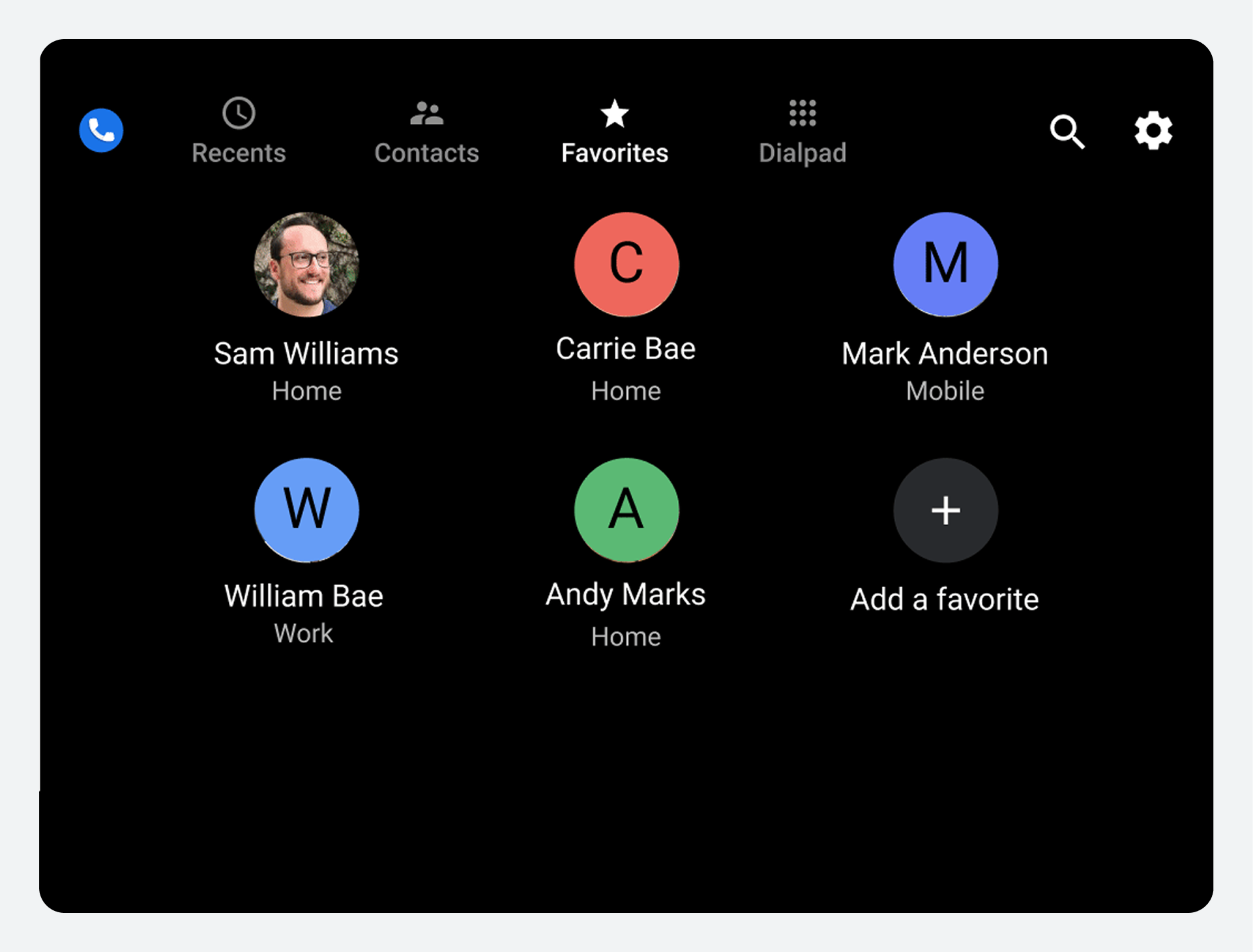
- 选择“收藏夹”选项卡,即可查看他们收藏联系人的网格视图。
- 从列表中选择一位收藏者,即可拨打电话。
每个收藏夹都只与一个电话号码关联,因此从网格中选择收藏夹会立即拨打该号码。

在“收藏夹”视图中添加收藏夹
在“收藏夹”视图中,用户可以按照以下步骤添加新的收藏联系人:
- 点击“添加收藏”按钮。
- 确定要添加的联系人。
- 选择一个或多个电话号码。
1. 选择“添加收藏夹”
当用户选择“添加收藏”按钮时,拨号器会显示一个可滚动的联系人列表和一个搜索栏。
2. 确定要添加的联系人
选择“添加收藏”后,用户可以通过以下两种方式之一搜索联系人:
- 滚动列表选择联系人。
- 使用“搜索联系人”选项。
Selecting Search contacts brings up a keyboard that operates either by touch or by voice, depending on whether the car is parked or moving. In voice mode, users can say the letters or words they are searching for instead of typing them.

拨号器会根据用户输入或说出的搜索条件筛选联系人列表,仅显示符合条件的联系人。然后,用户可以选择要添加为收藏的联系人。
3. 选择电话号码
当用户选择要添加为收藏联系人时,会弹出一个对话框显示该联系人的电话号码。然后,用户可以从对话框中选择一个或多个联系电话。
如果用户选择多个电话号码,则每个号码都会被添加为单独的收藏号码。
在联系方式中添加收藏夹
用户还可以从联系人详情页面添加收藏号码。他们可以通过每个电话号码旁边的切换按钮来完成此操作。

拨打电话
用户可以通过拨号器内的各种视图拨打电话。
他们可以从以下地点拨打电话:
- 顶级联系人视图之一(最近联系人、联系人或收藏夹)
- 联系人详细信息视图
- 拨号盘
Users can also select the Search control on the app bar to find a contact and place a call. Outside of Dialer, users can also place calls from missed-call notifications in the Notification Center. To learn more, see How the Notification Center works .
从顶级联系人视图拨打电话
In any of the top-level lists or grids (Recents, Contacts, or Favorites), a user can select a contact's avatar, the contact name, or the area near these items to place a call to the contact's preferred number. When placing a call and throughout the call, Dialer displays the in-call status screen , which shows call status and provides options for managing the call.


根据联系人的详细信息拨打电话
用户在浏览联系人或最近通话记录时,可以选择联系人的详细信息图标来查看和拨打该联系人的任何可用电话号码。

The detail view of a contact displays all phone numbers for that contact, so the user can choose which one to call. When a user selects one of the listed phone numbers, Dialer places a call to that number and displays the in-call status screen to show ongoing call status and allow the user to manage the call.
使用拨号盘拨打电话
Users can select the Dialpad tab on the app bar to view the Dialpad. There, users can enter a phone number, and backspace as needed to make corrections. As users enter a partial number, Dialer continually updates and displays an alphabetical list of contacts whose numbers match so far. At any point, users can specify the call recipient in either of the following ways:
- 滚动列表并选择联系人拨打电话
- 在键盘上输入电话号码,然后选择拨号按钮拨打电话。

拨号器发起呼叫时,会显示通话状态屏幕,显示通话状态并允许用户管理呼叫。
接听电话
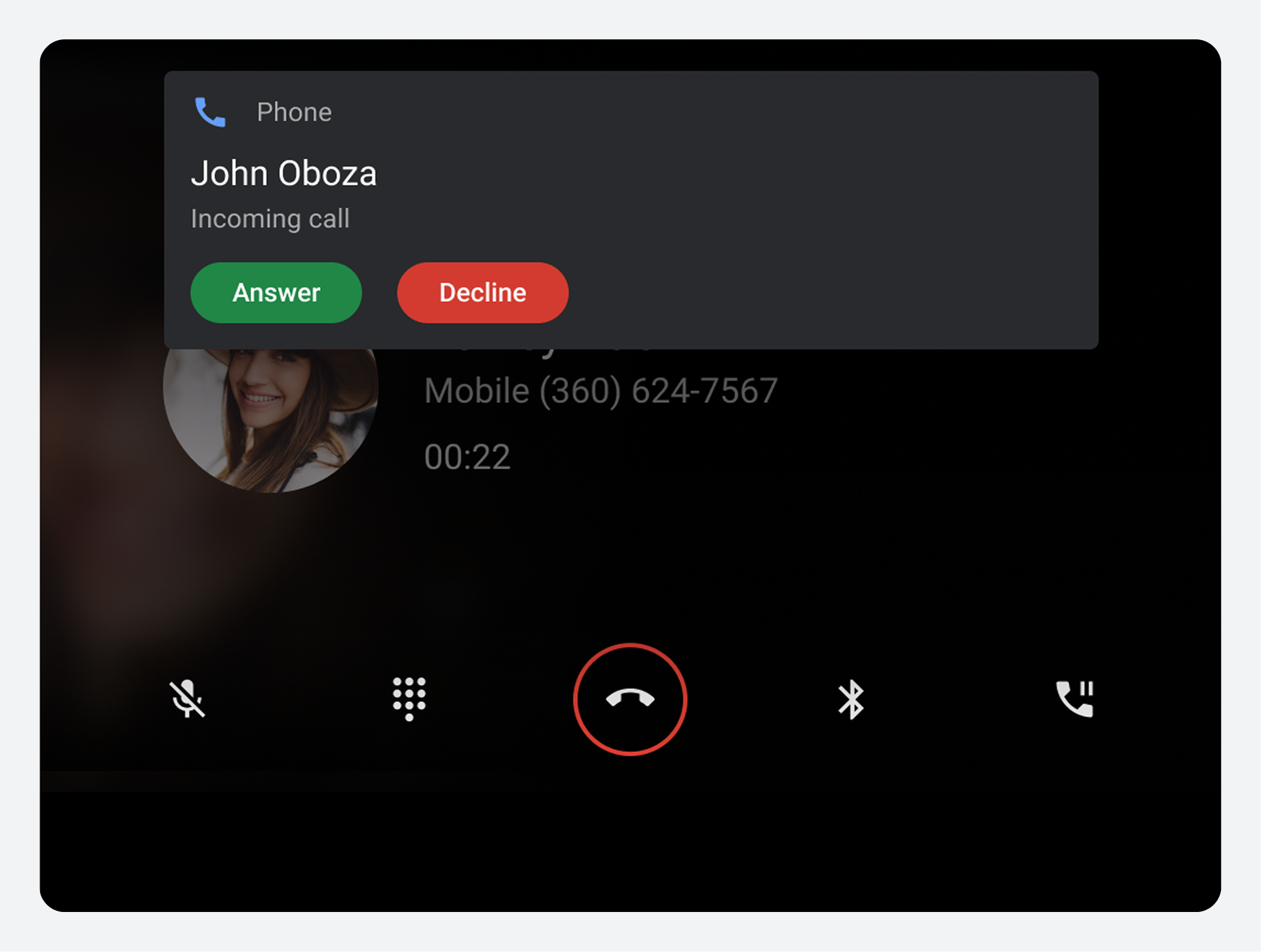
当拨号器检测到来电时,它会向用户发送通知,并提供接听或拒接来电的选项。
拨号器还支持在通话过程中接听其他来电。接听电话的用户可以在通话之间切换,或将多个通话合并成一个电话会议。
接听电话
来电通知会显示来电者的姓名(如果知道)或号码,以及允许用户回复的按钮。

来电通知会一直显示,直到用户执行以下操作:
- 接听电话
- 拒绝接听电话
- 因对方停止来电而错过电话
When the user selects the Answer button, Dialer connects to the call and displays the in-call status screen . The Decline button dismisses the notification, but users can still find info about the missed call in the Notification Center or Recents .
在通话过程中接听另一个电话
通话过程中,用户可能会收到另一个来电的通知。
如果用户接听来电,拨号器将执行以下操作:
- 将当前通话置于保持状态
- 连接到来电
- 在通话状态屏幕的主要部分显示有关新通话的信息
- 在屏幕顶部显示有关已保持通话的信息

当存在正在进行的通话和保持通话时,用户可以:
- 使用屏幕顶部的切换按钮在通话之间切换
- 如果不存在电话会议,则将正在进行的通话和保持通话合并以创建一个电话会议。
- 将当前通话添加到已保持的现有电话会议中。
将通话合并到电话会议中
When a user receives and answers a call while on a call, the original call is placed on hold. The Pause/hold button on the in-call control bar is replaced by a merge call button, giving the user the option to combine both calls into a single conference call.

选择合并通话按钮会将通话合并。
In a conference call, the in-call status screen displays the avatar, name (if known), and phone number for each caller. A status bar at the top of the screen shows the number of callers added to the conference call and the call duration.

If a user receives and answers a call when already on a conference call, the conference call is placed on hold. The user can select the merge call button to combine the calls. The in-call status screen then displays a scrollable list of the callers.

当用户选择“结束通话”按钮时,所有参与方的电话会议都将结束。
管理通话
当用户接听或拨打电话时,拨号器会显示通话状态屏幕和控制栏。
The status screen displays call information and the control bar provides options for managing and ending both placed and received calls. For received calls, the status screen and control bar allow the user to switch between two calls or to merge received calls into conference call.
通话状态屏幕
用户接听或拨打电话后,拨号器会在通话期间显示通话状态屏幕。该屏幕包含以下元素:
- 联系信息(具体信息或一般信息,取决于联系人是否已知)
- 通话状态(连接状态或通话时长)
- 通话中可通过控制栏进行管理或结束通话

联系信息
通话状态屏幕上显示的联系信息会根据拨号器是否识别该联系人而有所不同。


通话状态
在联系信息下方,用户可以看到通话状态信息。可能的状态信息包括以下内容:
| 状态消息 | 描述 |
|---|---|
呼叫 | 用户正在拨打电话,但电话尚未接通。 |
铃声 | 用户正在接听电话,必须选择“接听”或“拒绝”按钮(显示在通话屏幕上)。 注意:只有当用户触摸来电通知但未选择“接听”或“拒接”按钮时,此状态和按钮组才会显示在状态屏幕上。 |
| 00:10(或其他小时、分钟和秒数) | 用户已连接到正在进行的通话,通话时长为所示时间。 |
电话会议状态屏幕
During a conference call, the in-call status screen displays the avatar, name (if known), and phone number for each caller. The status bar at the top of the screen shows the number of callers added to the conference call and the call duration.
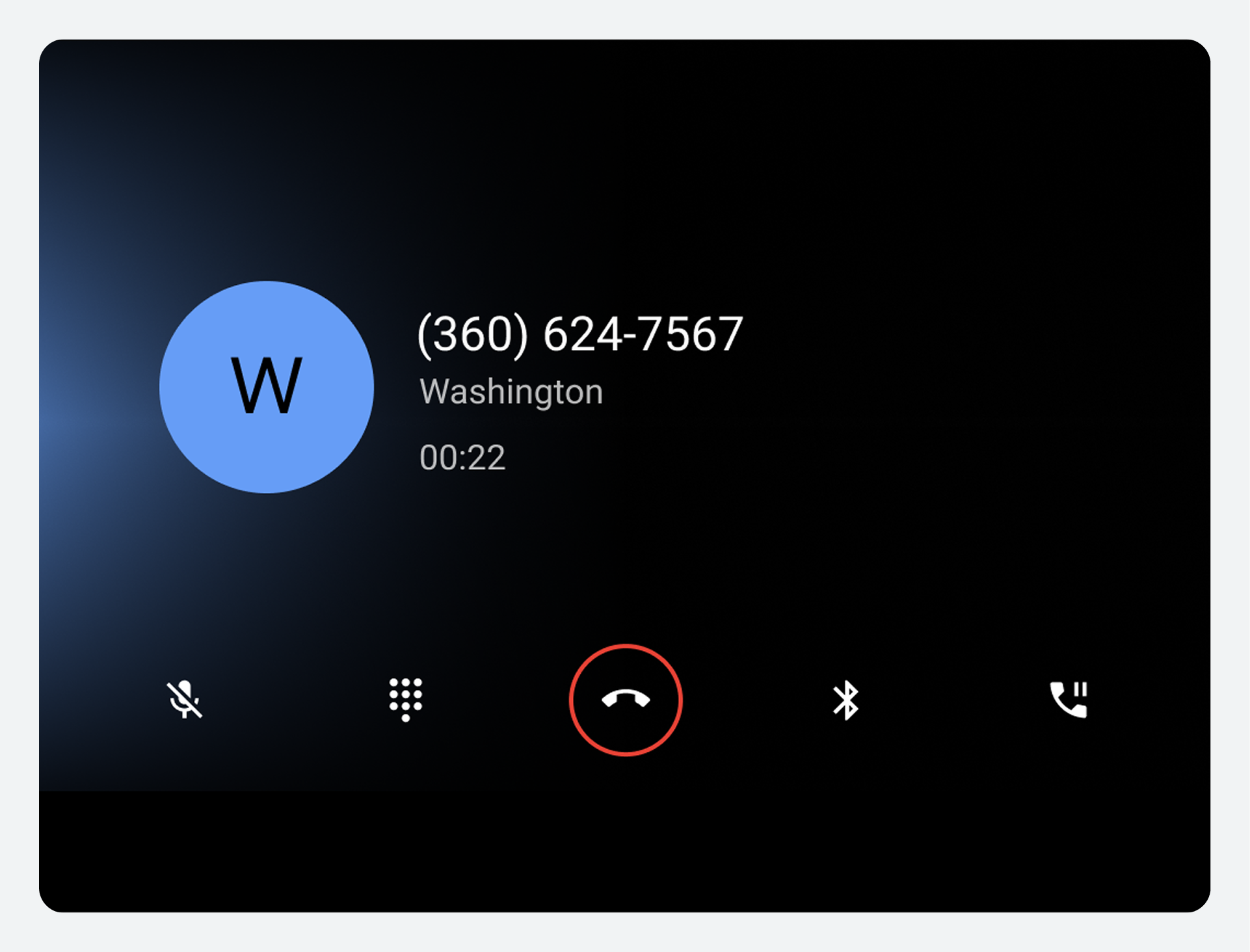
通话状态屏幕和通话管理选项将一直显示,直到通话结束。
控制栏选项
通话控制栏允许用户管理通话。它提供了用户在通话期间可能想要执行的操作的控制选项,包括结束通话。

下表描述了每个控制栏选项:
| 呼叫号码 | 控制栏元素 | 它的作用 |
|---|---|---|
1 | 静音或取消静音 | 允许用户在通话期间将自己静音或取消静音。 |
| 2 | 拨号键盘 | 通话期间可访问拨号键盘,用于执行诸如从编号菜单选项中进行选择等操作。 |
| 3 | 结束通话 | 结束通话 |
4 | 音频源 | 允许用户选择是通过车载扬声器还是通过手机的标准音频输出收听通话。 |
5 | 暂停或保持 或者 合并 | 允许用户在不结束通话的情况下暂停正在进行的通话。 允许用户合并通话以形成电话会议 |
查看最近通话记录
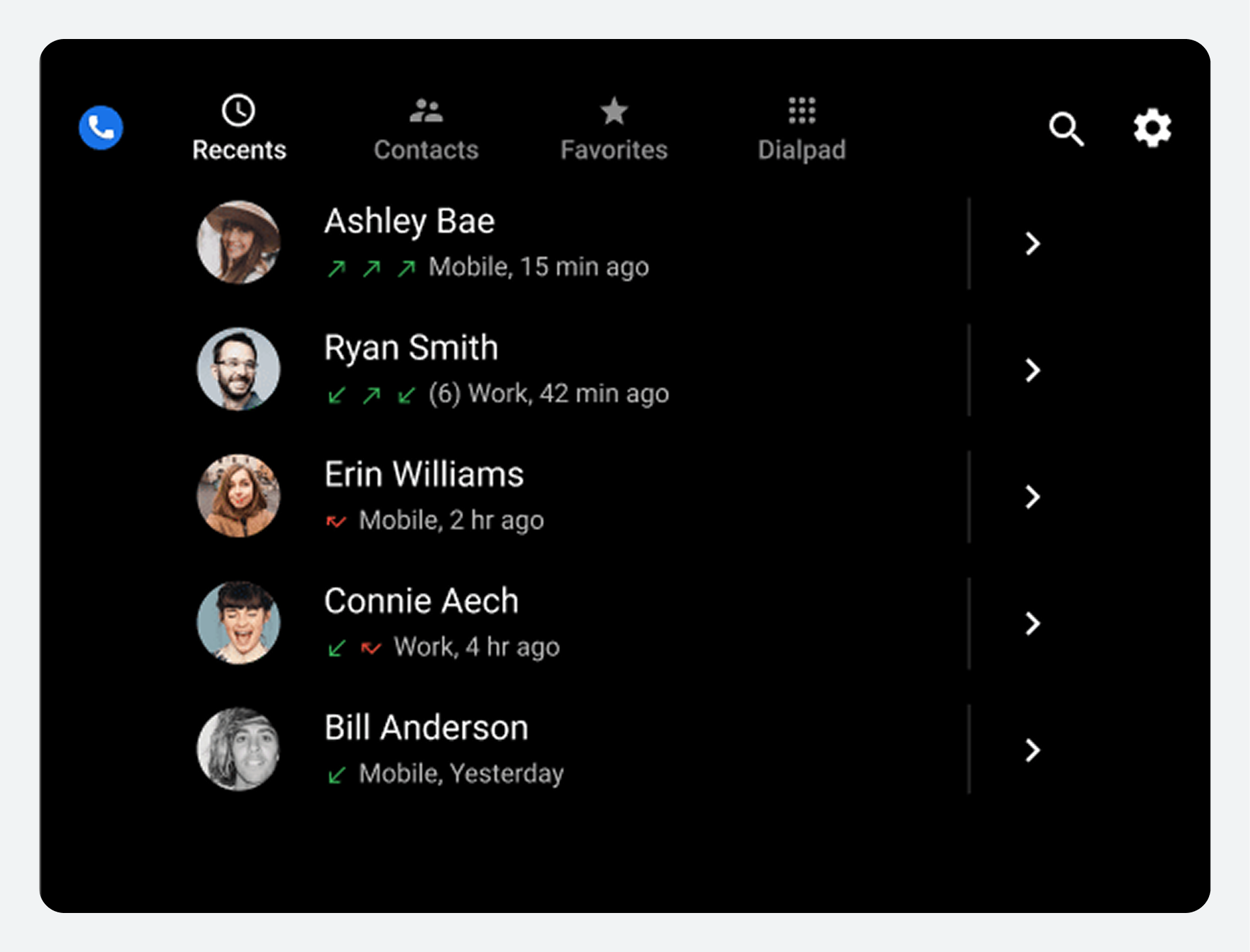
“最近通话”视图按时间顺序列出最近的通话记录,并详细说明通话活动。
用户可以垂直滚动列表,查看通话活动的类型以及每个联系人最近一次活动至今的时间。

“最近使用”视图中显示的详细信息包括:
- 拨打给联系人的电话(绿色向上箭头)
- 收到来自联系人的来电(绿色向下箭头)
- 未接来电(红色箭头)
- 自最近一次通话活动以来经过的时间
- 近期活动总数(括号内),如果大于 3 次
Users can select a contact in the list to place a call to the contact's preferred number. They can also select a contact's details icon on the right-hand side of the screen to see more information about the contact , such as a list of all the contact's phone numbers.
调整设置
在设置菜单中,用户可以选择拨号器的起始屏幕以及联系人的排序方式。
Users access the Settings overlay from the Settings app control in the app bar (the gear icon). In addition to providing menu options for adjusting settings, the Settings overlay includes a back button to return users to their previous location in Dialer.
选择开始屏幕
当用户从“设置”菜单中选择“开始”屏幕时,会弹出一个对话框,显示以下选项:
- 近期
- 联系方式
- 收藏夹
- 拨号键盘
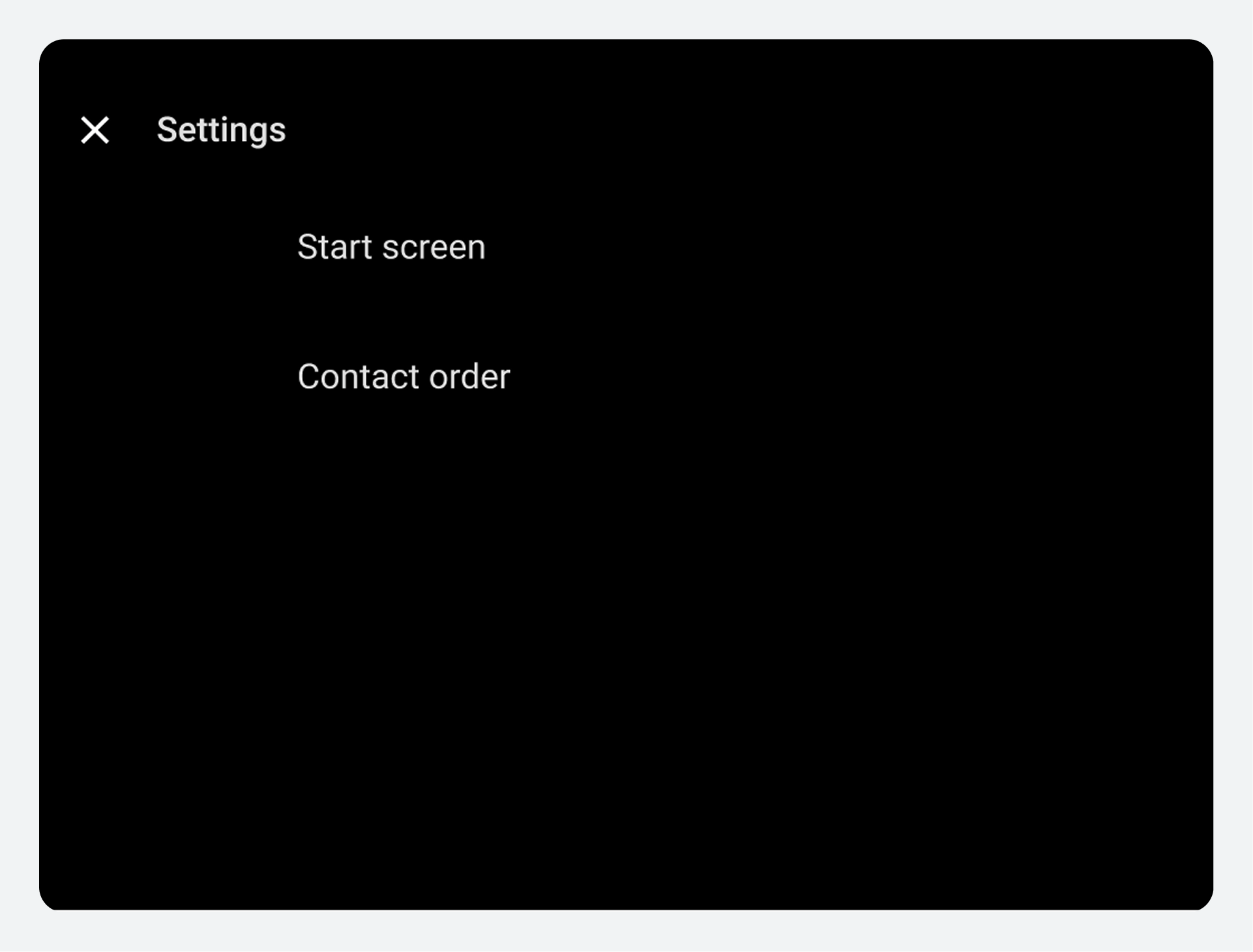
下次用户启动拨号器时,将显示所选的开始屏幕。
指定联系人列表顺序
In the Contacts view, contacts are displayed in alphabetical order by first or last name. When a user selects Contact order from the Settings overlay, a dialog lets them choose which they prefer.
